
Forgot to clock in or out? Fix it in minutes
Every team has missed punches. TimeClock 365 flags them, lets you correct them with approval, and cuts them down with reminders - and with door entries as a safety net.
- Missing-entry filter
- Approval on edits
- Reminders & alerts
What happens when a punch is missed?
The day is left with a clock-in but no clock-out, or the other way round. Hours for that day can't be calculated, and a payroll run on incomplete data means paying too much, too little, or both.
The fix is a short routine: find the gap, correct it with the real times, get it approved. Reminders and alerts keep it from piling up at month-end.
The routine
From missed punch to approved hours
- 1
Spot it
Reminders and "did not clock out" alerts flag the gap the same day.
- 2
Find it
Filter the Detailed Attendance report to missing entries only.
- 3
Correct it
Enter the real punch time in the report - or let the employee do it.
- 4
Approve it
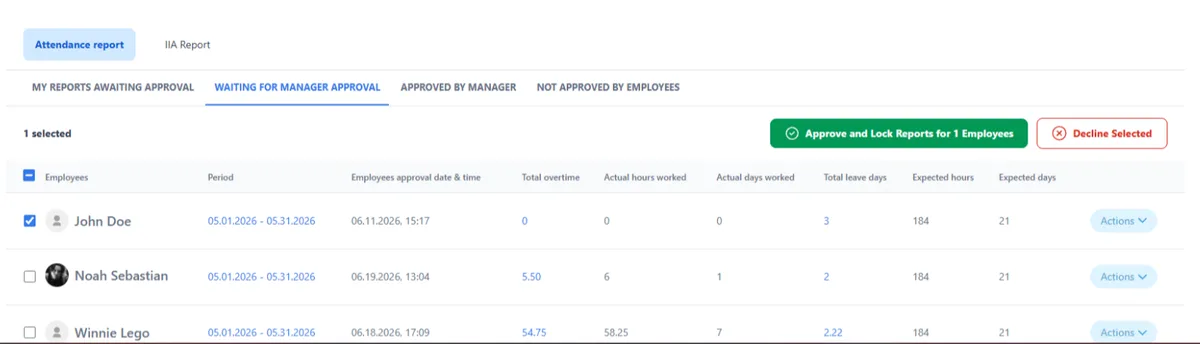
Require manager approval on manual changes, then lock the report.
Correcting
How missed punches are corrected
Show missing entries only
Filter the Detailed Attendance report to "Missing clock-in or clock-out" for one employee or everyone.
✏️Edit in the report
Click the day, enter the entry and exit times, add a note, and save. Quick edits save as you type.
✅Require manager approval
Hours an employee enters by hand wait for a manager's sign-off - per employee or per contract.
Preventing
Stop missed punches before they happen
Clock-in and clock-out reminders
Sent to the app, by email, or both - based on the working time in the employee's contract.
⏰"Did not clock out" alert
The manager is notified a set number of minutes after the employee's standard end time.
🛑Block approval with gaps
Employees can't approve a monthly report that still has a missing clock-in or clock-out.
📬Weekly gaps summary
Managers get a weekly alert about their team's missing attendance entries.
🌙Auto end-of-day alert
Get an email whenever the system closes an employee's day automatically.
👁️Edit alert
Know when an employee edits their own report.
Safety net
Door entries back up every workday
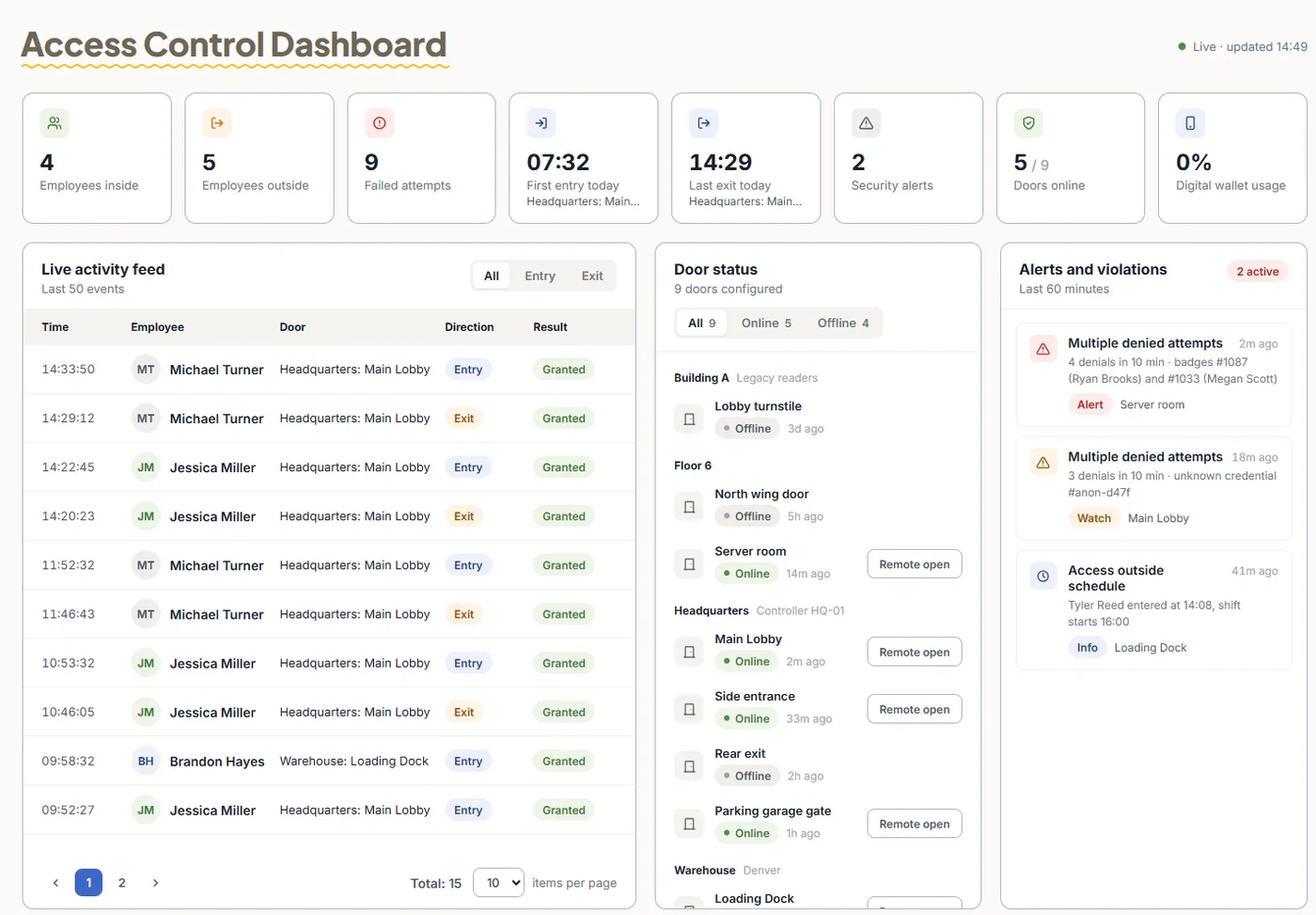
If people already badge in at the door, you don't depend on a separate clock-in. TimeClock 365 combines access control and attendance in one account, so door entries and exits are logged with the same people and the same sites.
- The first entry of the day can start the workday
- The last exit can end it
- One account for doors, hours and reports
Frequently asked questions
What happens if an employee forgets to clock in or out?
The day shows a missing entry in the TimeClock 365 Detailed Attendance report. A manager can add or correct the punch times in the report, or the employee can enter them if they have editing permission. Managers can also require approval for manual changes, so the correction is reviewed before it counts.
How do I find all missing punches?
In Reports > Detailed Attendance, open More filters and choose "Missing clock-in or clock-out". The report then shows only the days with a missing entry, for one employee or for everyone.
Can employees fix their own missed punch?
Yes, if their permission allows editing their own report. You can require manager approval for hours an employee enters manually, per employee or per contract, so every self-correction is reviewed.
How do I remind employees to clock in and out?
In Settings > Contracts > Reminders, turn on clock-in and clock-out reminders. They are sent to the mobile app, by email, or both, based on the working time set in the contract.
Can I be alerted when someone did not clock out?
Yes. Create an alert with "Did not clock out" and set how many minutes after the employee's standard end time the manager should be notified. You can also send managers a weekly summary of attendance gaps.
Can I stop a monthly report being approved with missing punches?
Yes. Turn on "Do not allow approving a monthly report if entries are missing" in the work agreement. An employee with a missing clock-in or clock-out cannot approve the report until it is fixed.
Can door entries replace a forgotten punch?
With TimeClock 365 access control, door entries and exits are recorded in the same account as attendance, so the first entry and last exit of the day can start and end the workday automatically. A forgotten tap on a phone or terminal matters less when every door passage is logged.
Can I see when employees edit their own reports?
Yes. Set an alert for users who edit their own report, so managers are notified as it happens. Manual changes can also be set to require manager approval.
Related
No more chasing missing punches
Book a 30-minute demo and see reminders, alerts and approvals in action.