
Overtime control for shift scheduling
Overtime is where payroll leaks. Set the rules once, get an alert when someone goes over, and approve every hour before it reaches payroll.
- Weekly overtime alerts
- Tiered rates
- ISO 27001 certified
What is overtime control?
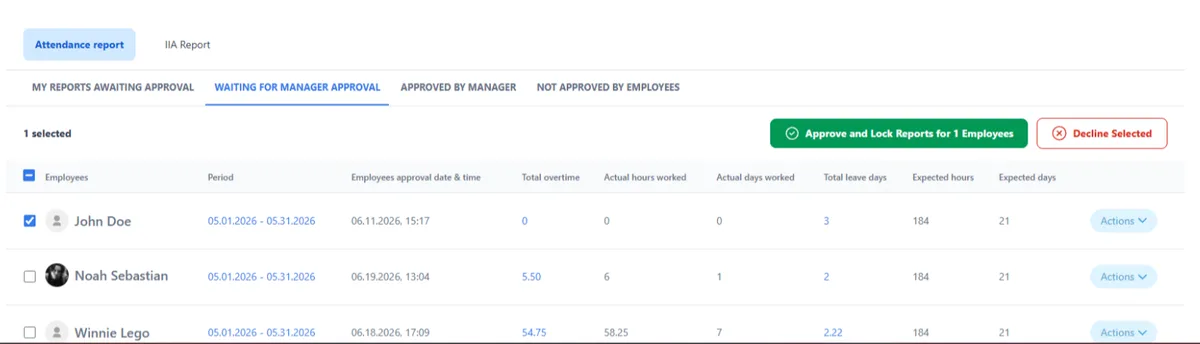
Overtime control means knowing - before payroll - who worked beyond their contracted hours, at which rate, and whether it was approved. Without it, extra hours are found only when the payslip is already wrong.
TimeClock 365 calculates overtime from each employee's work agreement on every punch, and alerts managers when hours run over.
Overtime rules
Daily, weekly or monthly - per work agreement
| Rule | Example |
|---|---|
| Daily | 8 standard hours, then 2 hours at 125%, then 150% |
| Weekly | 42 regular hours, then the next 10 at 125% |
| Monthly | (actual + paid absences) - standard - breaks |
| Night shift | Separate rules for hours between e.g. 18:00 and 01:00 |
Alerts
Know before payroll, not after
Weekly overtime alert
Email to managers listing everyone who exceeded weekly hours by more than your threshold.
Did not clock out
Alert a set number of minutes after the employee's standard end time.
Auto end-of-day
Know when the system closed someone's day automatically.
Unapproved reports
Get a list of employees who haven't approved their report.
Shift planning
Plan shifts that fit the contract
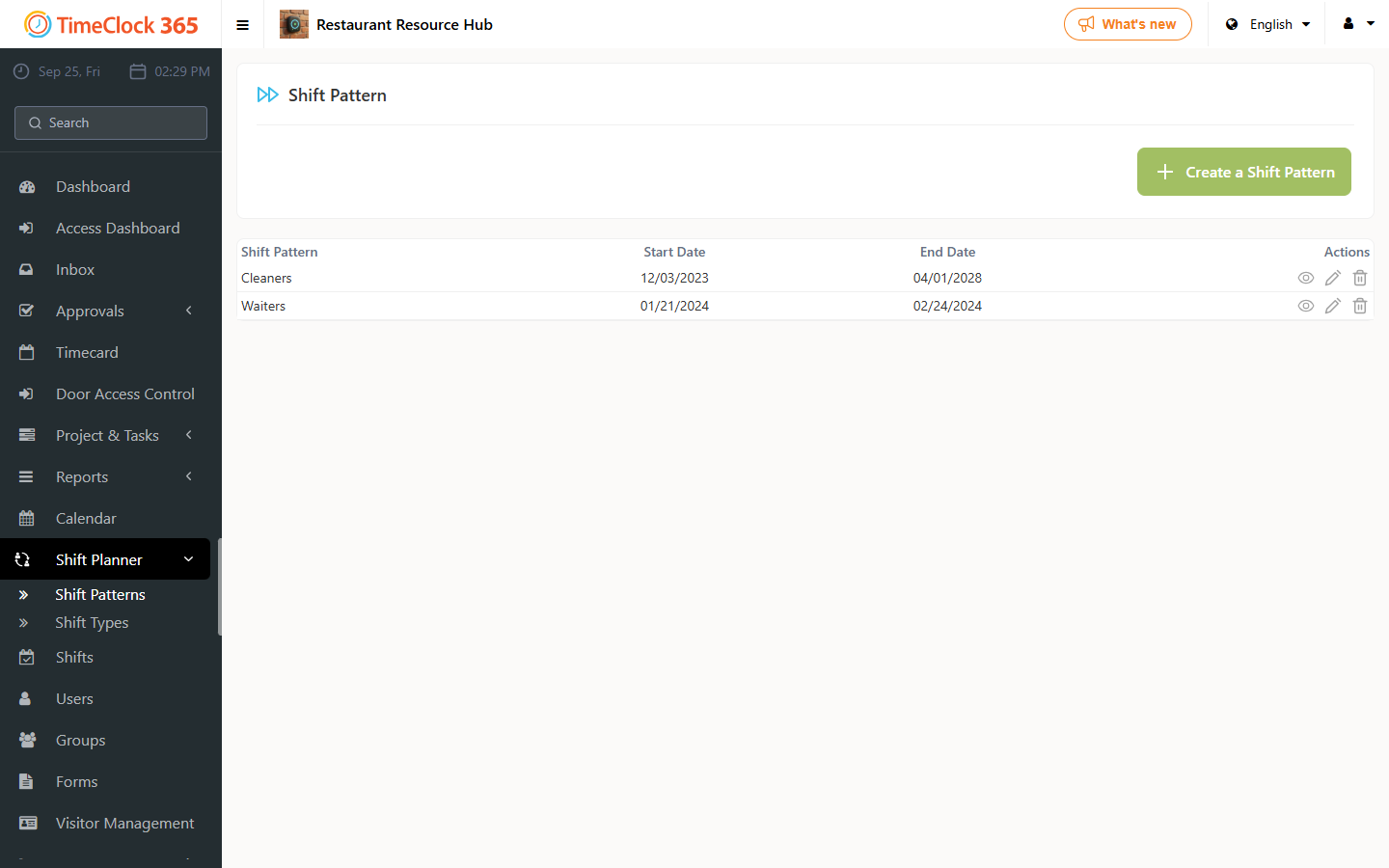
With the Shift Management add-on, build repeating shift patterns and assign them to employees. Shifts appear in the calendar and in the attendance report, next to the hours actually worked.
- Shift types with code, color and hours
- Repeating patterns assigned per employee
- Day / night split report
Pricing
Door access control from $1.90 per user / month
Attendance from $3.90, Attendance + Access Control $4.90 per user / month, billed annually. Shift Management is an add-on - pricing on request.
Frequently asked questions
Which scheduling systems alert managers about overtime?
TimeClock 365 can email managers a weekly summary of employees who exceeded their contracted weekly hours by more than a threshold you set - for example more than 2 hours. Other alerts flag employees who did not clock out, days closed automatically by the system and full-day absences. Alerts are set up in the Alerts screen.
How does TimeClock 365 calculate overtime?
Each work agreement (contract) defines standard hours per day and overtime tiers, for example 2 hours at 125% and then 150%. Overtime can also be weekly - for example after 42 hours - or monthly, using (actual hours + paid absences) - standard hours - breaks. TimeClock 365 applies the contract to every punch automatically.
How can I restrict overtime with shift planning?
Plan shifts with the Shift Management module so each employee has a defined pattern, set their standard hours in the work agreement, and turn on the weekly overtime alert. Managers then see who went over before the pay period closes, and approve or correct the report before payroll.
Are night shifts calculated differently?
Yes. A Night Shift tab in the work agreement sets separate overtime rules for night hours, for example starting after a set number of hours between 18:00 and 01:00. Hours can also be split into day and night shifts in a shift report.
Can overtime go straight to payroll?
Yes. Overtime appears in the Detailed Attendance report with each rate. After manager approval, export it to QuickBooks, HiBob, GreytHR or a payroll file, with payroll codes per rate.
Can door entries count as clock-ins?
Yes. TimeClock 365 is a cloud door access control system first. With Attendance + Access Control ($4.90 per user per month, billed annually), the first door entry can start the workday, so overtime is based on when people really arrived and left.
Related
Stop overtime surprises on payday
Book a 30-minute demo or try the full platform free for 14 days.