On an iOS device go to the “App Store” App, enter “TimeClock 365” in the search bar. Install the App.
On an Android device got to the “Play Store” App, enter “TimeClock 365” in the search bar. Install the App.
Once you have installed the app on your device, you can log in.
Enter the username and password which were sent to you by email and tap on “Continue”.
Timeclock 365 will keep you signed in, even when you are not using the app.
Depending on your company’s settings the app will ask for permission to track your location. In that case, to use the app, you have to give it permission to track your location.
Updating your timesheet on mobile
Find and open the Timeclock 365 app on your mobile device
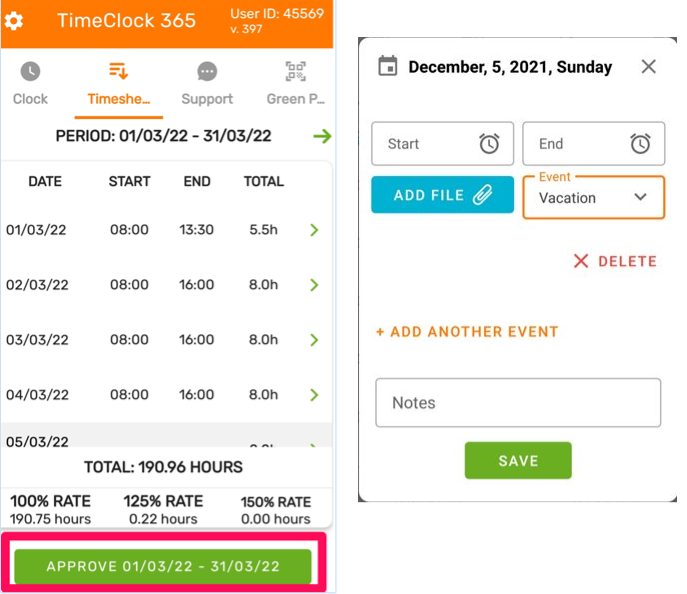
Go to the “Timesheets” tab
Tap the row of your choice to edit time entries for the day
At the top you can select the Time Period.
At the end of every row for every day in the month, there is an hours total for the day.
Below the table is the hours total for the month, as well as the pay rates for your working hours.
If you click on any of the rows, you can view and edit any punch-in, punch-out, or absence that happened on that day.
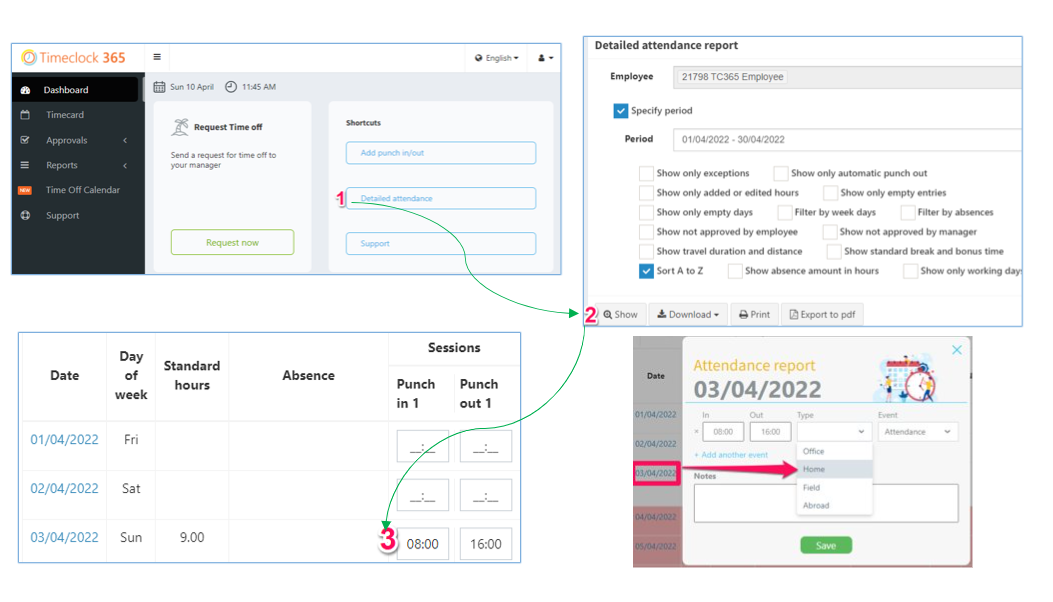
In the “Type” cell, choose your location from the dropdown menu: Home, Field, Office, or Abroad.
Requesting Time Off on Mobile
From the main screen tap “Report leave”
Tap “Absence reason” to select type
To request full days off, select “Full Day” and select the dates From/To
Additional Information:
For the leave types “Maternity medical exams Leave” and “Military Reserves OUTSIDE of working hours” select the date and fill in the hours (Full/Half days are disabled).
Duration of X½ days (e.g. 3½ days) can be accomplished via two requests: one with the full days and a second with the half day.
If you’re doing military reserves within AND after your standard work hours on the same day, request them separately.
Approving your Timesheet on Mobile
Go to the “Timesheets” tab
Choose a time period
Review the timesheet. If a correction is needed on certain dates tap on the corresponding row and correct your start/end via the time selector.
To add time off, select it in the “Event” field
To remove time-off completely, tap the “X Delete” button
Tap “Approve” at the bottom of the timesheet screen to approve the timesheet
Timeclock 365 in the Web Browser
Login
Open the internet browser of your choice, and enter this URL into the address bar: live.timeclock365.com
Enter your company’s username and password and click “Continue”
From the dashboard, click “Detailed attendance” -> On that page click “Show” -> Scroll to today’s date and fill in the start/end time. If you’re working from home, click the date on the timesheet, and under “Type” choose “Home”
Updating Timesheets
Request Time Off
How to request time off:
From the main screen click “Request now”
Click “Absence” to select type
To request full days off, select “Full Day” and select the dates From/To
How to request a half day off:
Select “Half Day” and “First/Second” depending on which half your taking, and select the date
General Remarks:
For the leave types “Maternity medical exams Leave” and “Military Reserves OUTSIDE of working hours” select the date and fill in the hours (Full/Half days are disabled).
Duration of X and a half days (e.g. 3½ days) is being done as two requests: one with the full days and a second with the half day.
If you’re doing military reserves within AND after hours on the same day, request them separately.
Approve your Timesheet
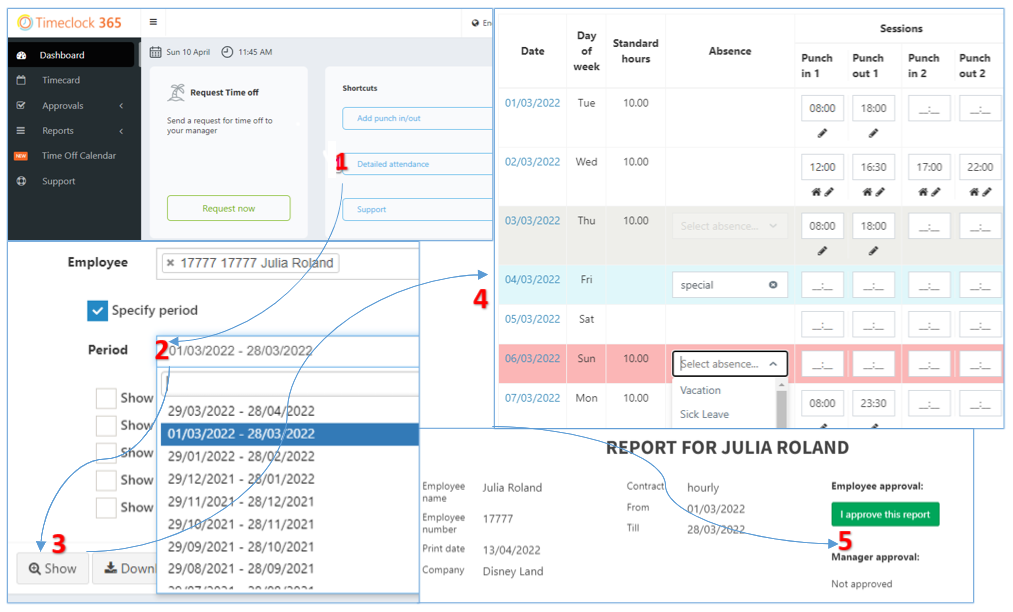
On your dashboard click on “Detailed attendance” in the shortcuts tab.
Select the period
Review the timesheet. If a correction is needed on certain dates, find them and correct your start/end time
To add time off, select it on the “Absence” column