Note: This manual applies only to TimeClock 365 terminals – Biometric Clocks, and stand-alone Door Access Controllers. For assistance with devices purchased elsewhere, please contact your vendor.
1. Connect the Biometric Clock / Door Access Controller
Connect the device to your local network.
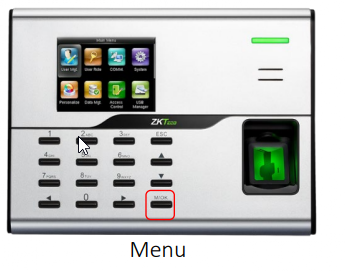
Press the Menu button and navigate to Com settings.
Enable the DHCP option. If already enabled, toggle it off and then back on to refresh the DNS settings.
2. Confirm Network Connection
Press the Esc button several times to return to the main screen.
Ensure the globe icon in the upper-right corner is blue, indicating a successful server connection.
3. Assign Employees to the Terminal
Important: Do not add employees directly on the terminal, as they will not sync with the system.
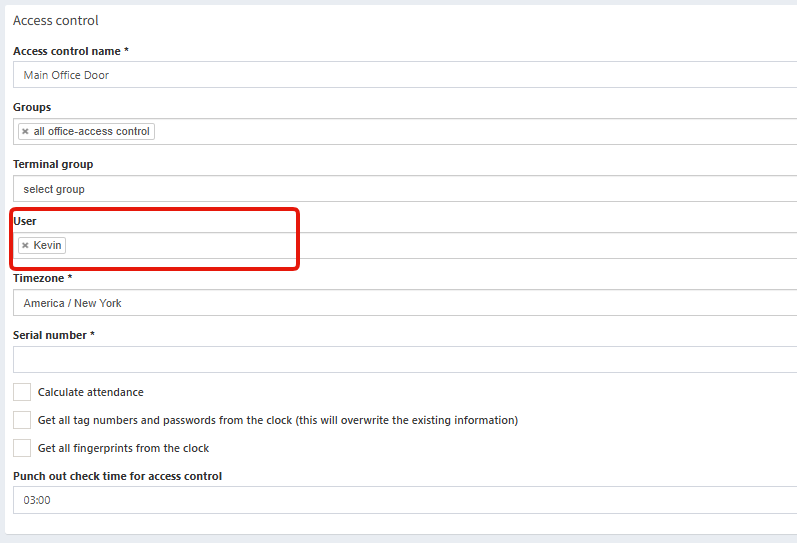
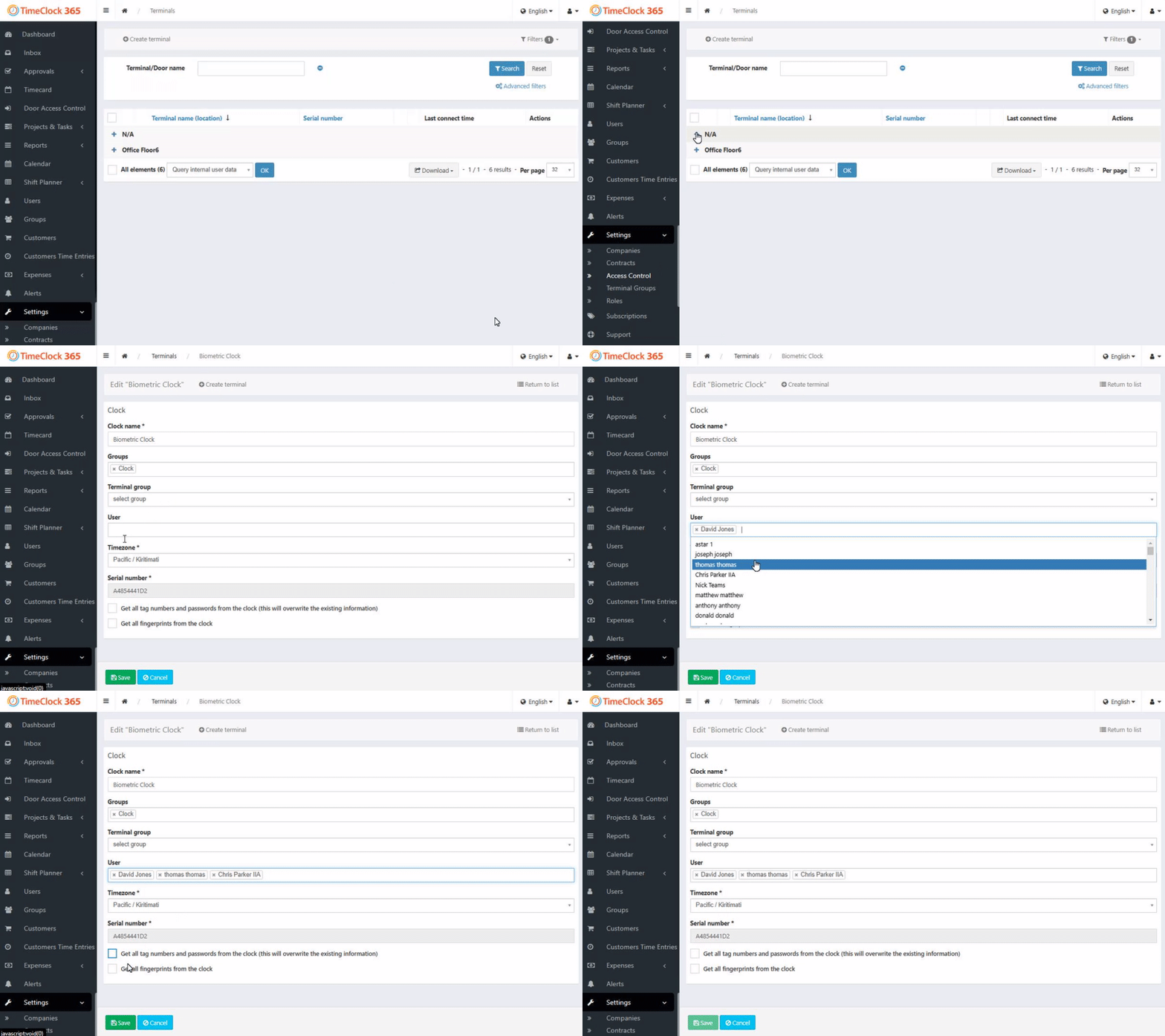
In the TimeClock 365 web portal, go to Settings > Access Control.
Select Edit on your clock, assign the employees, and click Save.
4. Enroll Fingerprints and Tags
On the terminal, press Menu > User Mgt > All Users.
Select the user and go to Edit > Fingerprint.
Register the fingerprint by having the employee place their finger on the scanner three times until it shows OK.
To add a badge, select Tag Number and swipe the card to register it to the employee.