
This guide explains how to permanently delete an absence type (time off type) from the system.
Important limitation: to protect your historical data, an absence type can only be deleted if no employee has ever used it. If it has been reported even once, the system prevents its deletion.
Deleting the absence type
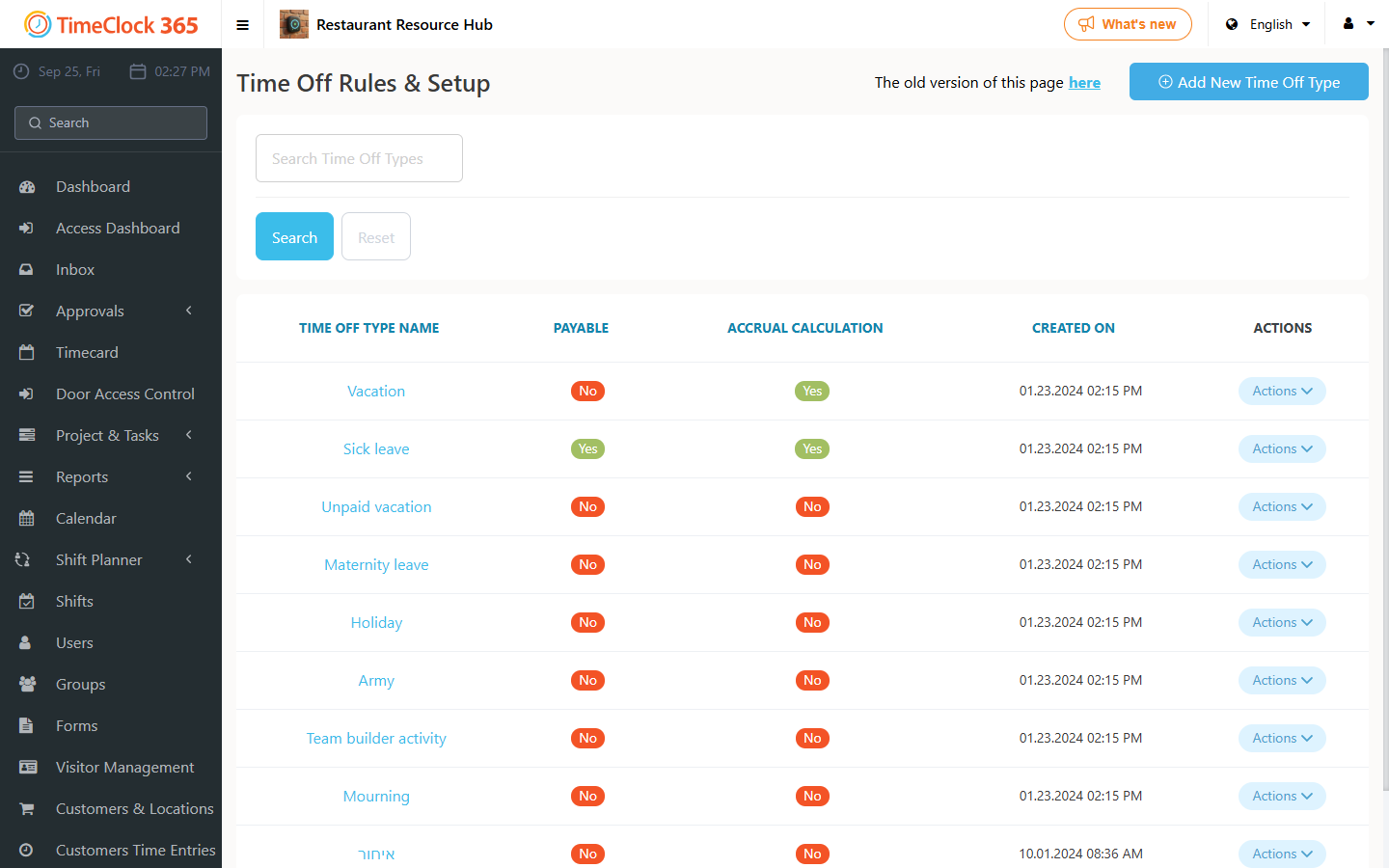
- Go to Time Off Settings.
- Locate the absence type you want to delete.
- Click the trash can icon next to its name.
If the delete icon is missing
If there is no trash can icon next to an absence type, it has been used in the past and is linked to historical attendance records. The system does not allow deletion because it would compromise historical data. Instead of finding and deleting every past entry, the best practice is to make the absence type invisible to all users, which effectively archives it.
Deactivating the absence type
- In Time Off Settings, locate the type you want to deactivate (for example, an outdated "Vacation" type).
- Check the box Allow only to the following roles.
- Leave the role selection field that appears next to it completely empty. With no roles assigned, no user can see or use this absence type.
- Scroll to the bottom of the page and click Update to save.
Result
- The deactivated absence type is no longer visible to any user. It does not appear in dropdown menus when requesting time off, or when adding an event in the Detailed Attendance report.
- All historical data is preserved, but no new entries can be created with this absence type.