
As a Group Manager, you can monitor your team's current status (working or not working) directly from your dashboard or the mobile app.
Check status on the dashboard (web)
- Log in to your TimeClock 365 account on the web platform.
- On the dashboard, scroll down to the Punched In block. It first shows the employees who are currently punched in (working), with the time they punched in, the type of work and their location.
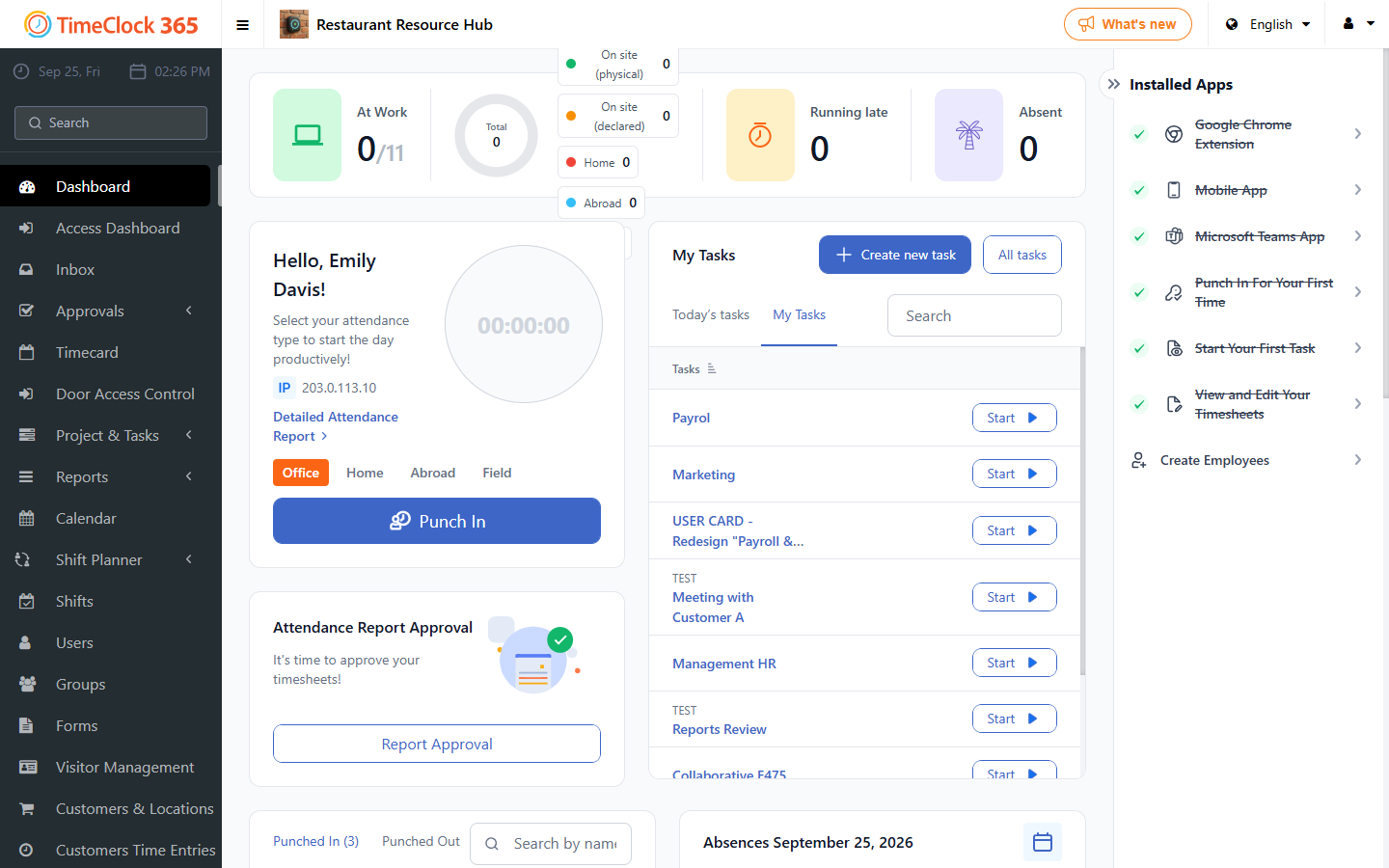
To see employees who are not working, click the corresponding tab, use the search/filter, or check the separate Punched Out or Absences block on the dashboard.
Check status on the mobile app
- Open the TimeClock 365 mobile app and log in to your Group Manager account.
- Tap the Working tab in the top navigation bar.
- The screen has two tabs: WORKING NOW and NOT WORKING NOW. WORKING NOW is selected first and lists the team members who are currently punched in, with their name and, where available, their current task or activity.
- To see who is not working, tap NOT WORKING NOW.
View absences (time off) on the dashboard
The dashboard also shows who is absent today and lets you check planned absences for other dates.
- Log in to your TimeClock 365 account on the web platform.
- On the dashboard, find the Absences block. It shows who is absent today, with details such as the return date.
- To view another date (past or future), click the calendar icon at the top right of the Absences block and pick the date in the calendar widget. The block updates to show who is absent on that day.