
This guide explains how to mark a task as complete. Completing a task is an administrative action that closes it and prevents employees from tracking any more time against it. You can complete a task for all assigned employees at once or for specific individuals.
Prerequisite
Your user role must have the Complete/restore task for all users permission enabled. An administrator can configure this in Roles by editing the relevant role.
Complete a task
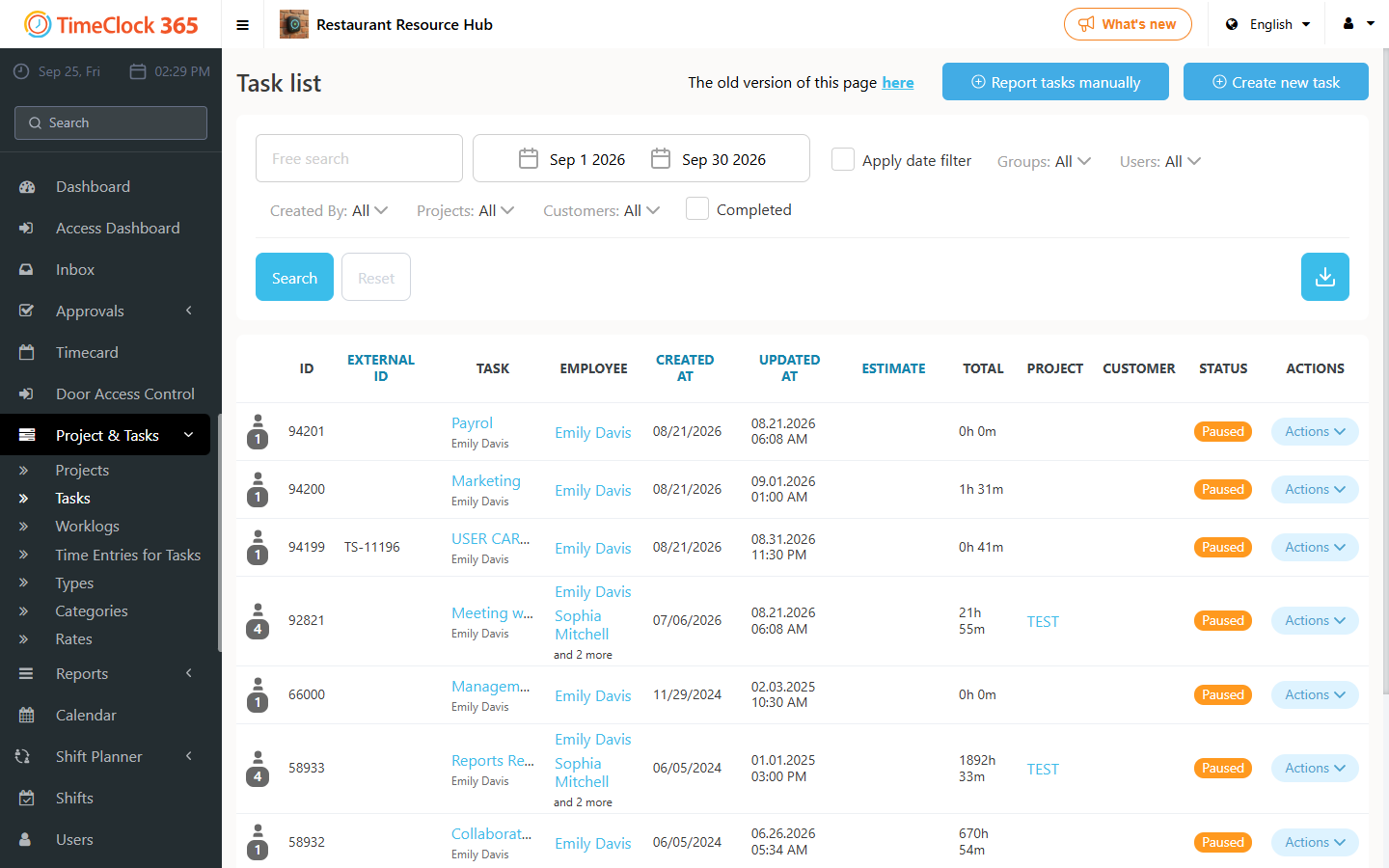
- Go to Projects > Tasks in the main menu.
- Locate the task you want to close in the task list.
- Click the Actions dropdown on the right side of the task row.
- To close the task for everyone, select Complete for all users. The task is closed and unavailable for time tracking for all associated employees.
- To close it for specific employees, select Select Users to Complete/Reopen Task. A window opens listing all employees currently assigned to the task. Click Complete, or tick the box next to each employee for whom you want to close the task.
Note: The same logic can be used to restore a completed task, for all employees or for specific ones.