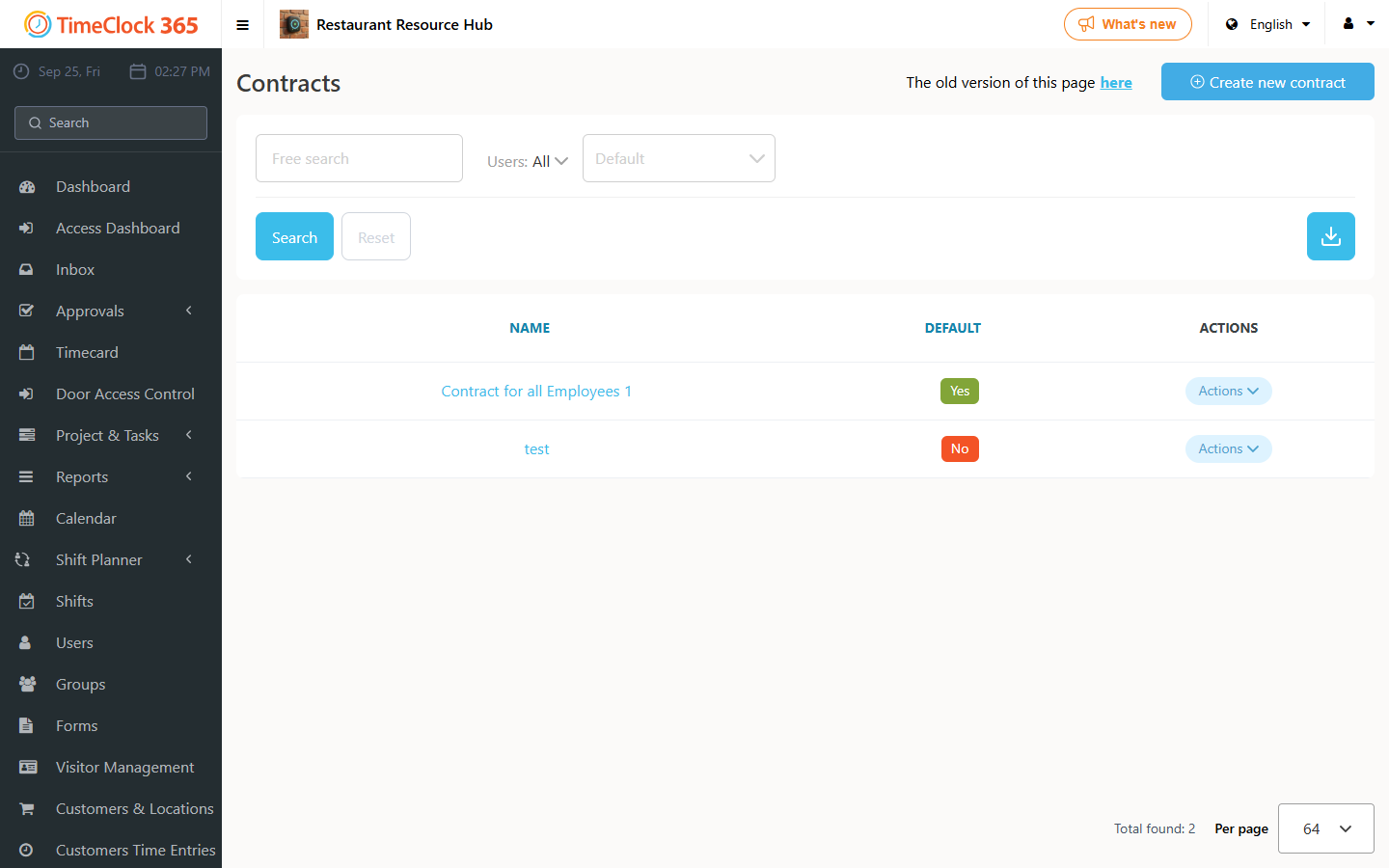
This guide explains how to permanently delete a contract. The system does not allow deleting a contract that is linked to an employee's history (active or inactive), to protect the integrity of past reports. You must first unlink the contract from all associated employees.
Unlink the contract from employees
- Go to Users in the main sidebar.
- Find an employee who is or was associated with the contract. Use the page filters to include inactive employees if necessary.
- Click the employee's name to open their profile.
- Open the Payroll & Salary tab, where you can see the employee's entire contract history.
- Find the row of the contract you want to unlink and click the trash can icon next to it. This removes the historical record from this employee.
- Repeat steps 2-5 for every employee who has ever been assigned this contract. The contract cannot be deleted until it is unlinked from all user histories.
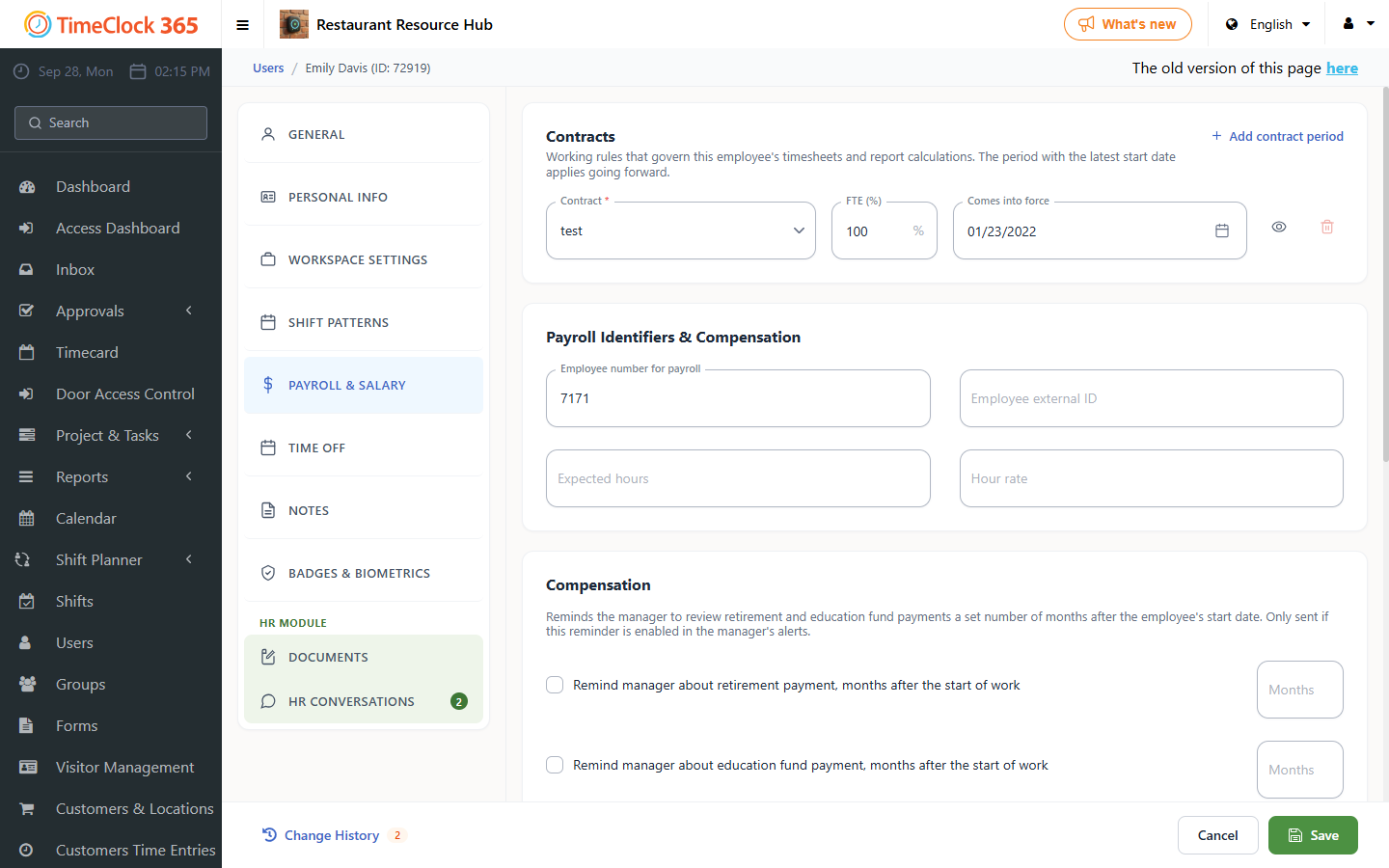
Delete the contract
- Once the contract is completely unlinked, go to Contracts.
- Find the contract you want to delete in the list.
- Click the Actions button on the right side of the contract row and select Delete.
The contract is now permanently removed from the system.