
Welcome to the new Detailed Attendance Report! This powerful tool gives you a complete, day-by-day breakdown of employee time and attendance. This guide will walk you through its features, including the advanced filtering and export options, to help you get the most out of your data.
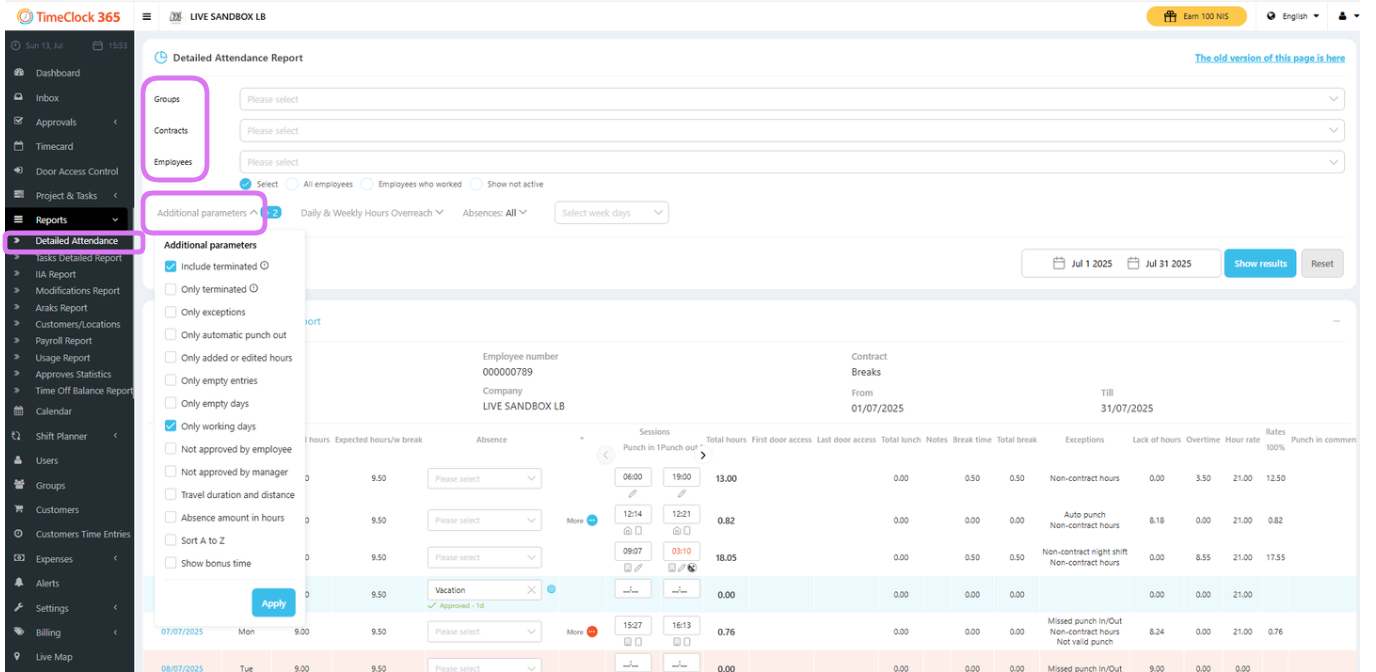
While the main report data is similar to the previous version, the new toolbars at the top provide enhanced flexibility and control. You can find the old version by clicking the link at the upper right of the Detailed Attendance Report page.
1. Using the Filters Toolbar
Report Filter Options
- Filter by Groups: Display data only for employees in specific groups.
- Filter by Contract: Show employees assigned to a particular contract.
- Filter by Employees: Select one or more specific employees to view.
- Filter by Absence Type: Isolate data to show only certain absences, like Vacation or Sick Leave.
- Additional Parameters (Advanced Filtering):
- Include terminated employees: Shows active employees plus any employees whose termination date falls within the selected period.
- Show only terminated employees: Filters the report to show only terminated employees.
- Exceptions: Displays only rows with data anomalies, such as exceptions or missing punches.
- Automatic clock out: Shows only shifts that were automatically ended by the system.
- Only added or edited hours: Highlights all time entries that were manually added or edited by a user.
- Only empty entries: Filters for shifts that are missing either a clock-in or clock-out time.
- Only empty days: Shows days where an employee was scheduled to work but recorded no attendance or absence.
- Only working Days: Hides days that are not defined as standard workdays in the employee’s contracts (for example weekends).
- Not approved by employees/managers: Filters for timesheets that are still awaiting approval.
- Travel duration and distance: Shows or hides corresponding columns.
- Show absences in hours, Sort A-Z: Additional display and sorting options.
2. Using the Actions Toolbar
Once you’ve filtered your data, the actions toolbar lets you print, download, or view the results.
- Print: Generates a print-friendly version of the current report view.
- Download: Export the report in various formats, including:
- Excel: A standard Excel file.
- Excel (Separated): An Excel file optimized for payroll systems.
- Consolidated Excel: A summary view in Excel.
- And many other formats tailored for specific accounting and payroll software (e.g., Hilan, Shiklulit, Michpat, Oketz, TRIO).
- Show Reports: Click this button after setting your filters to refresh the on-screen display with the results.

3. Selecting a Date Range
You can easily specify the time period for your report. Click the date range to open a menu with several quick options:
- By day
- By week
- By date range
- By period (e.g., this month, last month)
