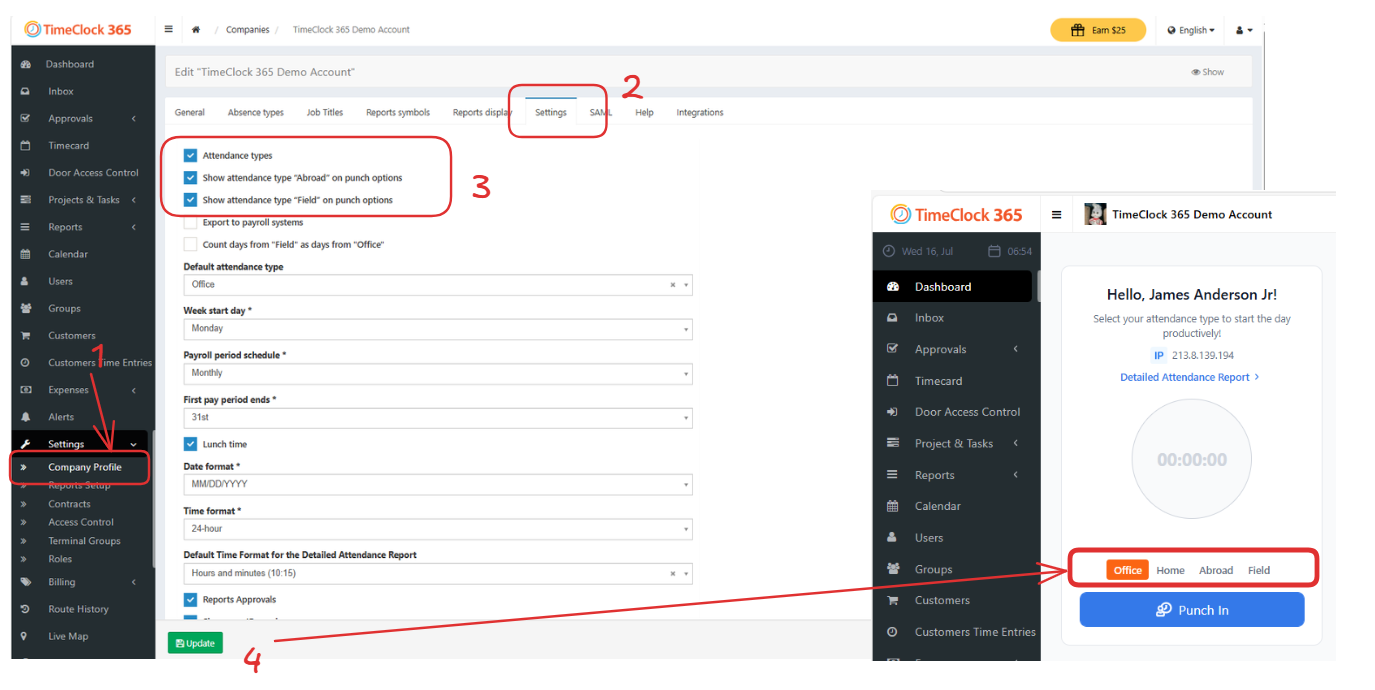
This guide explains how to configure the attendance type buttons that appear on the employee clock-in screen. By enabling this feature, you can allow employees to specify their work location—such as Office, Home, Field, or Abroad—when they punch in, providing greater clarity for attendance tracking and reporting.
Important Note for Compliance Reporting:
For specific compliance needs, such as reporting for the Israel Innovation Authority or other regulatory bodies, it is often better to log international work as a formal absence type (e.g., “Business Trip Abroad”) rather than using the “Abroad” clock-in button. This provides a more formal record for audits.We recommend consulting with your relevant authority or accounting professional before enabling these buttons to ensure your reporting methods meet all requirements.
Step-by-Step Instructions
Navigate to Settings → Company Profile.
Click on the Settings tab at the top of the page.
Enable and Customize Attendance Type Buttons:
Enable the Feature: First, ensure the Attendance types checkbox is checked. This master switch activates the entire feature.
Show “Abroad” Button: Check the box for Show attendance type “Abroad” on punch options to add a button for international work.
Show “Field” Button: Check the box for Show attendance type “Field” on punch options to add a button for work done on-site or in the field.
Set the Default: Use the Default attendance type dropdown menu to select which button will be pre-selected for employees when they go to punch in (e.g., “Office”). This saves them a click for their most common work location.
Click Update at the bottom of the page to save your changes.
Add Your Heading Text Here