
Automatic Punch Time Rounding: A Guide to Configuration
This guide explains how to configure rules that automatically adjust employee punch-in or punch-out times.
This feature is ideal for standardizing work hours, simplifying payroll, and managing cases where employees arrive slightly early or stay late.
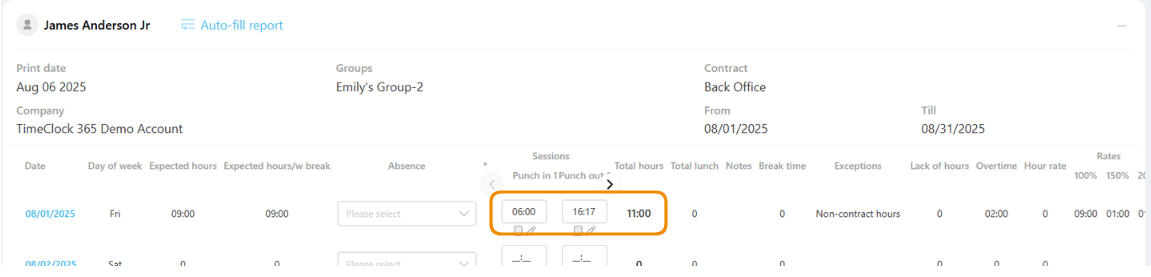
As shown in the example below, an employee punched out at 16:17. However, thanks to a rounding rule that rounds up to 17:00, the system automatically calculated their total work time based on the rounded hour, resulting in a shift from 06:00 to 17:00.
Step-by-Step Guide
You need to access the specific contract where you want the rounding rule to apply and configure the rounding rule.
- Navigate to Settings in the main menu.
- Select Contracts from the list and click on the relevant contract you wish to edit.
- Scroll down and expand the “Rounding hours” tab. Configure the rule by defining the following:
- Condition: Specify whether the rule applies to an employee punching in or punching out.
- Time Range: Set the time window during which the rule is active (e.g., between 16:00 and 17:10).
- Rounding Time: Define the exact time the system should round to (e.g., calculate hours till (for punch out) 17:00).
- Days: Select the specific day(s) of the week the rule applies to.
- Click “Save” at the bottom of the page to apply the rule.
