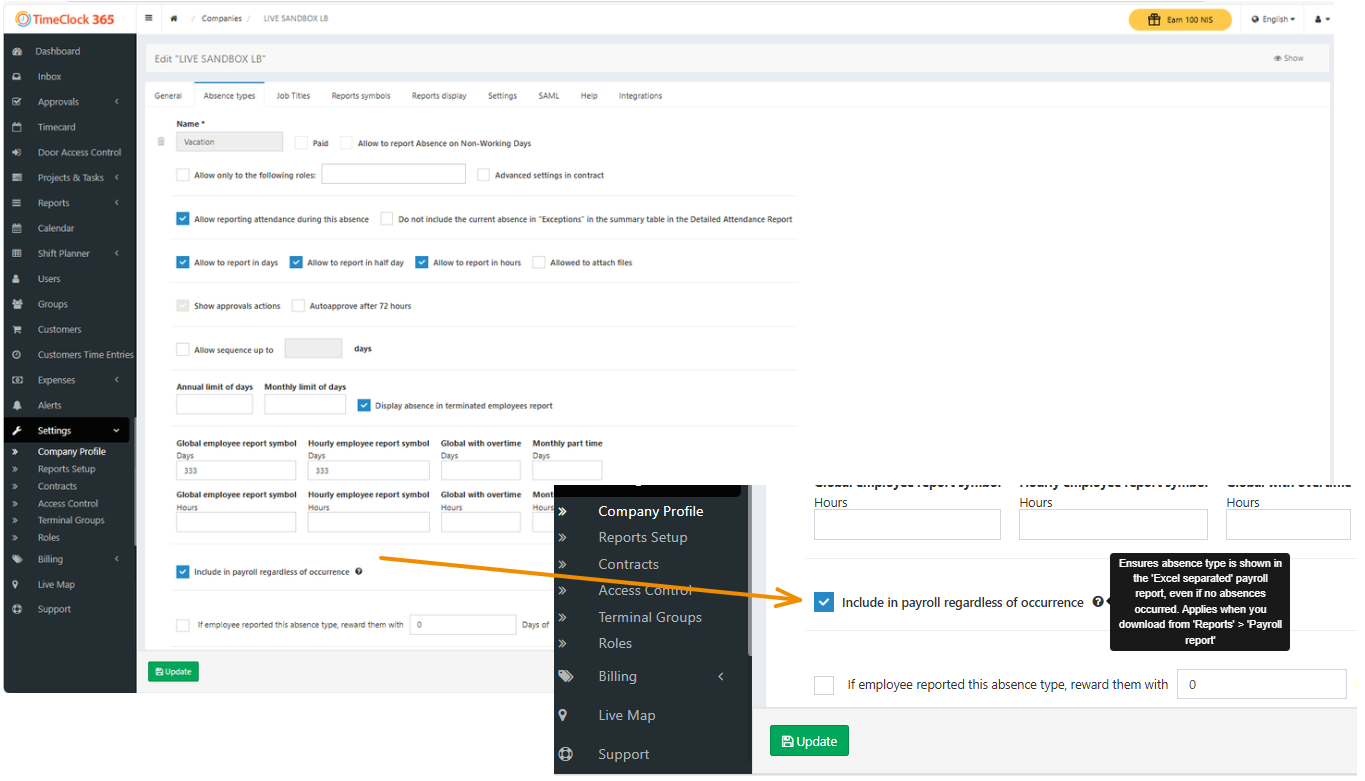
This guide explains how to configure an absence type so that it always appears as a column in the Excel payroll report, even if no employees reported that absence during the selected period. This is useful for maintaining a consistent report structure for accounting or data analysis.
Step-by-Step Guide
- Navigate to Settings in the main sidebar and click on Company Profile.
- Select the Absence types tab from the top menu.
- Locate the absence type you wish to configure (e.g., Vacation).
- Scroll to the bottom of the page to locate the advanced options.
- Check the box labeled “Include in payroll regardless of occurrence.”
- Click the Update button to save your changes.
Result: The selected absence type will now always be included as a column in the “Separated by month” payroll report that you download from the Reports > Payroll Report page, ensuring a consistent format every time.