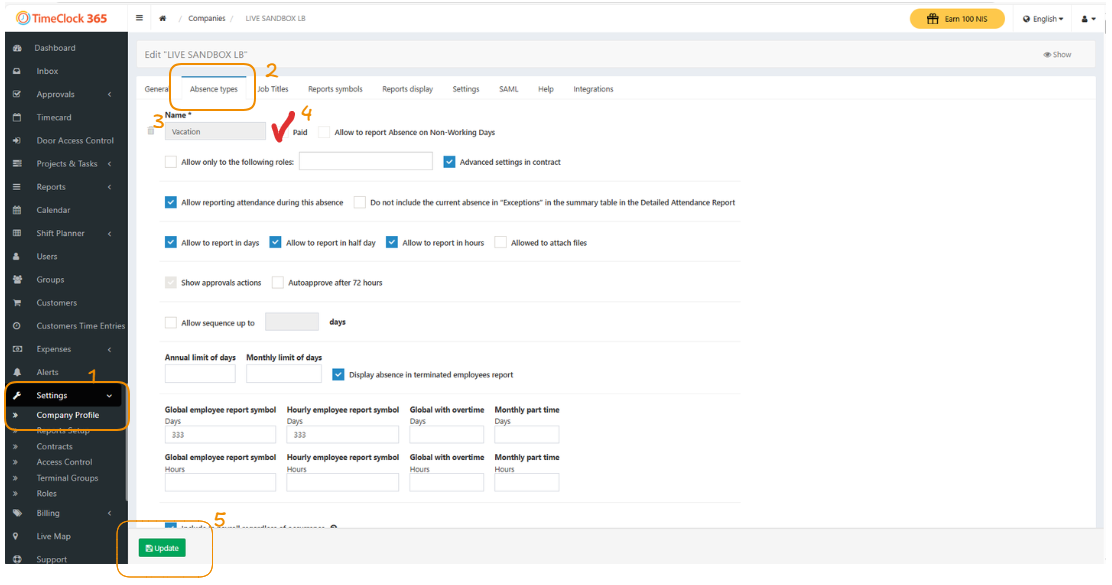
This guide explains how to reclassify an existing absence type as “Paid.”
When an absence is marked as paid, the system automatically includes its duration in the employee’s total paid hours for payroll purposes.
Important Notes
- Retroactive Changes: This change will apply retroactively to all past attendance data, but only for reports that have not yet been approved. Approved reports will remain unchanged.
- System Limitation: If an absence type has ever been used by any employee, you will not be able to check the “Paid” box yourself. In this situation, please open a support ticket to have our team make this change for you.
Step-by-Step Guide
- Navigate to Settings in the main sidebar and click on Company Profile.
- Select the Absence Types tab from the top menu.
- Locate the specific absence type you wish to change.
- Check the Paid box located directly next to the absence name.
- Scroll to the bottom of the page and click the Update button to save.