Tailor your attendance reports to show exactly the information you need. This guide will show you how to customize the data that appear in three key reports:
Detailed Attendance Report: The main day-by-day report for an employee.
Summary Table: The summary box at the bottom of the Detailed Attendance Report.
Payroll Report: The high-level summary report for payroll and accounting.
1. The Detailed Attendance Report
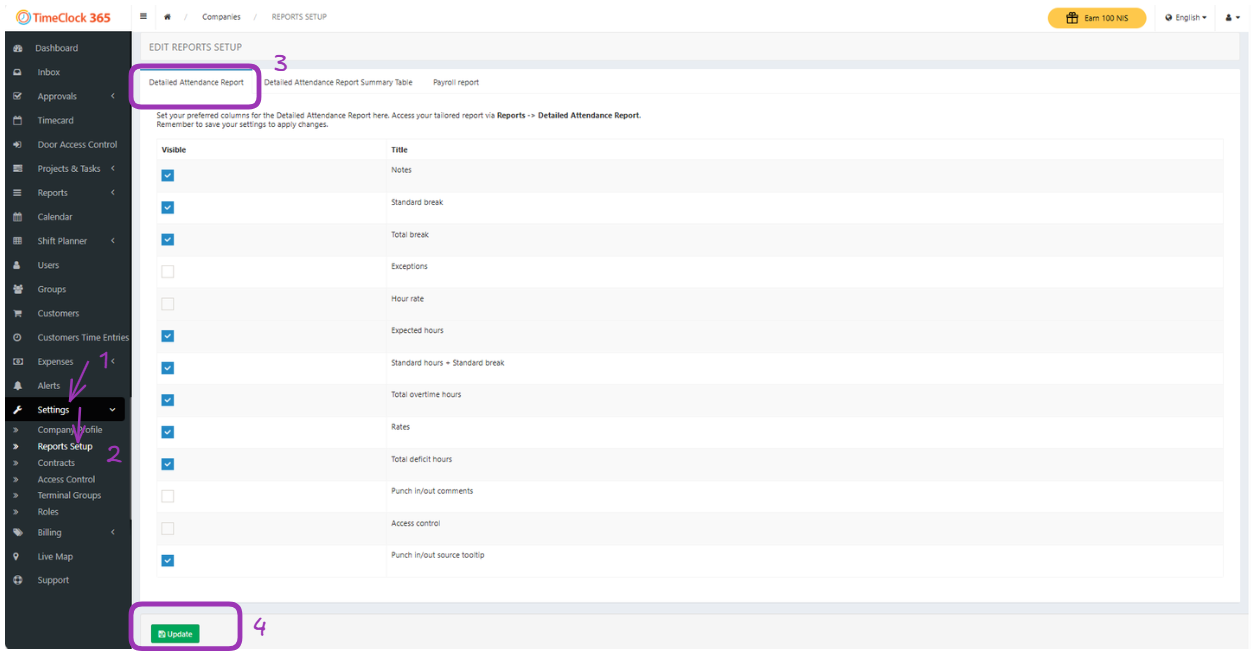
This setting controls the columns that appear in the main, day-by-day section of the Detailed Attendance Report.
Navigate to the sidebar -> Settings -> Reports setup
From the Reports Setup screen, click on “Detailed attendance report” tab.
Check the boxes next to each column you want to display in the report.
Click Update to save your changes.
2. The Summary Table in the Detailed Report
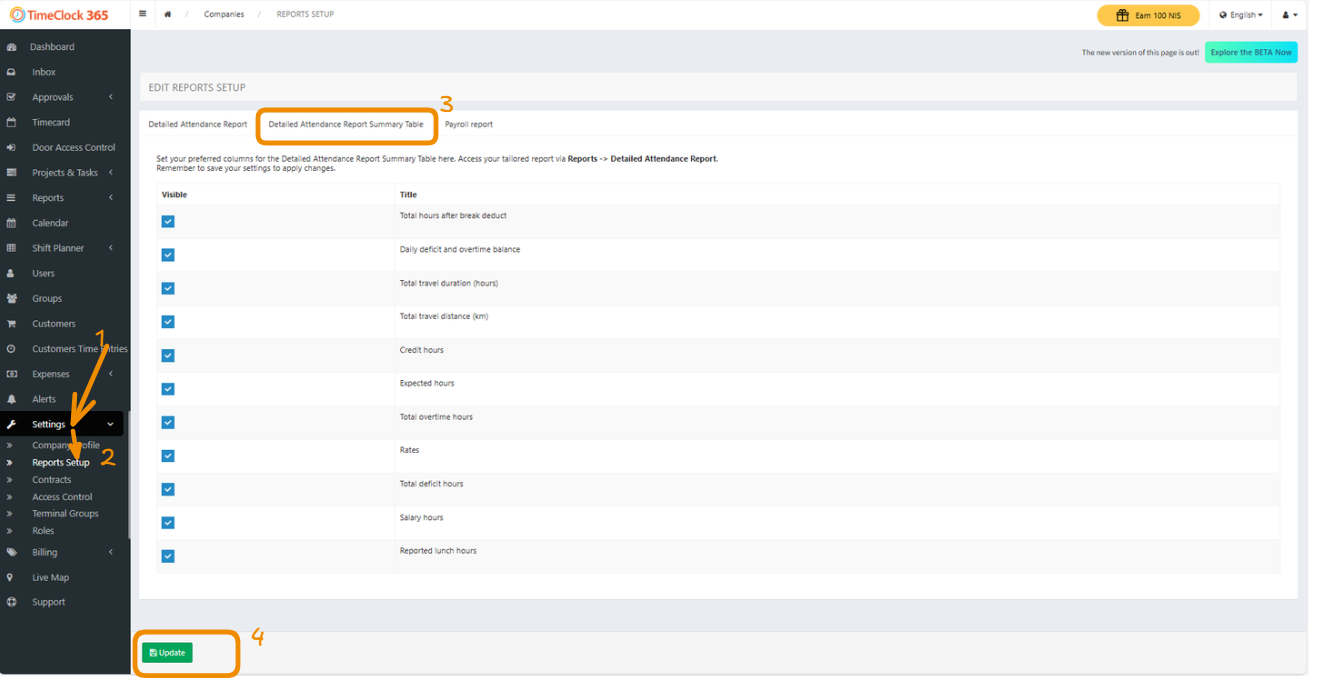
This setting controls the data fields shown in the summary table at the bottom of each employee’s Detailed Attendance Report.
From the Report Settings screen, click on “Summary table in the detailed report”.
Select the summary fields you wish to display.
Click Update to save your preferences.
3. Customizing the Payroll Report
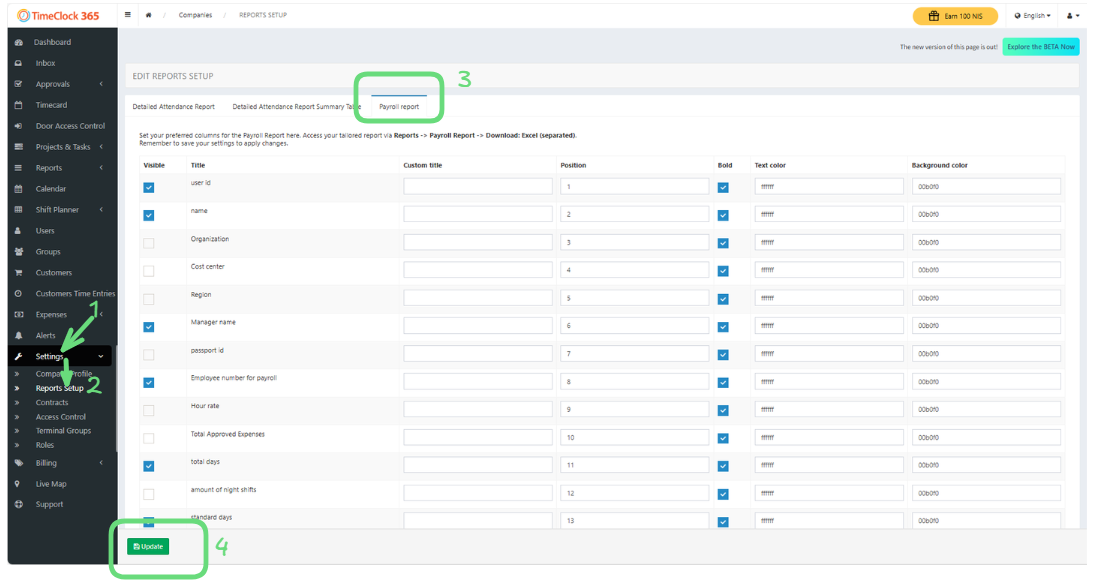
These settings allow you to choose which columns appear in the Consolidated Summary Report and even apply custom color formatting for easier reading.
From the Report Settings screen, click on “Consolidated summary report”.
Select the columns you want to include in your exported report.
Optionally, you can apply background colors to your columns using standard hex color codes.