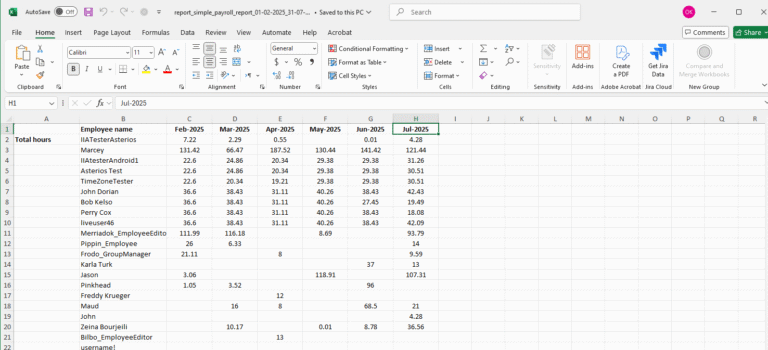
This guide explains how to generate a monthly summary report, a powerful tool for comparing key metrics such as total hours worked, workdays, and absence types across different months. This report is exported as an Excel file, providing a clear, month-by-month breakdown of employee data.
Step-by-Step Guide
Follow these steps to configure and download the monthly summary report.
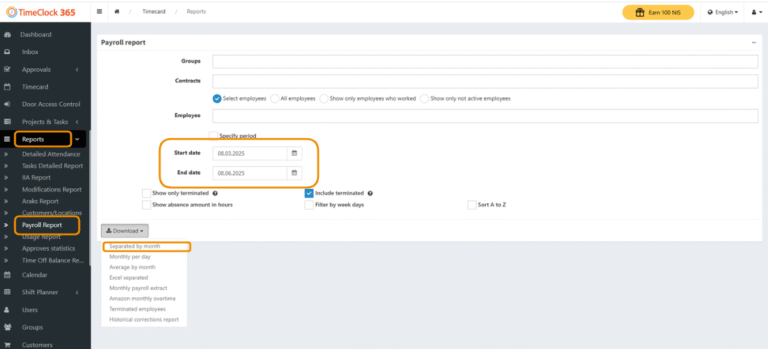
- Navigate to Reports in the main sidebar.
- Select Payroll Report from the menu.
- On the Payroll Report screen, configure the parameters for your report:
- Date Range: Set the time frame you wish to analyze by entering a Start date and End date.
- You can also filter by specific Groups, Contracts, or Employees.
- Click the Download button to reveal the export options.
- Select Report Format: From the dropdown menu that appears, choose the “Separated by month” option.
An Excel file will be downloaded to your computer. Open the file to view the data, which will be organized with a separate summary for each month included in your selected date range.