How to Set Automatic Punch out
TimeClock 365 helps you automate attendance reporting to ensure accuracy and reduce manual corrections. This feature can automatically create or complete time entries for employees based on rules you define in their contracts.
You can configure the system to:
- Fully automate attendance reporting for employees on fixed schedules, without any employee or manager intervention.
- Automatically clock an employee out if they forgot to do so (or clock them in if they only reported a clock-out).
- Automatically end the workday for employees who have worked a specified number of hours past their standard shift, preventing open-ended shifts.
Configuration Steps
These settings are configured within a Contracts.
- Navigate to Contracts:
Sidebar > Settings > Contracts. - Select the Contract you want to modify
- Locate the Automation Settings
In the work agreement settings, scroll down and expand the Automatic Day-End Closing section to view the options.

Automation Modes
Mode 1: Fully Automatic Reporting (Zero-Touch)
This mode is ideal for employees with fixed schedules who don’t need to clock in and out manually.
The system will automatically create both a clock-in and clock-out entry based on their standard shift if no punches are recorded by a certain time.
How to configure:
- Check the box for Zero-Touch.
- Set the time of day the system should run this check and create the entry.
Example: If an employee’s standard shift is 08:00 to 17:00 and they haven’t made any punches by the check time (e.g., 22:00), the system will automatically create an 08:00-17:00 entry for them.

Mode 2: Complete Missing Punches
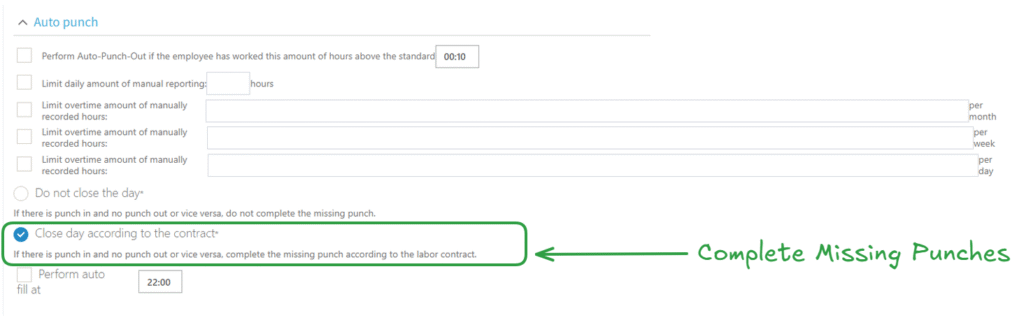
This mode is for employees who sometimes forget to clock in or out. If the system finds an entry with only a clock-in or only a clock-out, it will add the missing punch to complete the standard shift duration.
How to configure:
- Check the box for If clock-in was recorded without a clock-out (or vice versa), complete the missing report according to the work agreement.
Example: An employee’s standard shift is 8.5 hours. They clock in at 09:00 but forget to clock out. The system will automatically add a clock-out punch at 17:30 to complete their 8.5-hour day.
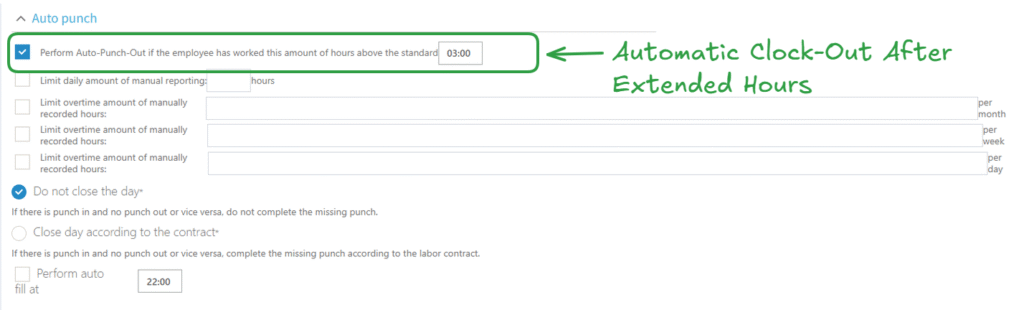
Mode 3: Automatic Clock-Out After Extended Hours
This mode automatically clocks an employee out after they have worked a specified number of hours beyond their standard shift. This is useful for preventing timesheets from being left open overnight.
How to configure:
- Check the box for Automatically end the day if the employee worked ‘X’ hours over their standard shift.
- Enter the number of hours past the standard shift when the clock-out should occur.
Example: An employee’s shift normally ends at 17:00. You set this rule to 3 hours. If they haven’t clocked out by 20:00, the system will automatically create a clock-out punch for them at that time.