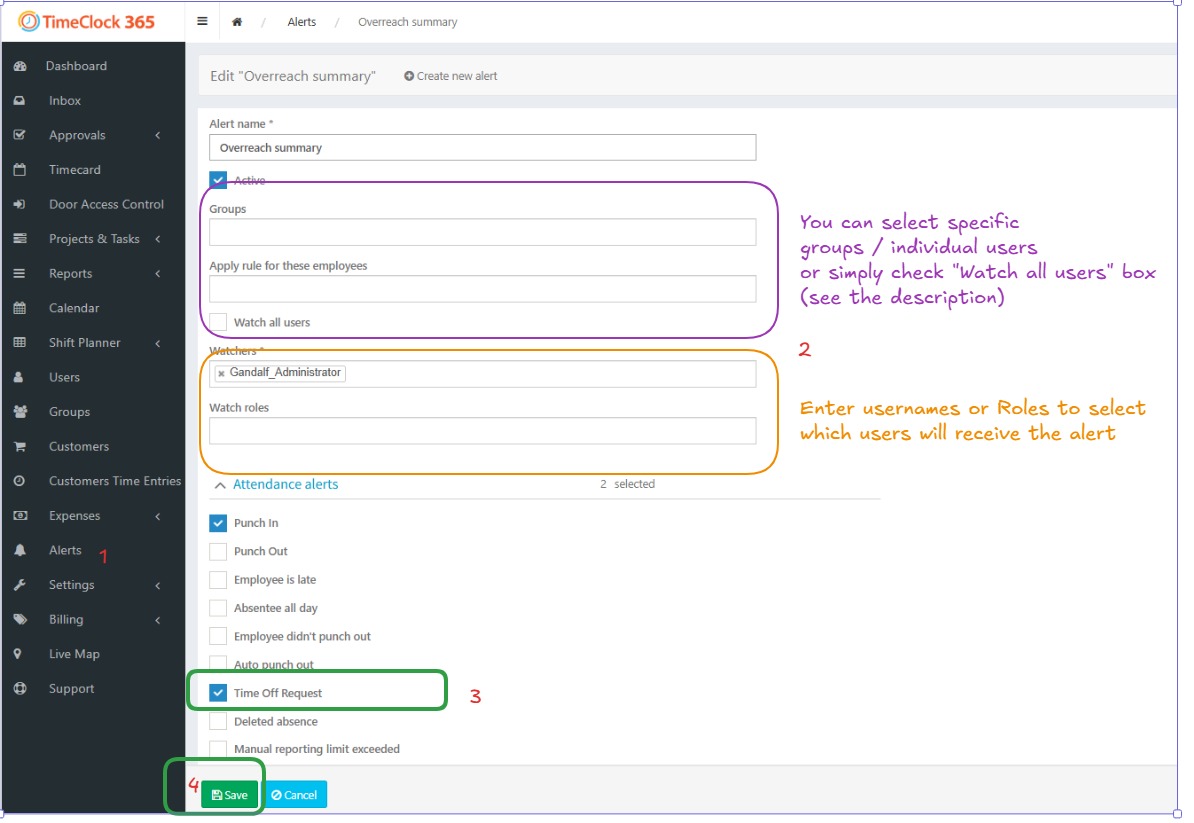
This guide explains how to automatically notify group managers whenever an employee on their team submits an absence request (e.g., for vacation or sick leave). This ensures that managers are immediately aware of requests and can approve or deny them in a timely manner.
How It Works
The system is designed to intelligently route notifications. When you configure this alert:
- A Group Manager will only receive notifications for the employees assigned directly to their group.
- A System Administrator will receive notifications for all employees.
Step-by-Step Instructions
- Navigate to the Alerts screen from the main menu and click “Create new alert”.
- Configure the Alert Details:
- Alert Name: Enter a descriptive name, such as “Absence Requests for Team Leads”.
- Select Employees: Check the box for “Watch all users”. The system will automatically filter which manager gets which alert based on their assigned team. (Alternatively you can select specific groups or individual users.)
- Select Watchers: In the “Watchers” field, select individual users or Role (i. e. all the users assigned to the selected Role).
- Enable the Absence Request Trigger:
- Scroll down and expand the “Attendance alerts” section.
- Check the box next to “Absence request”.
- Click Save at the bottom of the page to activate the alert.
Now, whenever an employee requests an absence, their direct group manager will receive an instant notification.