Troubleshooting the IIA Report Approval Process
This guide will help you identify and resolve common issues that may prevent an employee from seeing the “Approve” button for the Israel Innovation Authority (IIA) Report.
There are four primary reasons why the approval option may be unavailable:
- The standard ‘Detailed Attendance Report’ was approved by mistake.
- There are missing attendance hours for the period.
- Logged work hours have not been fully assigned to tasks.
- There is a significant discrepancy between expected hours and reported hours.
1. Wrong Report Approved
One of the most common issues is that the employee has mistakenly approved the standard Detailed Attendance Report instead of the IIA Report.
Approving the standard report locks the timesheet data, preventing any further modifications or the completion of the IIA approval wizard.
Solution:
A manager must reject the incorrectly approved report to unlock the data. After logging in he needs to go to the Detailed Attendance Report or to the Approvals section, locate the relevant entri and click Decline.
To prevent this issue, please instruct employees to only approve their IIA reports using the official IIA Approval Wizard on the web interface, not through the mobile app’s standard approval flow.
A helpful guide is available – How to Decline The Approved Report.
2. Missing Attendance Hours
The system requires a complete timesheet before it can be approved. If any days in the reporting period have missing punch-in or punch-out times, the system will block the approval.
Symptoms:
In the approval wizard, days with missing data will be highlighted in red.
Solution:
- Fill in all missing data. The employee must add either attendance hours or an absence type (e.g., Vacation, Sick leave) for every working day highlighted in red.
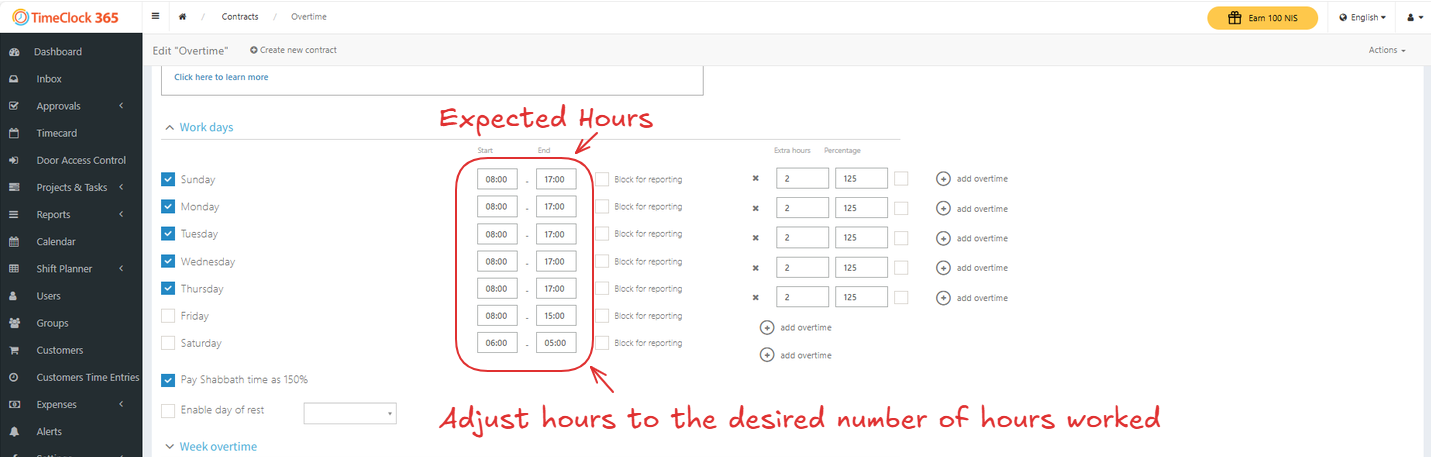
- For Hourly Employees: If you have hourly employees who are not required to meet a standard number of expected hours, you must adjust their contract settings accordingly to prevent these errors.
- For Mid-Month Start/End Dates: If the employee started or stopped working in the middle of the month, ensure their official start/end date is correctly set. To do this, go to Users, select the employee, and update the “Start/End Date of Work” fields.
3. Unassigned Task Hours
For IIA reporting, every hour of attendance must be assigned to a specific task. If there is a mismatch between the total hours worked and the total hours assigned to tasks, the approval will be blocked.
Symptoms:
In Step 2 of the approval wizard (“Missing Time Entries for Tasks”), rows with unassigned hours will be highlighted in yellow.
Solution:
- The employee must ensure that 100% of their attendance hours are allocated to tasks.
- To fix this, go to Projects & Tasks > Time Entries for Tasks. Select the employee and the period, then click “Show”. Manually assign all unallocated hours to the appropriate tasks.
- If a required task is not available for selection, please refer to the guide on managing tasks.
Using IIA Approval Flow (Smart Wizard)
We recommend using the Wizard for the IIA Approval. It reduces manual operations and shows all the missing days, punches, and task entries. You can click “I approve this report” on the last step of the flow or approve it from the IIA report page (as shown on the video).
4. Discrepancy Between Expected and Actual Hours
The system validates that the total hours reported are reasonably close to the expected hours defined in the employee’s contract.
Symptoms:
An error message appears stating: “The report cannot be approved because the actual working hours and absences are less than the expected hours.”
Solution:
- This error occurs if the employee’s Total Expected Hours are more than 10 hours greater than their Total Actual Worked Hours + Total Absence Hours.
- The employee must review their timesheet in the Detailed Attendance Report and correct any errors or missing entries until the total reported time aligns with their expected work schedule.
- Alternatively, the Administrator can change working hours under the contract to meet the total number of reported hours.