Home » FAQ » How to Configure Monthly Overtime in a Contract
How to Configure Monthly Overtime in a Contract
This guide explains how to set up and calculate overtime on a monthly basis within a TimeClock 365 work agreement.
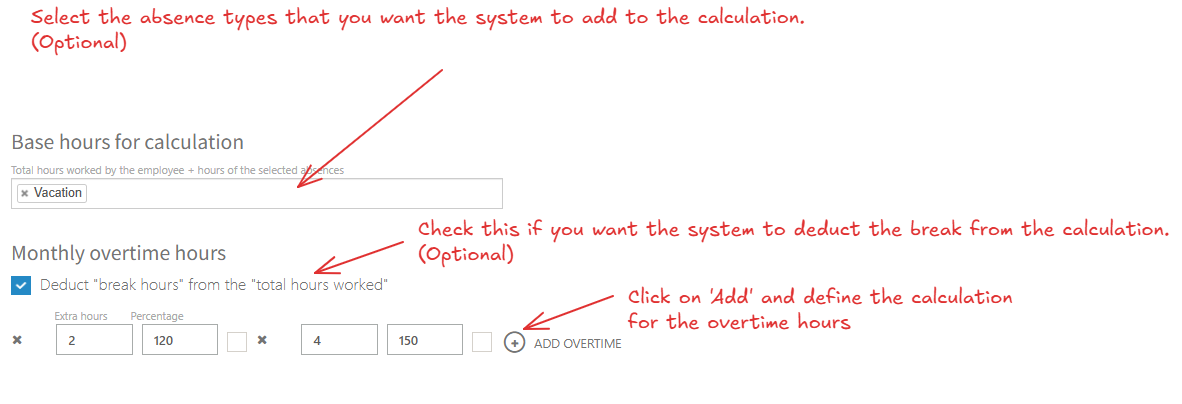
The system calculates the total monthly overtime by taking the employee’s actual worked hours, adding any paid absences, and then subtracting their standard monthly hours and breaks. You can then define tiered pay rates for the calculated overtime hours.
Note: The system rounds the final calculated overtime result up to the nearest whole number.
Step-by-Step Instructions
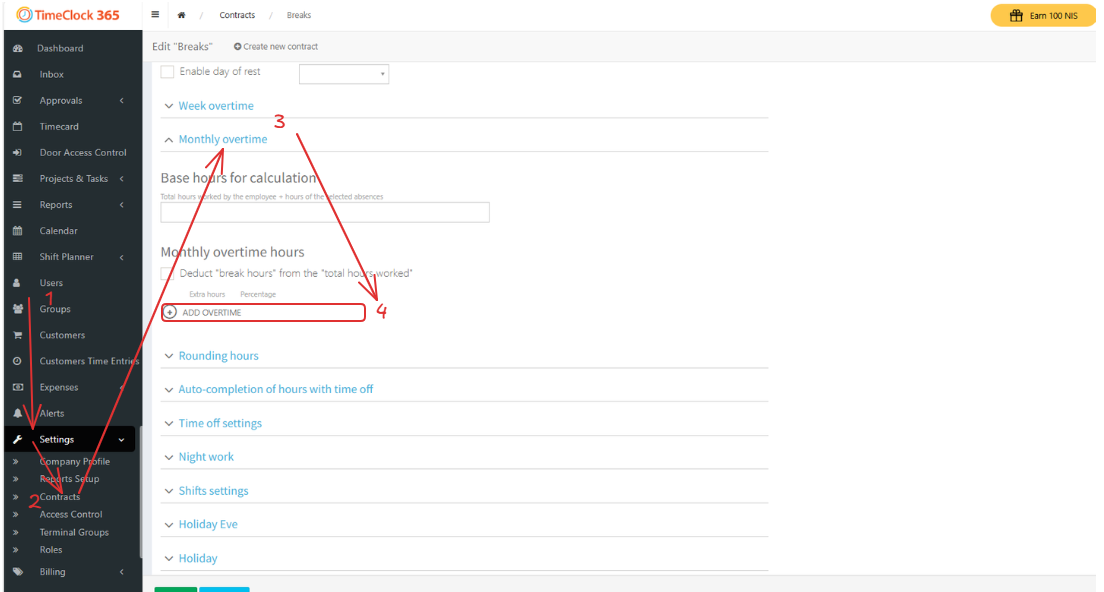
Navigate to Settings -> Contracts.
From the list, click on the Contract you want to configure.
Scroll down and click to expand the “Monthly overtime” tab. Here, you can define how overtime is calculated.
For example, you can set the first few hours of overtime at one rate (e.g., 125%) and all subsequent hours at another (e.g., 150%).
Example Calculation
Settings in the Contract: – First 2 hours of monthly overtime are paid at 125%. – All remaining hours are paid at 150%.
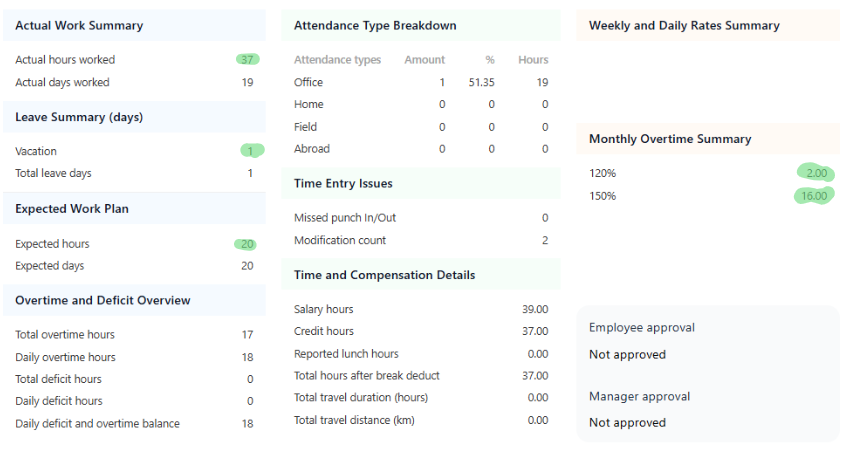
Employee’s Monthly Data: – Actual Hours Worked: 37 hours – Paid Absences (e.g., Vacation): 1 hour – Standard Monthly Hours (as per contract): 20 hours – Total Breaks: 0 hours
The system uses the following formula: (Actual Hours + Paid Absences) – Standard Hours – Breaks = Total Overtime
Based on the 15 total overtime hours and our settings: – The first 2 hours will be calculated at a 125% pay rate. – The remaining 16 hours (18 – 2) will be calculated at a 150% pay rate.