Home » FAQ » How to Hide the IIA Report from Specific Employees
How to Hide the IIA Report from Specific Employees
This guide explains how to create and assign a custom user role to hide the Israel Innovation Authority (IIA) Report from employees who do not need access to it.
The process involves two main steps: creating a new role with specific permissions, and then assigning that role to the relevant employees.
Step-by-Step Guide
Step 1: Create a Custom Role Without IIA Report Access
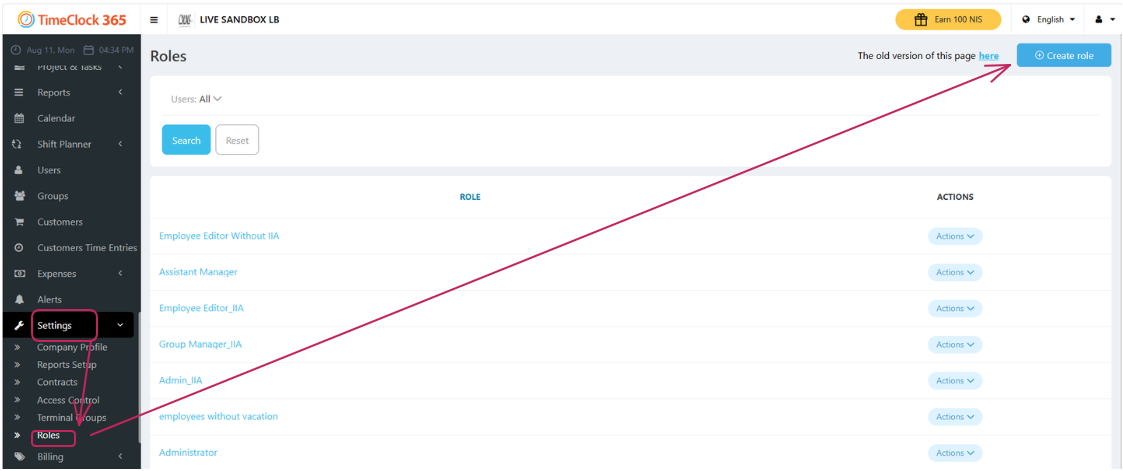
Navigate to Settings in the main sidebar.
Click on Roles.
Click the Create role button.
On the “Create” page, give the role a descriptive name (e.g., “Employee – No IIA”).
Configure all the permissions for this role by checking the boxes for the features these users should be able to access and use.
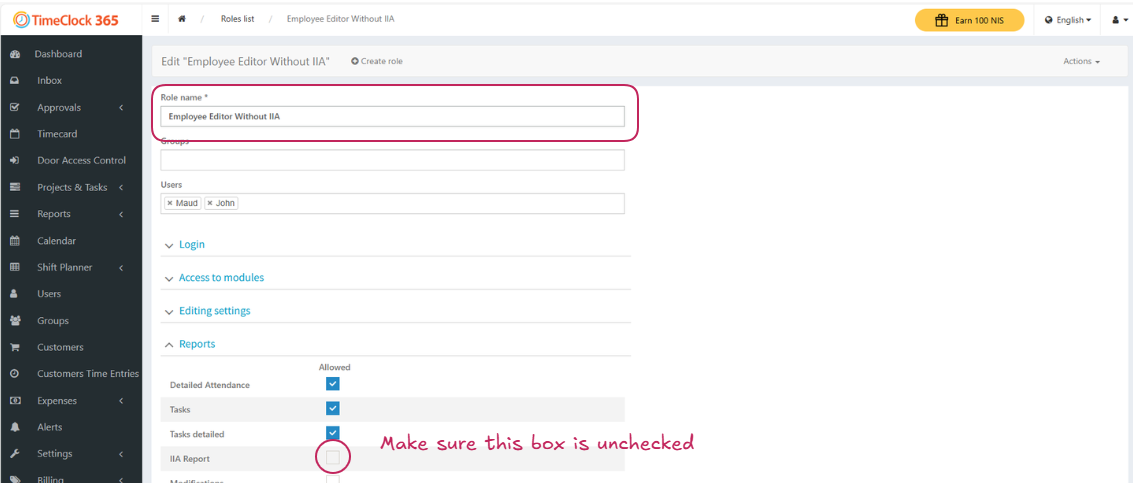
Scroll down to the Reports section.
Ensure the checkbox for the IIA Report is left unchecked. This is the key step to hiding the report.
Click Save at the bottom of the page.
Note: To ensure the new Role settings are correct, you can copy the settings from the existing Roles. For your convenience, we have a Roles guide: Introduction to Roles
Part 2: Assign the New Role to Employees
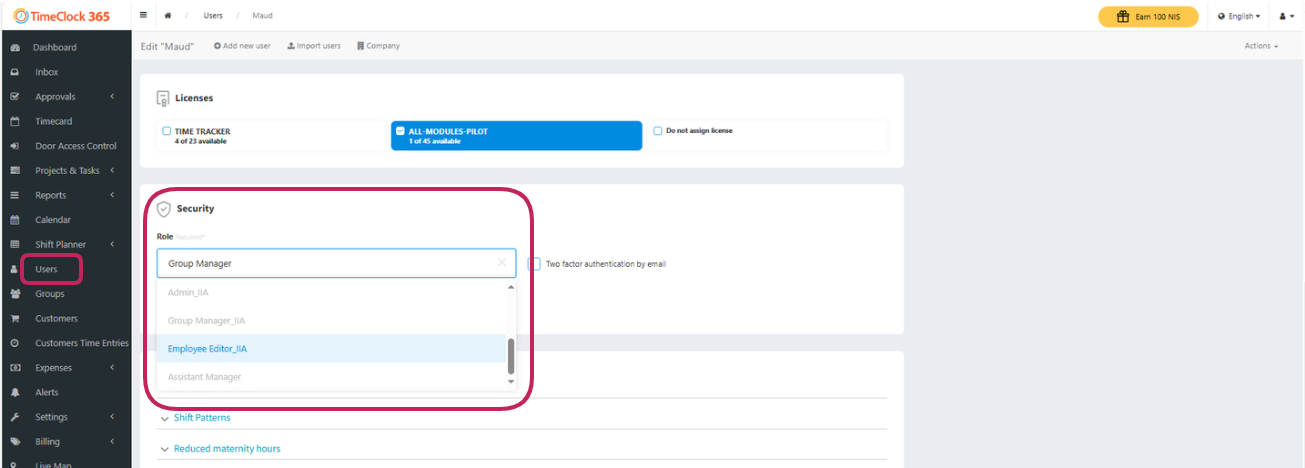
Navigate to Users in the main sidebar.
Select the employee you wish to modify.
In the employee’s profile settings, locate the Role field in the Security section.
From the dropdown menu, select the new role you just created (e.g., “Standard User – No IIA”).
Click Save at the bottom of the page.
Repeat this process for any other employees who should not have access to the IIA Report.