
Welcome to the Timeclock365 & HiBob Integration Guide!
We’re excited to help you connect your favorite tools! By linking Timeclock365 and HiBob, you’ll enjoy a seamless flow of information, keeping your attendance, time-off, and employee data perfectly in sync. Let’s get started!
What This Integration Does for You
The goal is simple: to make your workday easier! This connection ensures that your worked hours and time-off requests are always aligned between both platforms, saving you from manual data entry.
Step-by-Step: Your First-Time Setup
Sign in to your Timeclock365 admin account.
Navigate to Company Settings → HiBob tab and click the Install button.

3. You’ll be whisked away to HiBob to log in and confirm permissions.
Here is what those permissions help us do for you:
| Permission | How it helps |
| Manage attendance sheets | Moves your worked sessions from Timeclock365 to HiBob. |
| View employee data | Keeps your team list updated from HiBob to Timeclock365. |
| View time off | Imports absences from HiBob into Timeclock365. |
| Manage time off | Sends new time-off requests from Timeclock365 to HiBob. |
| Manage projects/tasks | Keeps your projects and tasks organized across both apps. |

Step 2: Tailor Your Settings
Who is in sync? Choose to sync your entire HiBob team or just a specific group.
Make the integration work exactly how you want it to! Be sure to click Update to save your preferences.

Default Role: Pick a starting role (like “Standard Employee”) for new teammates joined via HiBob.

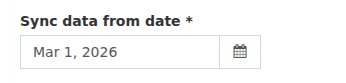
Sync Start Date: Select a date to begin the sync so you only import the fresh, relevant data you need.
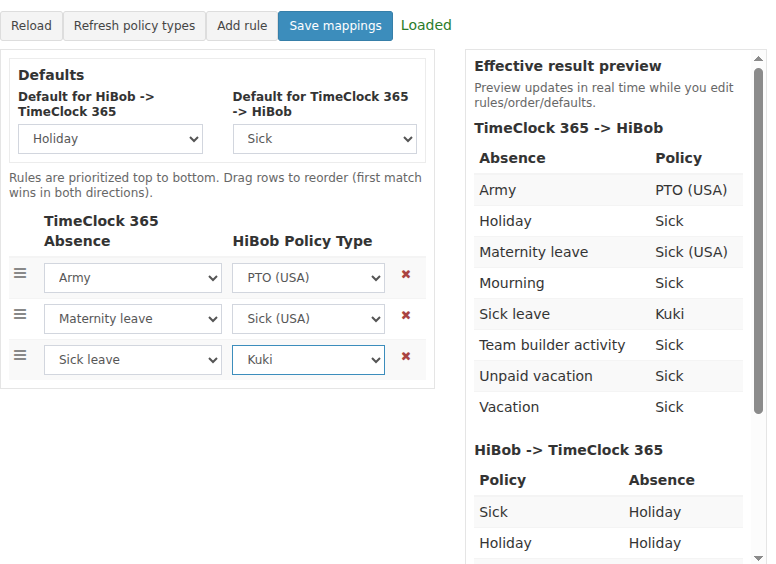
Time-off Matching: Map your HiBob categories to Timeclock365 categories so every vacation or sick day is labeled perfectly.
Step 3: Sharing Your Attendance Data
Ready to send your report? It’s just a few clicks away:
Open the Detailed Attendance Report (DAR) and set your desired date range.
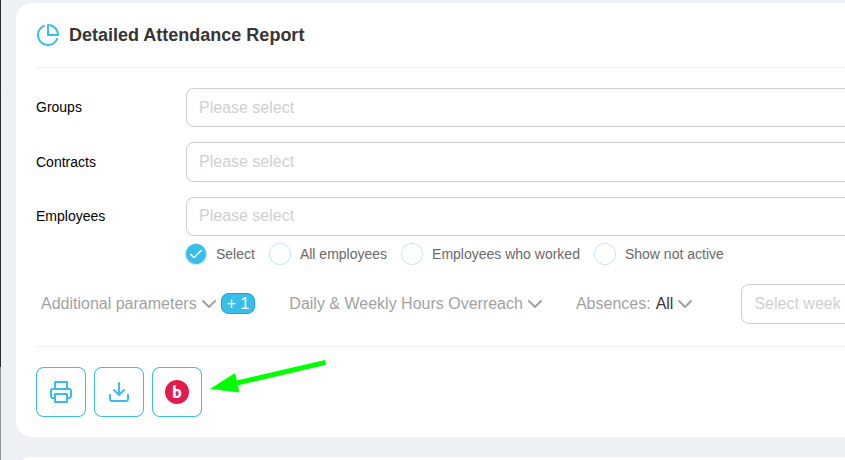
Look for the friendly “Send to HiBob” button.
Click it and relax! A summary will pop up once it’s done, showing you exactly how many records were successfully shared.
If something doesn’t sync: Don’t worry! Usually, this just means a rule in HiBob (like a restricted time-off type) needs a quick adjustment. Once that’s fixed, you can simply run the sync again.
Pro-Tips for Success
Double-Check: Since the DAR transfer is a one-time handoff, it’s a good habit to review your data before sending. Any later changes can be made directly in HiBob.
Smooth Sessions: To keep things tidy, HiBob prefers entries that don’t overlap with existing ones. If a day is already logged in HiBob, just add your new entries after the last recorded session.
We’re Here for You: If you run into a snag or have a question, our support team is just a message away and happy to help!
Happy Syncing! ✨