
Creating a Site Policy is only the first half of the process. To automate payroll, link that policy to an employee work contract. This makes sure that whenever a holiday occurs, the system knows how many hours to credit the employee and which pay rate to apply.
1. Assign the policy to a contract
You can assign a different holiday policy to every contract. For example, your London team can follow UK holidays while your Tel Aviv team follows Israeli holidays.
- Go to Contracts.
- Open the contract you want to edit (for example, "Full-Time Cyprus Employees").
- Open the Holidays & special days tab and find the Select National Holidays field.
- Choose the Site Policy you created from the dropdown list.
- Click Save.
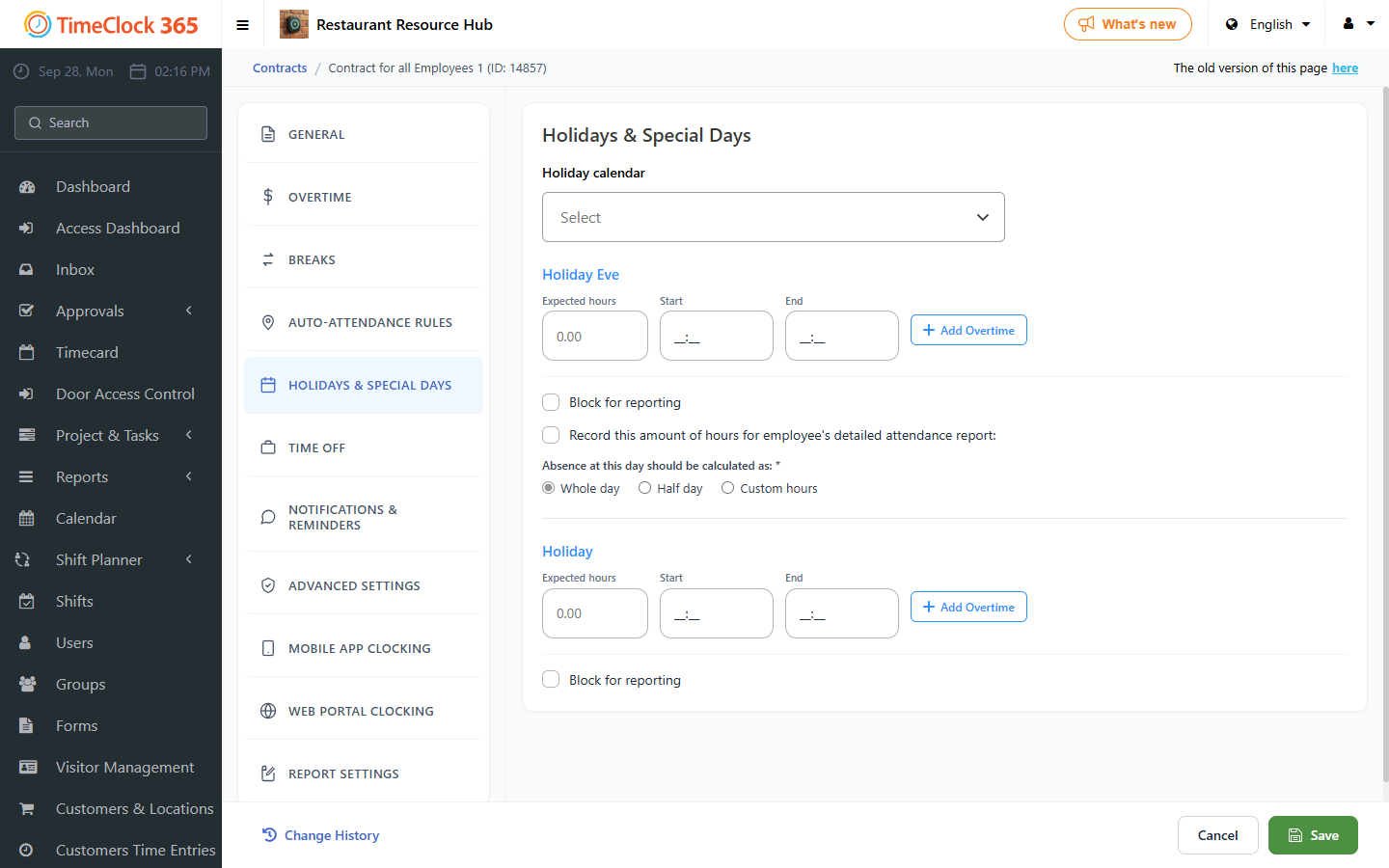
2. Configure the Holiday and Holiday Eve settings
Once the policy is linked, tell the system how to calculate the hours for those days. In the contract, configure the following for the holiday and the holiday eve:
- Standard Hours (Daily Quota): enter the number of hours the employee is credited for the holiday (for example, 8 hours). If this is left empty, the system treats the day as an unpaid day off with 0 hours.
- Absence calculation: choose whether a holiday is deducted from the employee's annual leave balance or is an "Extra" paid day provided by the company.
- Overtime logic: define whether an employee who chooses to work on a holiday gets a special rate (for example, 150%).
3. The "Regular Working Day" override
Sometimes a contract requires employees to work on a day that is normally a holiday (for example, support staff or security).
- If you classified a date as a Regular Working Day in your Site Policy, the system ignores the holiday logic for this contract.
- Instead, it uses the regular work hours rules, so no holiday pay is triggered and standard attendance is expected.
4. Automatic timesheet sync
Once the link is established:
- The system identifies a holiday date from the Site Policy.
- It checks the work contract linked to the employee.
- It automatically populates the timesheet with the standard hours you defined.
Note: if you change an employee's contract in the middle of a month, the system recalculates the holidays for the rest of that month based on the new policy link.
Tip
To verify that the link works, open an employee's Detailed Attendance report. Holiday dates should appear highlighted, and the Daily Quota column should show the hours you set in the contract.