How to Create Groups and Assign Group Managers

This guide will walk you through the process of creating a new group, assigning group managers, and adding users or employees to it.

Step-by-Step Instructions

Step 1: Navigate to the Groups Section
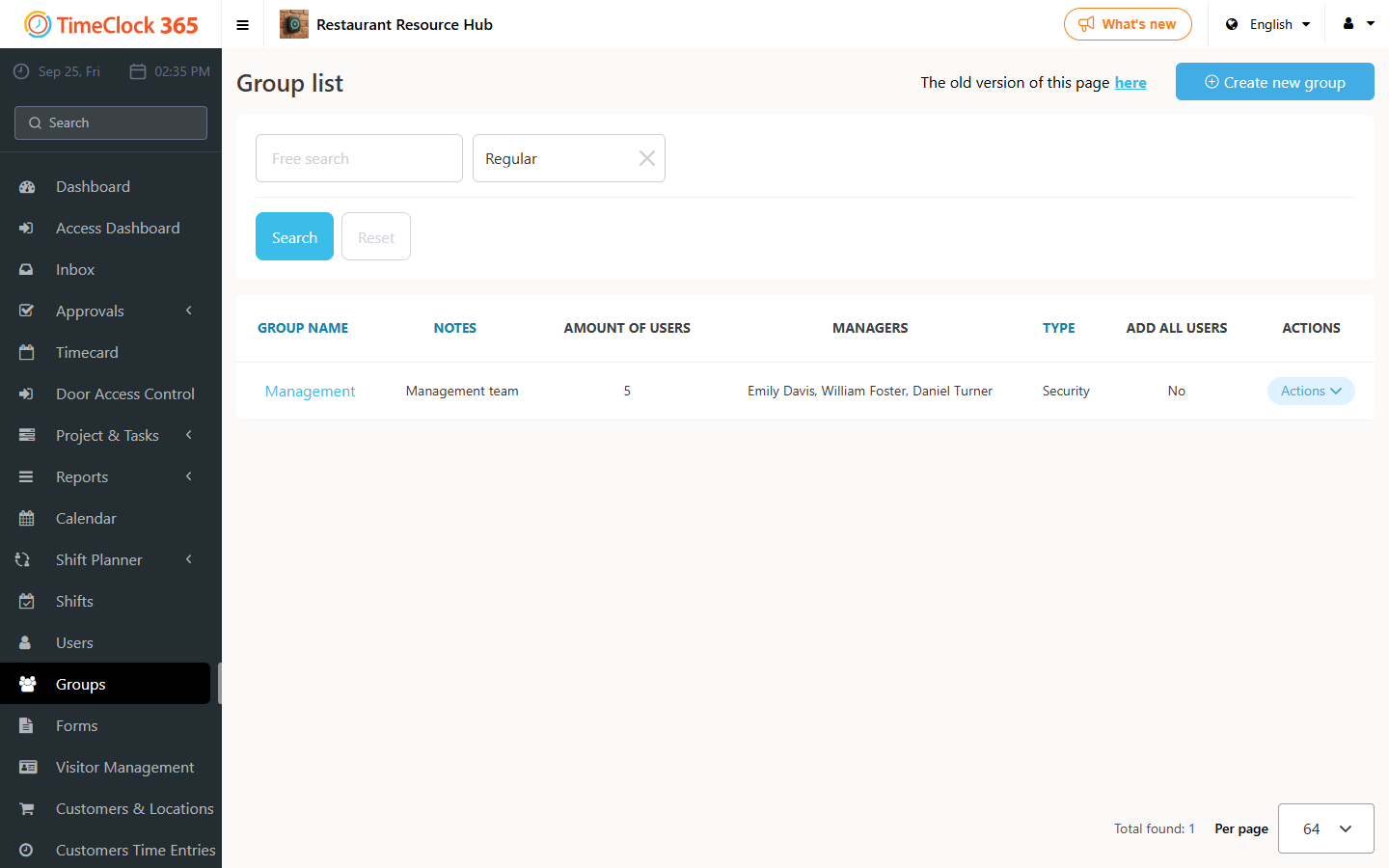
First, locate the main navigation menu on the left side of your screen and click on the Groups tab.

Step 2: Initiate Group Creation
On the “Group list” page, click on the Create new group button, located in the top right corner.

Step 3: Fill in Group Details
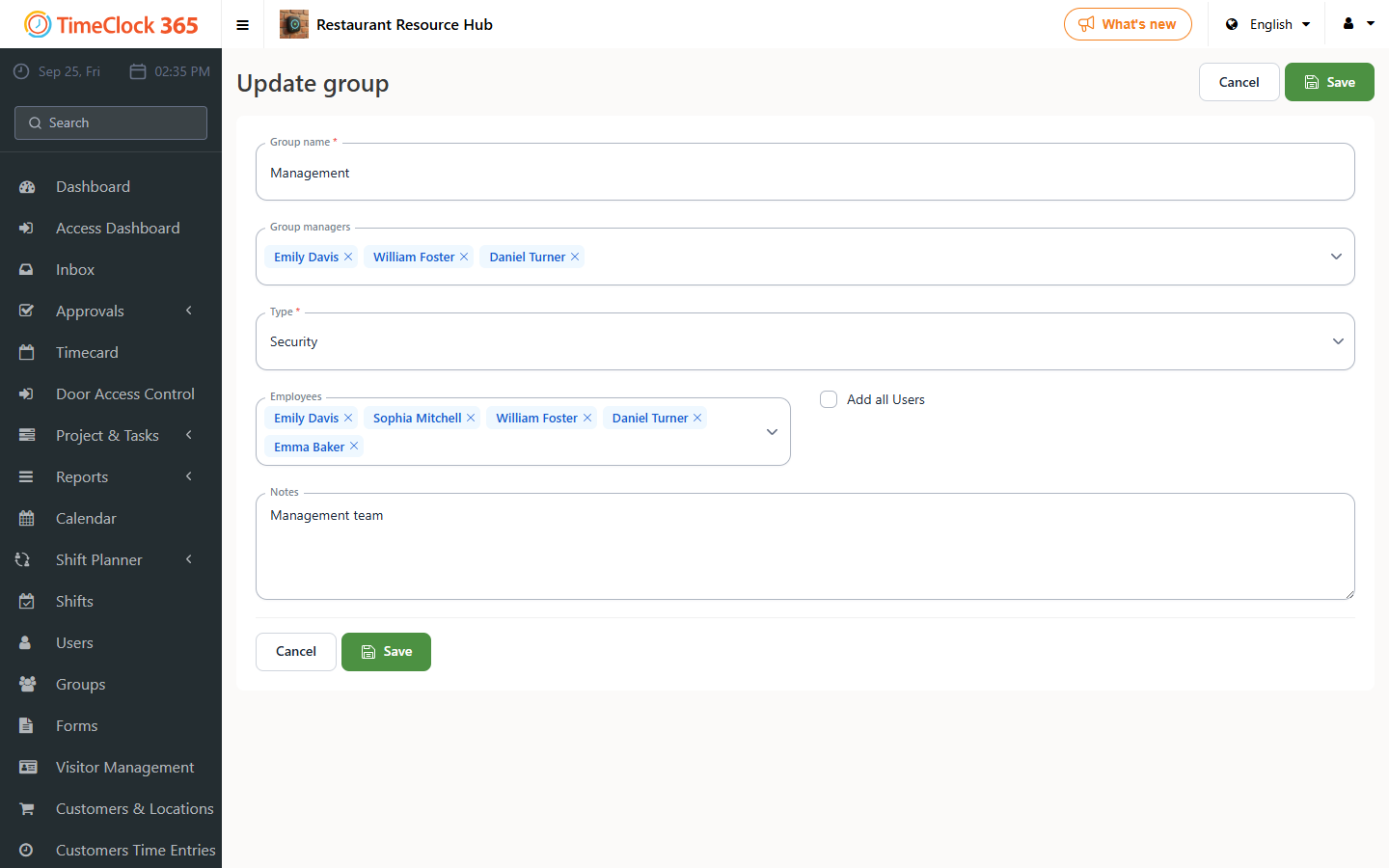
You will be directed to the “Create group” page. Here, you need to fill in the following information:

  • Group name: Enter a descriptive name for your new group (e.g., “Superstars Team”).
  • Group managers: Select one or more managers who will be responsible for this group.
  • Type: Choose the “Security” group type from the dropdown menu.
  • Add all users or particular Employees: If you don’t want to add all users, you can search for and add specific employees to the group, then save.

Step 4: User Permissions (Crucial): Go to Users, edit the user profile, and change the role from “Employee” or “Employee Editor” to “Group Manager”.

Not finding what you are looking for?

Chat with us or send us an email.