
Attendance reports that are ready for payroll
Hours, overtime and absences already calculated. Approve, lock and export - to QuickBooks, HiBob, Excel or your payroll system - without rebuilding anything in a spreadsheet.
- Overtime calculated
- Scheduled reports
- ISO 27001 certified
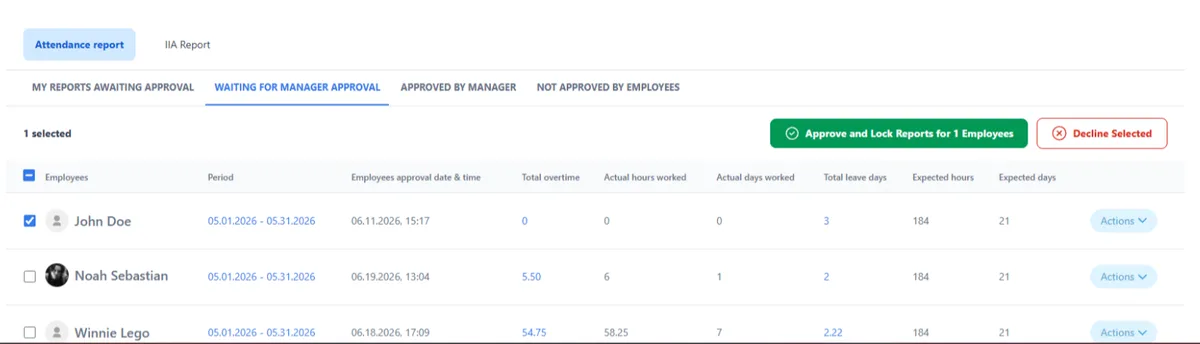
What is an attendance report?
An attendance report lists when each employee started and finished work, their breaks, overtime and time off, for a pay period. It is what payroll is calculated from - so every missing punch or wrong overtime rate costs money.
In TimeClock 365 the report builds itself from every punch: door entries, biometric clocks, the mobile app, the web, Teams and Slack. Rules come from each employee's work agreement.
Reports
The reports payroll and managers use
Detailed Attendance
Day-by-day punches, time off, hours and overtime per employee.
Payroll Report
One summary row per employee - what your accountant needs.
Report with Locations
Where each mobile punch-in and punch-out happened.
Shift split
Hours divided into day and night shifts.
Scheduled CSV
Emailed automatically at the time you choose.
Locked reports
Nothing changes after payroll is run.
How to run it
From login to download in four steps
- 1
Log in
At live.timeclock365.com, then click Reports.
- 2
Detailed Attendance
Pick one employee, all, or only those who worked.
- 3
Choose the period
A week, a month, a custom range or your pay period.
- 4
Download
PDF, Excel, CSV or a payroll file - or print.
Export to accounting
Hours where your accountant needs them
- QuickBooks Online - approved hours sent directly
- HiBob and GreytHR - attendance synced
- Ready-made files for Hilan, ADAM, TRIO, Hargal, QDIV
- Payroll codes per overtime rate
- HH:MM or decimal hours
Pricing
Door access control from $1.90 per user / month
Attendance from $3.90, Attendance + Access Control $4.90 per user / month, billed annually. With access control, door entries feed the same reports.
Frequently asked questions
Which attendance platforms export hours to accounting?
TimeClock 365 exports approved attendance hours to accounting and payroll systems. It sends hours directly to QuickBooks Online, syncs with HiBob and GreytHR, creates ready-made files for Hilan, Hilan Hashavim, ADAM, TRIO, Hargal and QDIV, and downloads Excel, PDF or CSV for any other system.
What is in a TimeClock 365 attendance report?
The Detailed Attendance report shows each employee's clock-ins, clock-outs and time off day by day, with hours, breaks and overtime calculated by their work agreement. Choose one employee, all employees, only employees who worked, or inactive employees, for any period.
How do I run an attendance report?
Log in at live.timeclock365.com, click Reports and then Detailed Attendance. Choose the employees and the date range, set any additional parameters, and click Show Results. Print it, or click Download and choose a format.
Is overtime calculated in the report?
Yes. Overtime rates (for example 125% and 150%), night shifts, breaks and absences are calculated by the rules in each work agreement, so the report already contains payroll-ready hours.
Can attendance reports be sent automatically?
Yes. A scheduled CSV report emails the attendance data for a chosen look-back period - for example the whole past month - at the time you choose.
Can the report show where employees punched in?
Yes. Mobile punches carry a GPS location, and you can export the Attendance Report with Locations. A shift report can also split hours into day and night shifts.
Can attendance come from door access?
Yes. TimeClock 365 is a cloud door access control system first. With Attendance + Access Control ($4.90 per user per month, billed annually), door entries become attendance and appear in the same report.
Related
See your first payroll-ready report
Book a 30-minute demo or try the full platform free for 14 days.