
Time clock & access control hardware
Biometric time clocks, door controllers and card readers that plug straight into your TimeClock 365 account. No servers, no local software - every device is managed from the cloud.
- Cloud-managed
- Works offline
- ISO 27001 certified
What do you need?
A time clock at the entrance
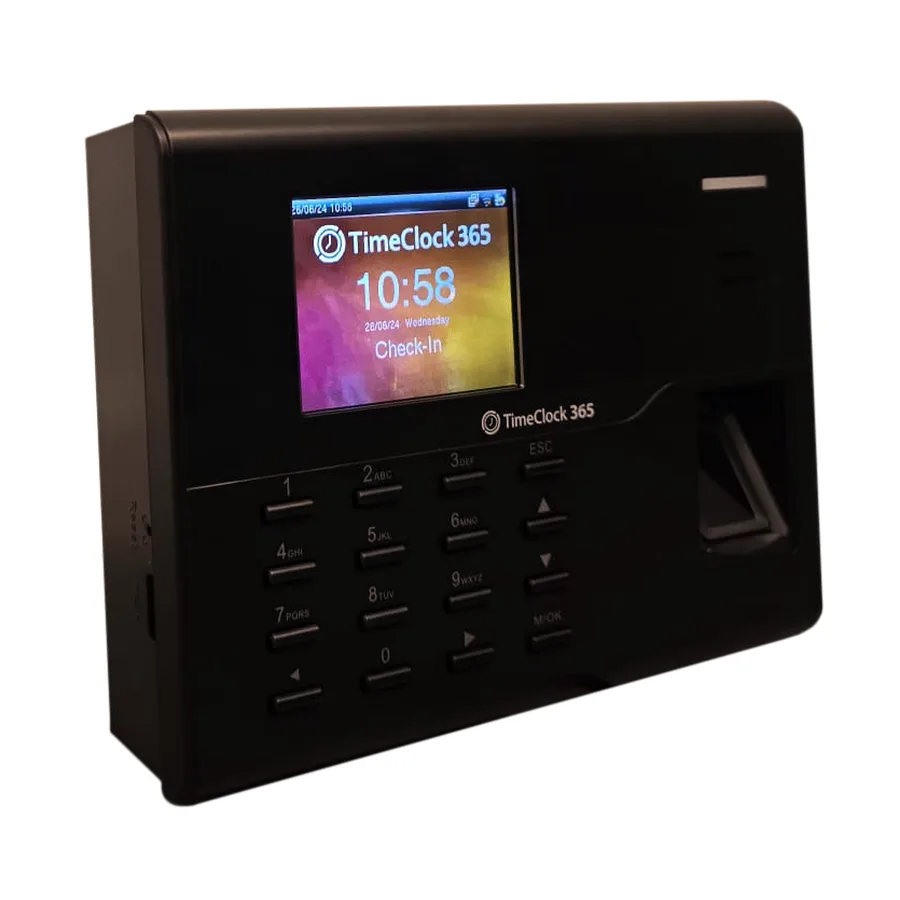
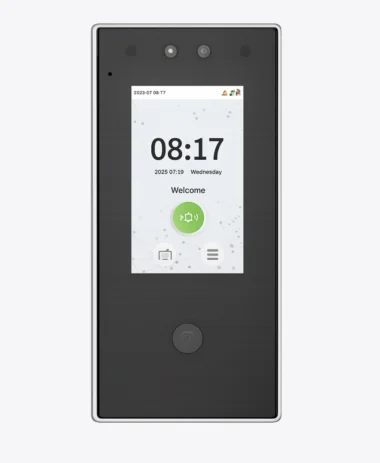
Employees punch in with a fingerprint, face, card or PIN. Punches sync to TimeClock 365 and flow into attendance reports, overtime and payroll.
See biometric clocks →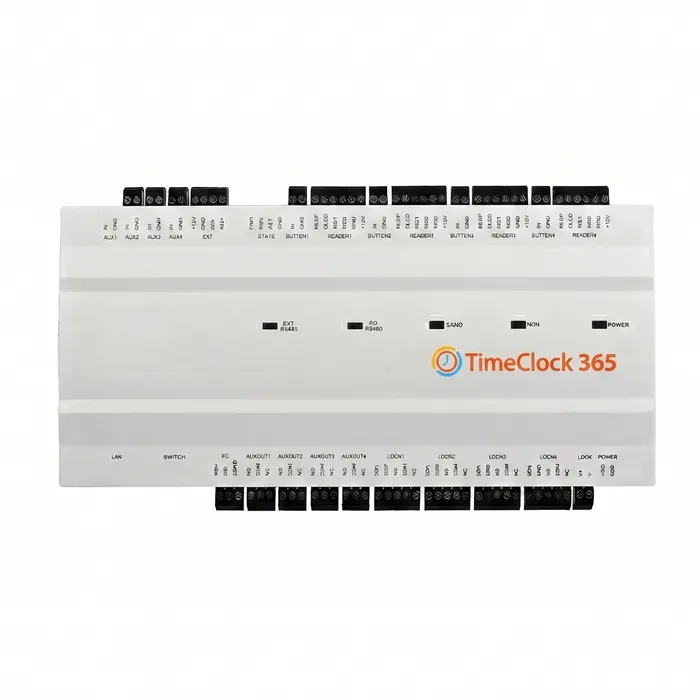
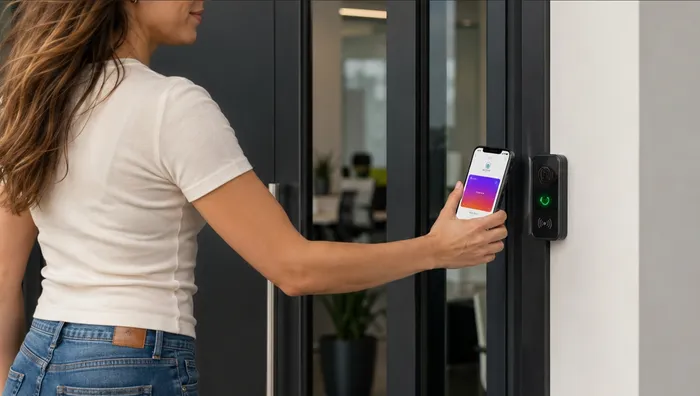
A controller and a reader on every door
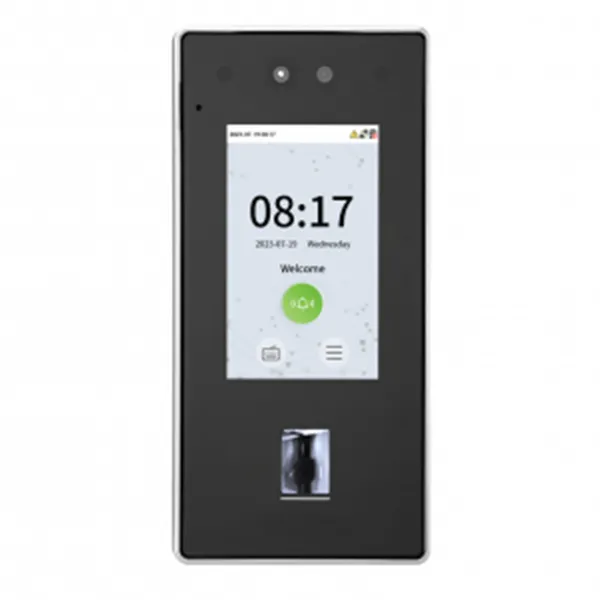
The controller drives the lock; the reader identifies the person by face, fingerprint, card or phone. Permissions, schedules and remote unlock are managed in the cloud.
See access control →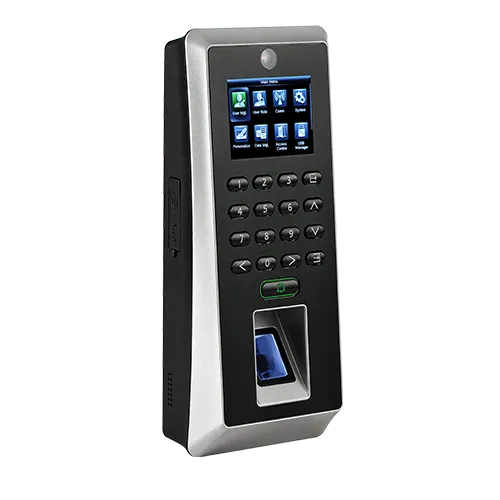
One scan clocks in and opens the door
A biometric terminal at the door verifies the employee, opens the lock and records the clock-in at the same moment - one device, one system.
How it works →Time clocks
Biometric terminals at the entrance that sync attendance straight to the cloud.
Fingerprint Clock
The classic time clock. Fingerprint, card or PIN.
- IdentificationFingerprint, RFID card, PIN
- Screen2.8-3.5" color screen + keypad
- ConnectionEthernet / Wi-Fi, USB
- CapacityUp to 10,000 users (by model)
- ExtrasPunch states, shift bell, door output
Face Recognition Clock
Touchless clock-in in under a second.
- IdentificationFace recognition, RFID card
- ScreenTouchscreen display
- ConnectionLAN / Wi-Fi
- Best forBusy entrances, gloves, hygiene
Door access controllers
Cloud-managed door control: permissions, schedules, remote unlock and live access logs.
Multi-Door Controller
Control up to 4 doors from one unit.
- DoorsUp to 4
- ConnectionPoE / Wi-Fi / 4G
- ReadersFace, fingerprint, card, wallet
- Best forFloors, campuses, gates
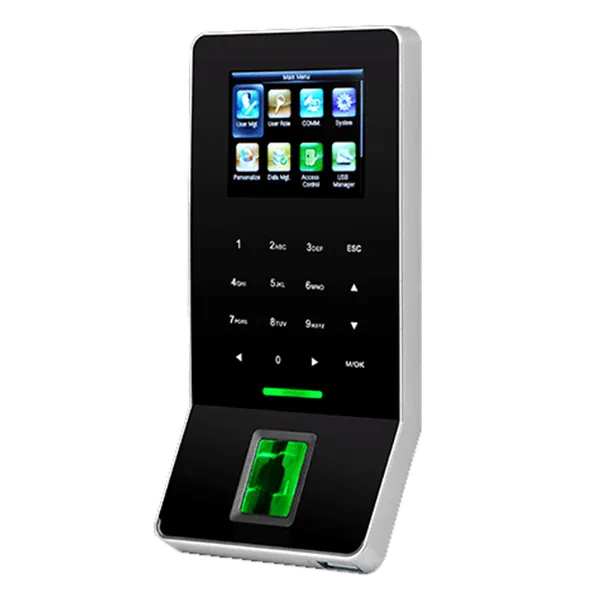
Slim Controller
Compact single-door terminal. Fast to install.
- Doors1
- IdentificationFingerprint, card, PIN
- ConnectionLAN / Wi-Fi
- Best forSmall offices, server rooms
Fast Controller
All-in-one entry point for attendance and door.
- Doors1
- IdentificationFingerprint, card, PIN
- AttendanceSame scan clocks in
- Extra hardwareNot required
Readers
Face, card and mobile wallet readers for doors, gates and turnstiles.
Face Recognition Reader
Wall-mounted face and card reader.
- IdentificationFace + RFID card
- SpeedUnder 1 second
- InstallWall mount, PoE
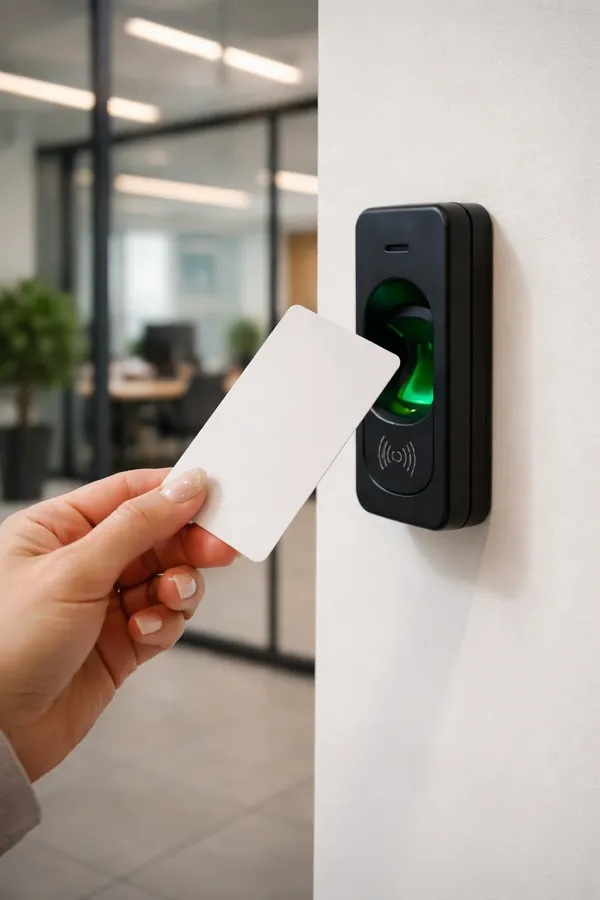
RFID Card Reader
Mifare and DESFire. Weather-resistant.
- CardsMifare, DESFire, HID
- HousingWeather-resistant (IP65)
- Best forOutdoor and external gates
NFC / Wallet Reader
Open doors with Apple Wallet or Google Wallet.
- IdentificationApple Wallet, Google Wallet, NFC
- Card neededNo - phone only
- Best forModern offices, co-working
Compare
Which device does what
Every device reports to the same TimeClock 365 account, so you can mix them across sites.
| Device | Attendance | Door access | Identification | Connection |
|---|---|---|---|---|
| Fingerprint Clock | ✓ | With lock wiring | Fingerprint, card, PIN | Ethernet, Wi-Fi |
| Face Recognition Clock | ✓ | With lock wiring | Face, card | LAN, Wi-Fi |
| Multi-Door Controller | ✓ by door entry | Up to 4 doors | Via connected readers | PoE, Wi-Fi, 4G |
| Slim Controller | ✓ | 1 door | Fingerprint, card, PIN | LAN, Wi-Fi |
| Fast Controller | ✓ | 1 door | Fingerprint, card, PIN | Network |
| Face Recognition Reader | ✓ by door entry | ✓ | Face, card | PoE |
| RFID Card Reader | ✓ by door entry | ✓ | Mifare, DESFire, HID | Via controller |
| NFC / Wallet Reader | ✓ by door entry | ✓ | Apple & Google Wallet, NFC | Via controller |
"By door entry" - entering through a controlled door can count as the clock-in, if you turn it on.
Managed from the cloud
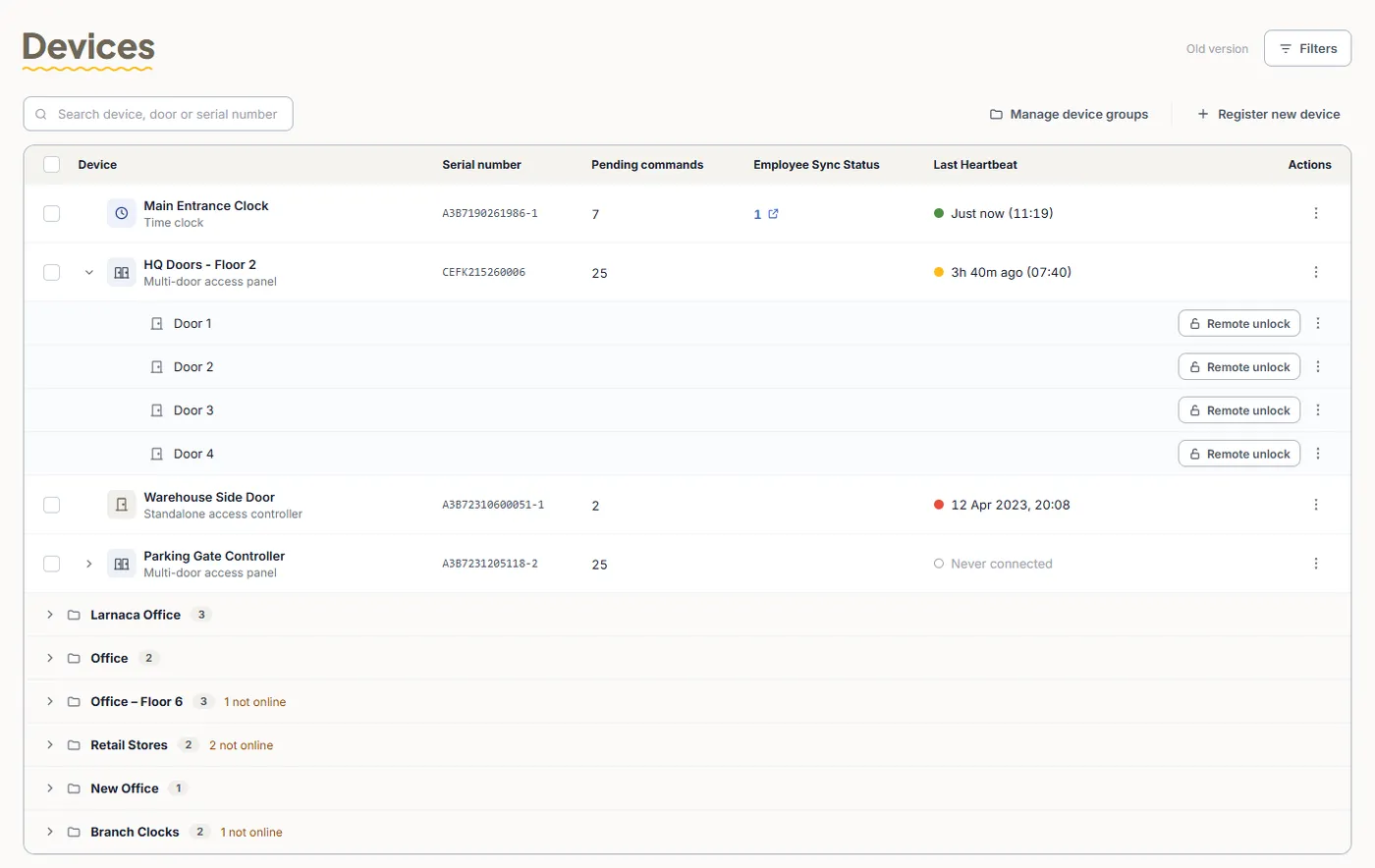
All your devices on one screen
See every clock and controller by site, whether it's online, when it last connected and whether all employees are synced. Unlock any door remotely.
Getting started
From the box to the first punch
- 1
Tell us your setup
Employees, sites and doors - we recommend the devices and send a quote.
- 2
Mount and connect
Install the device yourself or through a TimeClock 365 installation partner, and connect it by cable or Wi-Fi. Guide
- 3
Register it
In the web portal, go to Settings → Devices → Register new device and add it to your account. Guide
- 4
Enroll employees
Employees sync automatically - enroll fingerprints or cards at the device. Guide
Hardware + software. One platform.
Every device syncs in real time with your TimeClock 365 account. Attendance punches, door events and access logs - all in one place. No separate software, no manual data entry.
- Enroll employees once - use all devices
- Remote door unlock from any browser or the mobile app
- Access logs included in attendance reports
- ISO 27001 certified. Data encrypted at rest and in transit.
Frequently asked questions
Do I need a server or software to run TimeClock 365 hardware?
No. Every clock, controller and reader connects to the TimeClock 365 cloud over the internet. You manage all devices from the web portal - nothing is installed on a local computer.
What happens if the internet goes down?
Devices keep working. Time clocks store punches and controllers keep their access permissions locally, and everything syncs automatically when the connection is back.
Can one device track attendance and open a door?
Yes. A biometric terminal wired to an electric lock opens the door after a successful scan, and the same scan records the clock-in in the attendance report.
Fingerprint, face or card - which should I choose?
Fingerprint suits most offices, retail and manufacturing. Face recognition is best for busy entrances and sites where hands are gloved or dirty. Cards and mobile wallet work everywhere and are the usual choice for outdoor gates.
Do I need to add employees to every device?
No. Add employees once in the web portal and they are uploaded to the devices automatically. Fingerprints or cards are enrolled at the device in under a minute.
How do I add a new device to my account?
Connect the device to the network and register it in the TimeClock 365 web portal under Settings → Devices → Register new device, using its serial number. The setup guide walks through each step.
How do I order hardware?
Contact our sales team with the number of employees, sites and doors. We will recommend the right devices and send a quote.
Setup guides
Set up a new device
Register a clock or controller.
Connect to the network
Ethernet or Wi-Fi.
Check sync status
Is the device online and up to date?
Re-upload employees
Refresh users on a clock or controller.
Door settings
Lock delay, door sensor and alarm.
Punches not showing?
Troubleshoot connection and sync.
Need hardware for your office?
Tell us your setup - number of doors, team size, punch method - and we'll recommend the right devices.