
Getting started with TimeClock 365
Six steps from sign-up to your first payroll-ready report. Each step links to the full guide.
- 1
- 2
Set up company details
Company profile and time zone, per company or per employee.
Company settings guide → - 3
Create work agreements
Standard hours, breaks and overtime rules for each group of employees.
Work agreements guide → - 4
- 5
Choose how people clock in
Mobile app, web, Teams, Slack, Chrome, biometric clocks or the door.
Clock-in methods → - 6
Door access control
Using door access too?
TimeClock 365 is first a cloud door access control system. Controllers and readers are registered in the web portal, employees are uploaded to the devices automatically, and door entries can become attendance.
See the hardware →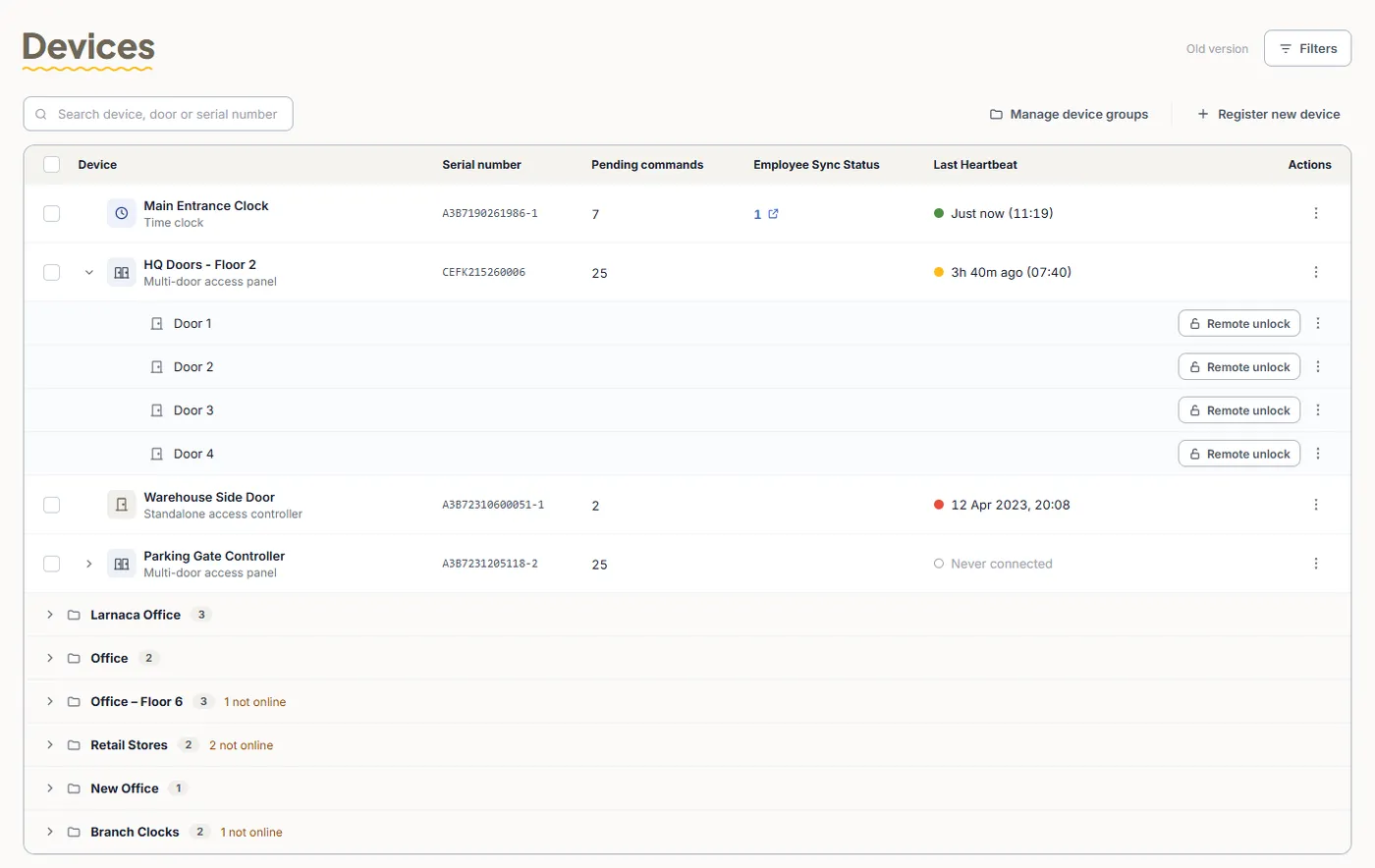
Frequently asked questions
How do I get started with TimeClock 365?
Create an account with the 14-day free trial, set your company details and time zone, create work agreements with standard hours and overtime rules, add employees (individually, from Excel or from Azure AD), choose clock-in methods, and run the Detailed Attendance report.
How do I add many employees at once?
Import them from an Excel file. The support guide Importing Users from an Excel File explains the template and steps. Companies using Azure AD can sync users instead.
What is a work agreement?
A work agreement (contract) defines an employee's standard hours, breaks and overtime tiers. TimeClock 365 applies it to every punch automatically, so reports show regular hours and overtime without manual calculation.
Where do I log in?
At live.timeclock365.com with your TimeClock 365 username and password, or with single sign-on if your company uses Azure AD or Okta. Employees can also use the mobile app.
Can someone walk us through setup?
Yes. Book a demo and the TimeClock 365 team will show you the setup for your company, including doors and readers if you use access control.