
A user's ability to view data and perform actions is determined by their assigned role. Each role contains a specific set of permissions. You can manage user capabilities in two ways: assign a different role to a user, or edit the permissions of an existing role.
Change a user's assigned role
Use this method to change a single user's permissions by moving them to a different, pre-configured role (for example, from Employee to Administrator).
- Go to Users in the main menu.
- Find the user and click their name.
- In the user card, scroll down to the Security section.
- Open the Role dropdown to see the available roles.
- Select the new role.
- Click Save at the bottom of the page.
The user now has the permissions of the new role.
Edit the permissions of a role
Use this method to change permissions for every user assigned to a role. For example, to give all Group Managers the ability to edit reports.
- Go to Roles in the main menu.
- Click the role you want to edit, or click Actions next to it and select Edit.
- Configure the access levels: Access to modules (grant or deny access to sections such as Projects, Customers or Reports, for the individual user, their group members, or the entire organization), Editing settings (Create, Edit and Delete permissions for time entries, tasks, time off and more) and Reports (which reports the role can access).
- Scroll to the bottom of the page and click Save.
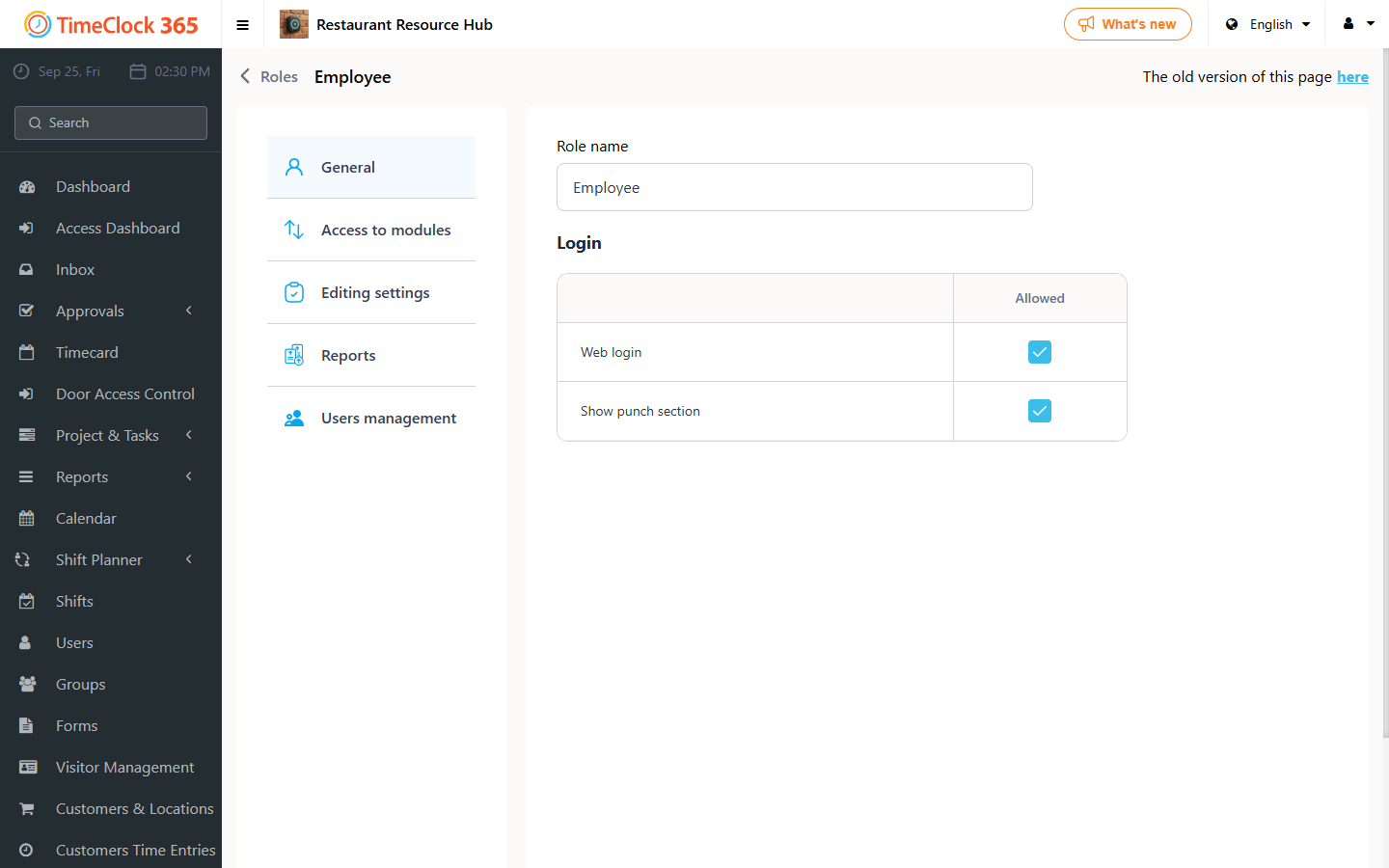
The new permissions apply to all users assigned to this role.
Role permission sections
- Login: whether users with this role can log in to the web system.
- Access to modules: which main sections (such as Projects, Customers or Live Map) are visible. Permissions can be set for the user themselves, their group members, or the entire organization.
- Editing settings: what users can do within modules. Check the boxes to allow creating, editing or deleting items such as time entries, tasks and expenses.
- Reports: access to specific reports. Check the box next to each report the role may view.
- Users management: allows creating new user accounts and assigning them to other roles.
- Core: fundamental settings, such as whether the user can see the punch section to clock in and out.
Important: Role settings are powerful and affect all users assigned to the role. To avoid configuration errors, we recommend contacting support before making significant changes. Open a support ticket.
For more details, see Introduction to roles.