A report may be blocked for editing for several reasons.
Report approved – by employee and by manager
The user does not have editing permission (role)
Report locked – by system or by contract
The editing limit for contract is exceeded.
Report has been already approved
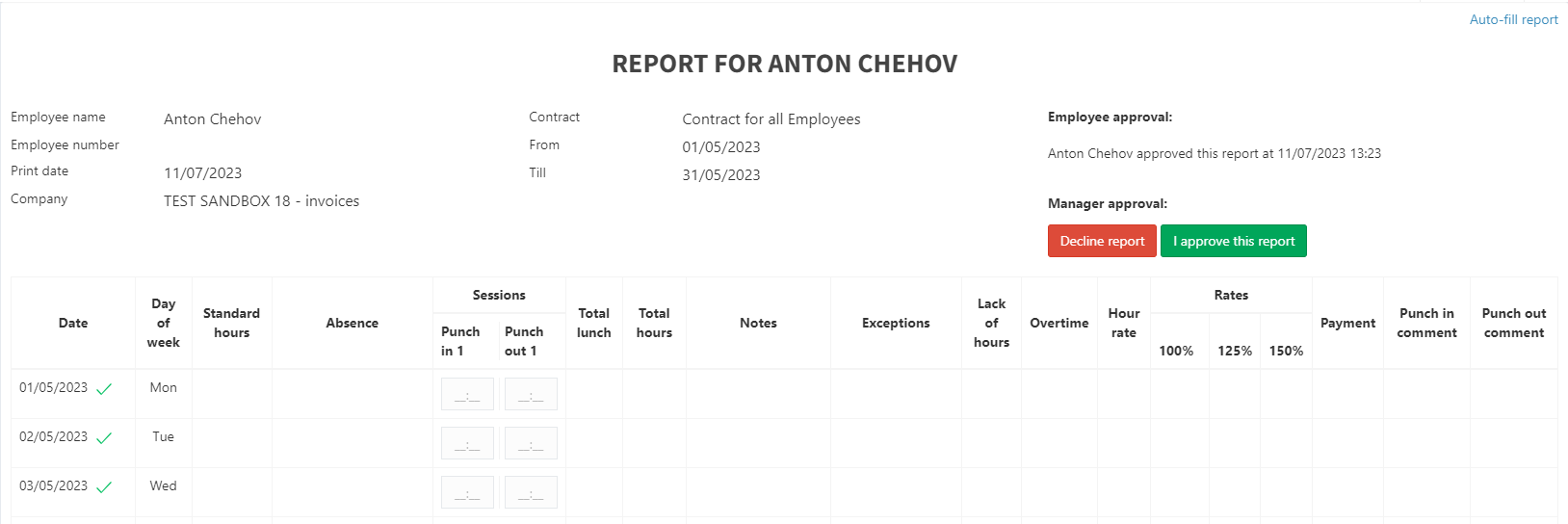
The report’s status can bee seen upper right. And the approved dates are marked with green sign like in the screenshot below:
Depending on your Company Roles and Permission’s settings this issue can be resolved by following these steps:
declining a report (if permission exists): If you already have the permission to decline a report, you can proceed by clicking on the “Decline report” option. This will allow you to make necessary modifications to the report.
contact your Group Manager or Administrator (if no permission): Please get in touch with your Group Manager or Administrator. They can either decline report or provide you with the necessary permissions.
How to give user a permission to decline reports
Navigate to sidebar
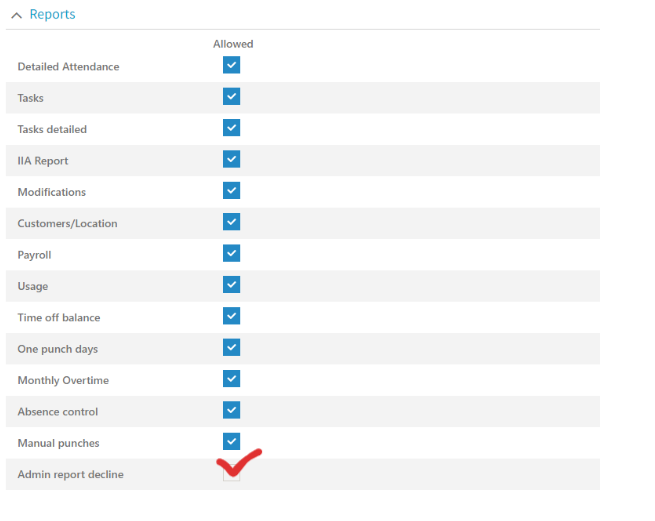
Select Settings -> Roles (Permissions)
Select relevant Role (Permission)
Scroll to Reports section
Tick the “Admin decline report” option
Please keep in mind that this change will affect all users assigned with the selected Role (Permission).
Report is locked
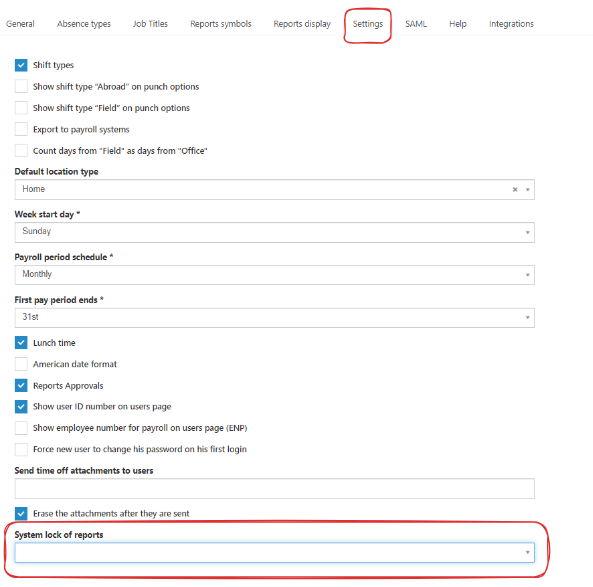
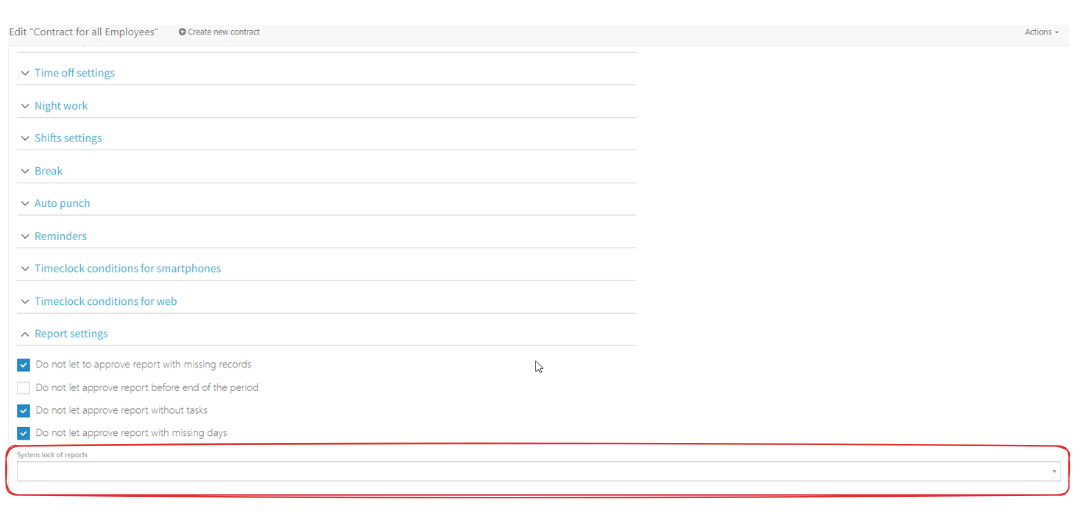
The report could be locked due Company’s settings or Contract’s settings.
You can either change or remove this setting for the entire Company of for the particular Contract.
How to find report locking settings
Company settings can be found here:
sidebar -> Settings -> Company profile -> Settings (horizontal menu)
Contract settings can be found here:
sidebar -> Settings -> Contract -> relevant Contract -> scroll to the Reports section
Please note that a locked report can only be edited by the Administrator.
Exceeded editing limit for contract.
If this limit is exceeded the report will be locked and only Administrator would be able to edit it.
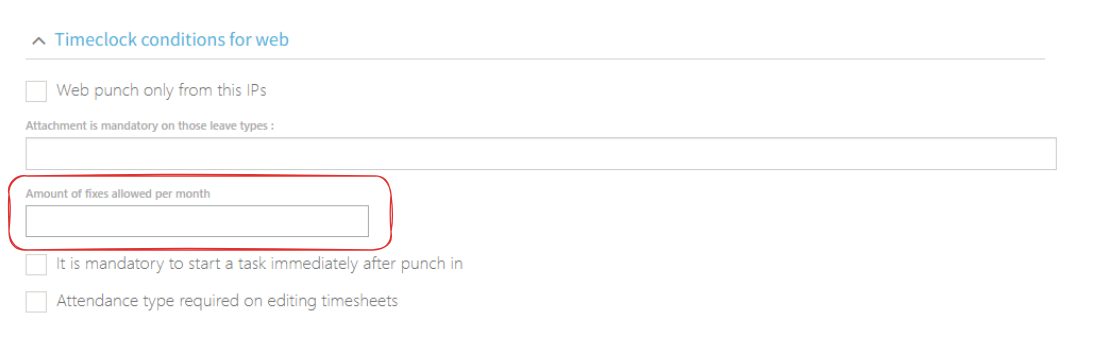
How to find and set up monthly amount of fixes
To change or remove this setting follow this:
sidebar -> Settings -> Contracts -> relevant Contract -> scroll to the Timeclock 365 conditions for web section