
Time clock Chrome extension: punch in from your browser
Your team's day already happens in Chrome. The TimeClock 365 extension puts the time clock one click away in the toolbar - punch in, pick Home or Office, switch tasks, punch out. No tab to find, no app to open.
- Free to install
- Login saved
- Task time tracking
- Release 4.2 testingProject Atlas
- Payroll module rolloutNorthwind Retail
What is a time clock extension for Chrome?
A time clock extension records work hours from the browser toolbar. Instead of opening a time tracking website or a phone app, employees click an icon to punch in, track time on a task and punch out.
The TimeClock 365 extension is connected to the full TimeClock 365 attendance system, so every click becomes part of the same timesheet that calculates overtime, goes to manager approval and exports to payroll.
In the toolbar
Everything a desk worker needs in one click
Built for people who work on several tasks and switch between them during the day.
Punch in and out
Start the workday when the laptop opens and end it with one click.
Home or Office
Employees choose where they work today, so hybrid days are recorded correctly.
Start a task
Pick a task and the clock runs against its project and customer.
Pause and switch
Pause one task and start another - no timesheet to fill in at night.
Login remembered
Log in once. The browser keeps the details for next time.
Same report
Punches join web, mobile and time clock punches in one attendance report.
Install
Add the clock extension to Chrome
- 1
Open the store page
Go to TimeClock 365 in the Chrome Web Store.
- 2
Add to Chrome
Click "Add to Chrome" to install the extension.
- 3
Pin it
Pin the icon to the toolbar for quick access.
- 4
Log in once
Use your TimeClock 365 username and password. Done.
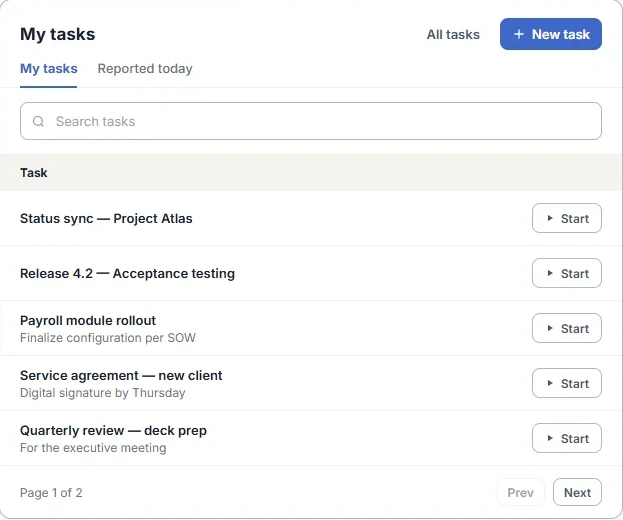
Task time
Hours by task, project and customer - without timesheets
The tasks employees start in the extension are the same tasks managers create in TimeClock 365. Time is recorded against the task as it happens, so project reports and customer billing are based on real hours, not end-of-week guesses.
- Tasks with time budgets set by managers
- Reports by task, project, customer and employee
- Also in Jira, Trello and Monday.com for teams that live there
Which one?
Chrome extension, Teams, app or door
Use the extension for desk workers and other methods for everyone else. All punches land in one timesheet.
| Clock-in method | Best for | How they punch |
|---|---|---|
| Chrome extension | Desk workers who switch tasks often | One click in the browser toolbar |
| Microsoft Teams | Office and hybrid staff who work in Teams | Punch in and start tasks in the Teams app |
| Mobile app | Field and remote teams | iOS or Android, with GPS location |
| Time clock | Sites with a shared entrance | Fingerprint, face, card or PIN |
| Door access | Offices that control who gets in | The first door entry starts the day |
Attendance from the door
Office days can start at the door
With TimeClock 365 door access control, attendance and access share one account. On office days, the first card, phone or fingerprint at the door can start the workday and the last exit can end it. On home days, the Chrome extension does the job.
See door access control →Pricing
Free extension. Attendance from $3.90 per user / month
Billed annually. Attendance + Access Control is $4.90. 14-day free trial, no credit card.
Chrome clock extension - FAQ
Is there a Chrome extension for employee time tracking?
Yes. The TimeClock 365 Chrome extension is a time clock in the browser toolbar. Employees click the icon to punch in, choose Home or Office, start and pause tasks, and punch out at the end of the day. Every punch goes into the TimeClock 365 attendance report used for overtime and payroll.
How do I install the TimeClock 365 Chrome extension?
Open the TimeClock 365 page in the Chrome Web Store and click "Add to Chrome". Pin the extension to the toolbar for quick access, click the icon and log in with your TimeClock 365 username and password.
Do employees have to log in every time?
No. The first time they use the extension they enter their TimeClock 365 login details, and the browser remembers them for next time.
Can I track time on tasks with the Chrome extension?
Yes. That is what it is built for. Employees who work on several tasks a day start a task from the extension, pause it and start the next one. Task hours appear in reports by task, project and customer.
Is this a digital clock extension that shows the time?
No. The TimeClock 365 extension is a work time clock: it records when employees start and stop work and which tasks they work on. If you only want a clock face in your browser, a simple clock extension is a better fit.
Is the Chrome extension free?
The extension is free to install from the Chrome Web Store. It needs a TimeClock 365 account - attendance plans start at $3.90 per user per month, billed annually, and there is a 14-day free trial with no credit card.
What about employees who do not work in Chrome?
They use another clock-in method on the same account: the web portal, the iOS or Android app, Microsoft Teams, Slack, a biometric time clock, or the office door if you use TimeClock 365 access control.
Related
Put the time clock in every browser
Book a 30-minute demo - we'll show the extension, task reports and the payroll export.