
This guide explains how to complete a task automatically using the Smart Wizard.
Note: automatically completing a task older than 24 hours counts as a retroactive report.
- Click the Smart Wizard on the dashboard.
- Confirm there are no missing attendance reports and click Continue.
- To complete the task automatically, click "Auto-Fill".
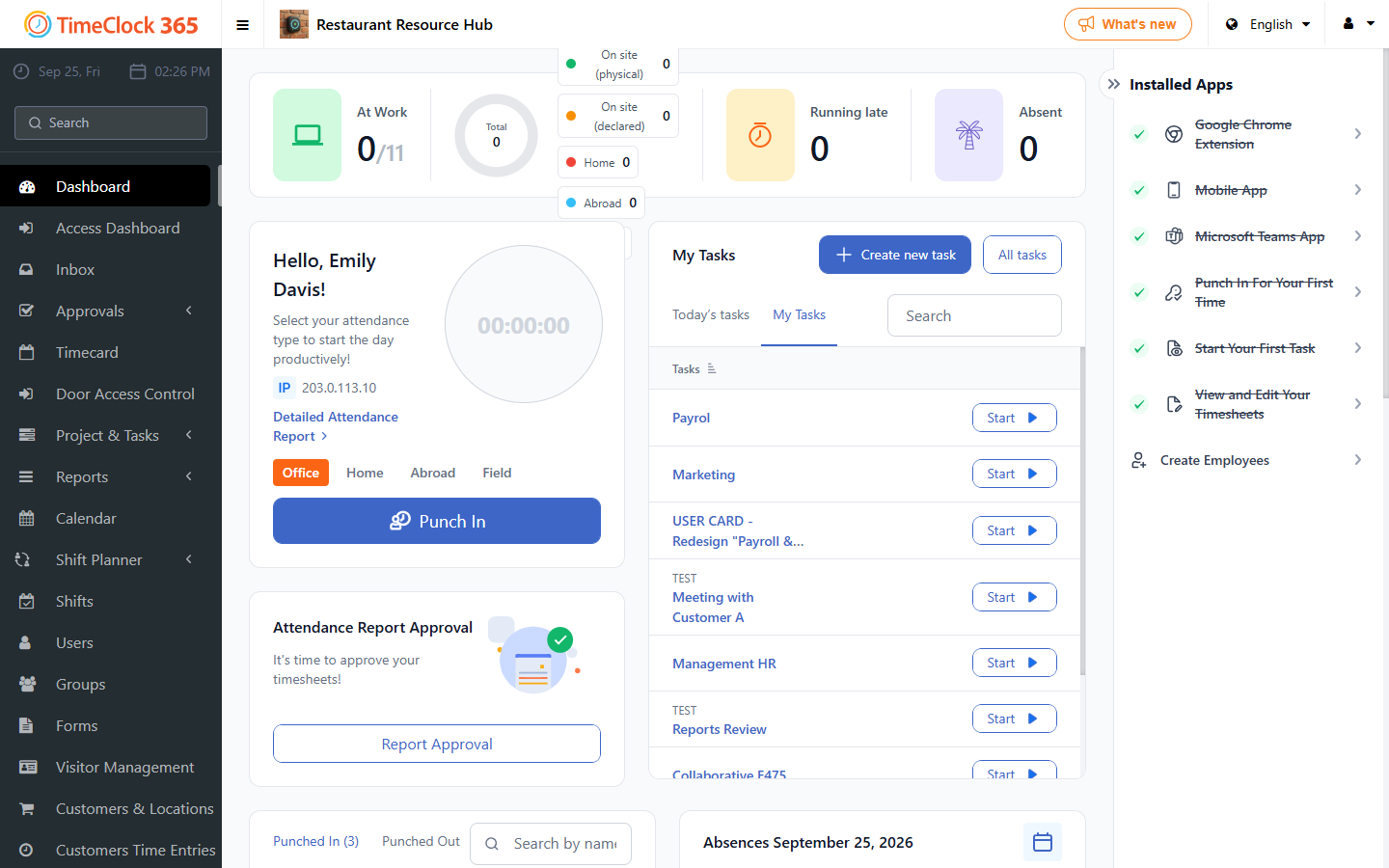
The system will complete a task linked to the relevant project; if more than one task exists, it completes the first one in chronological order.
Using the wizard for the Innovation Authority report
For the monthly Innovation Authority (IIA) report approval, the wizard is available on the desktop version and the mobile apps. On the Dashboard, find the IIA Report Approval widget and click "Report Approval". The wizard has three steps.
Step 1 - Fill in missing timesheets
The screen shows days from the previous month with missing punch-in or punch-out times. Fill in the missing entries manually, or click "Auto-fill report" to fill the hours according to your contract (for example 09:00-17:00). You cannot continue until all work hours are accounted for. Click Next.
Step 2 - Allocate hours to tasks
The screen shows a table of your workdays. Distribute the "Total hours" across the task columns, either by typing hours directly into the cells or by clicking "Auto-fill tasks" to distribute your work hours across the tasks automatically. Continue until no hours remain unassigned.