
Send a digitally signed unpaid leave notice to a group of employees or to the whole company at once, instead of handling each employee individually.
Step 1: Enable the module (administrators)
If the Document Wizard does not appear in the HR menu, enable the permission first:
- Go to Settings, then Permission Management, and edit the Administrator permission.
- Choose Module Access.
- Find Document Wizard, check its checkbox, and save.
Step 2: Choose and edit the template
A ready-made template is available to save time.
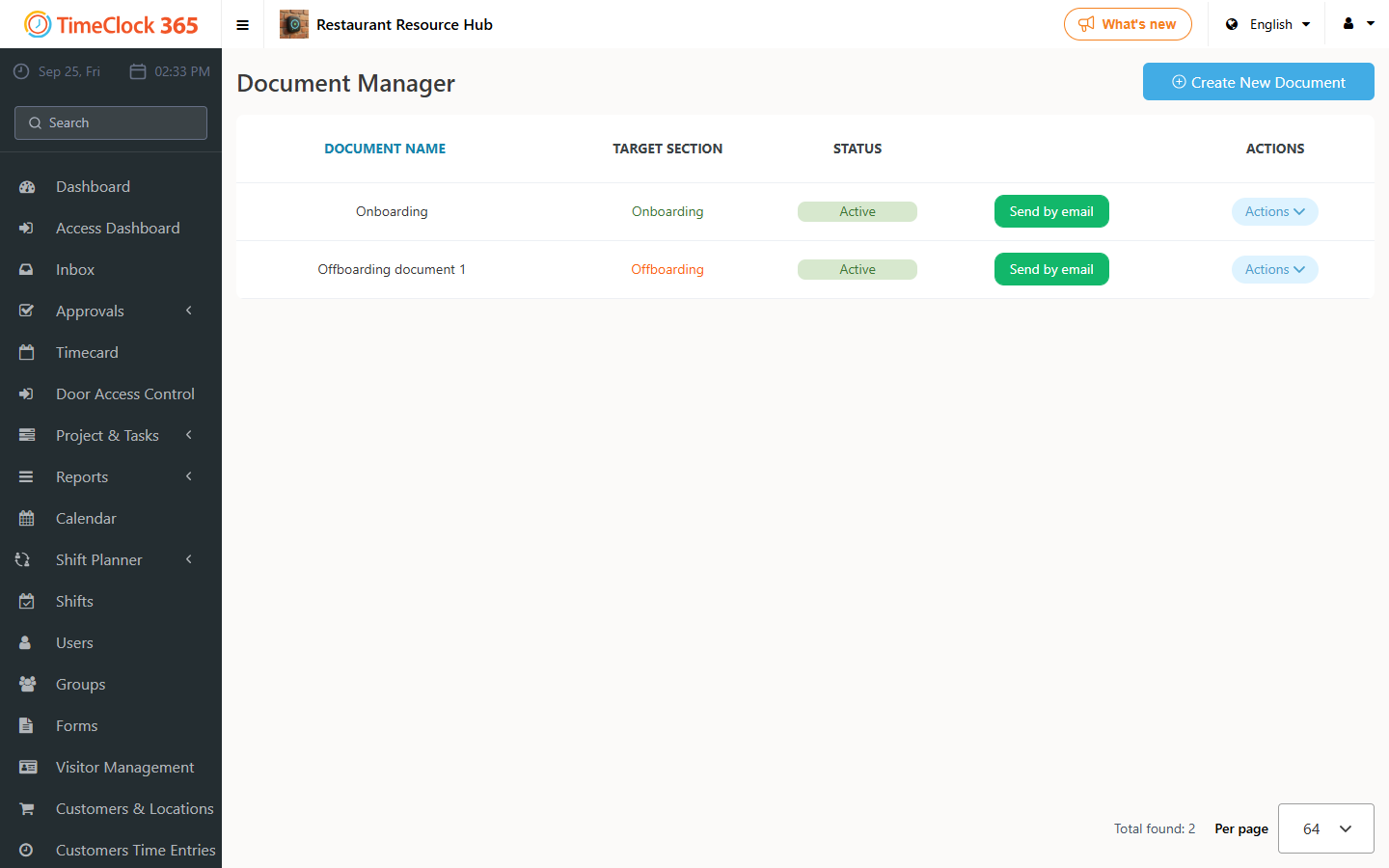
- In the side menu go to HR, then Document Wizard.
- Find the template named "Unpaid leave notice" in the list.
- Click Actions, then Edit.
- In the edit window you can customize the document name and its content.
- When done, click Save.
Step 3: Send to employees in bulk
- Return to the main Document Wizard screen.
- Click "Send by email".
- In the popup window choose one of two options: send by group (select an employee group, for example Sales; if you do not pick specific names below it, the document goes to every member of the group), or send individually (select single employees from the list without choosing a group).
- Click Send. Employees receive the document by email or on mobile for quick signing.
Step 4: Track and follow up
There is no need to chase employees. After sending, open the document status page to see in real time who already signed, who has not opened the notice yet, and you can also download the signed documents as a secured PDF file.
Tip: make sure employees' email addresses are up to date in their user card before sending, to ensure the document reaches them quickly.