
This guide explains how to set up TimeClock 365 so attendance data can be imported into the Chilan Hashavim payroll system with one click.
Settings in TimeClock 365
- Go to Settings, then Company Profile, and enter your company number from Chilan Hashavim in the "Payroll company number" field. Click Update.
- Go to the Integrations tab, click "Generate token" and save the value it gives you - you will need it for the Chilan Hashavim setup. In the "Hilan Hashavim start month day" field, choose the first day of your pay period, then click Update.
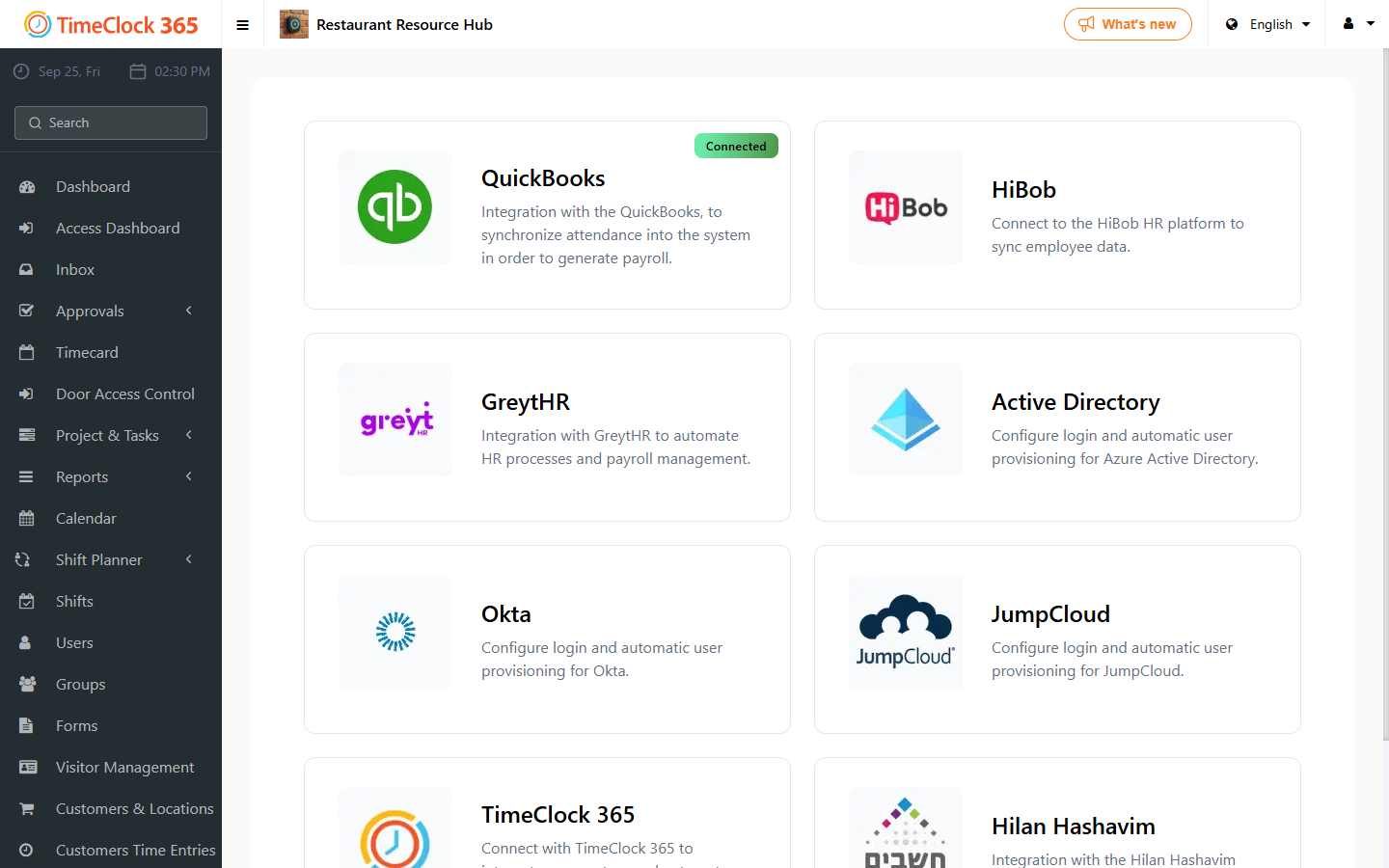
Settings in Chilan Hashavim
- Log in to Chilan Hashavim to configure the connection.
- Click "System maintenance", then "Attendance system settings".
- In the pop-up window, select TimeClock.
- Enter the URL and Token you saved from the previous steps.
- Click "Test connection".
- If the connection succeeds, you will get a Success message - click Save and exit.
Importing the attendance file
Now import the attendance file in Chilan Hashavim.
- Click "Import from other systems", check the relevant company, and click Next.
- Click the TimeClock button, confirm the path is filled in automatically (no need to select a path from your computer), and click Next.
- Click "Perform import".
- Once the upload finishes, a message will confirm the records were received.