
This guide explains how a manager approves manual attendance reports submitted by employees.
Note: as long as hours are still in unapproved status, the system will not count them toward the employee's total worked hours.
Approving manual attendance reports
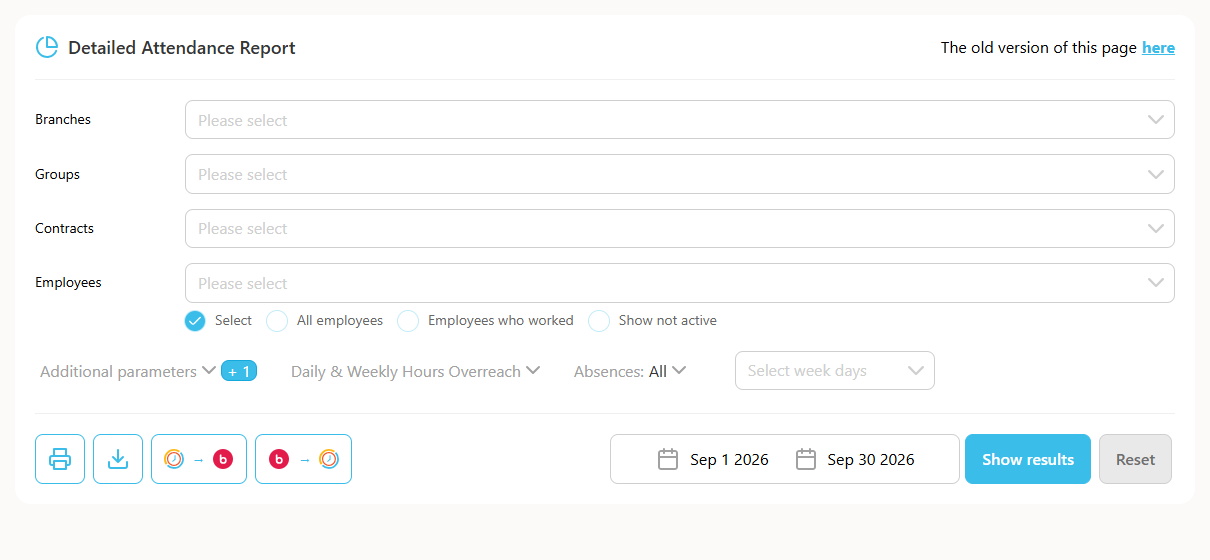
- Go to Reports -> Detailed Attendance.
- Select the employee.
- Select the relevant period and click Show.
Rows that an employee edited manually appear highlighted in green. Select the rows on the right side, then choose whether to approve the selected hours or reject and delete them.
Note: if there is no option to select rows, the user does not have permission to approve manual reports for employees. Open a support ticket for help setting up this permission.