
This guide explains how to require manager approval for changes employees make to their own attendance in TimeClock 365. It is for administrators and group managers who need tighter control over manual edits.
Note: employees must have the Employee Editor permission.
Step 1: Set the permission that can approve manual reports
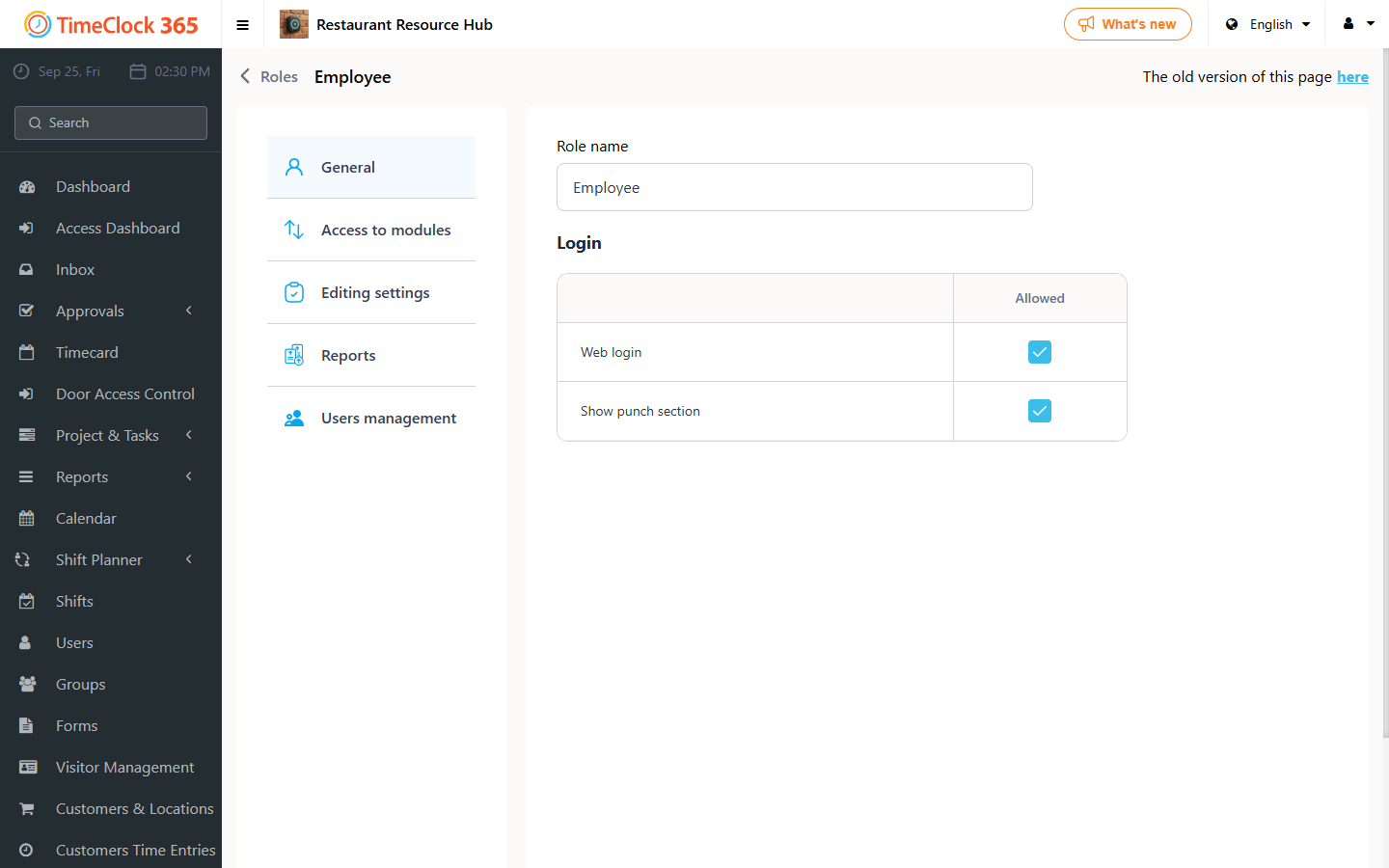
- Go to Settings -> Permission Management and click the permission you want to configure.
- Open the "Module Access" tab and select "Approve Manual Reports". If this is the Administrator permission, check the box in the "Entire organization" column; if it is the Group Manager permission, check the box in the "Group" column.
Step 2: Choose which employees require approval
Next, decide which employees should not have manually entered hours approved without a manager's sign-off. You can set this for a specific employee or for an entire contract.
For a specific employee
- Go to Users and click the relevant employee.
- In "Manager approval required for hours entered manually by the employee", select "Yes".
For a contract
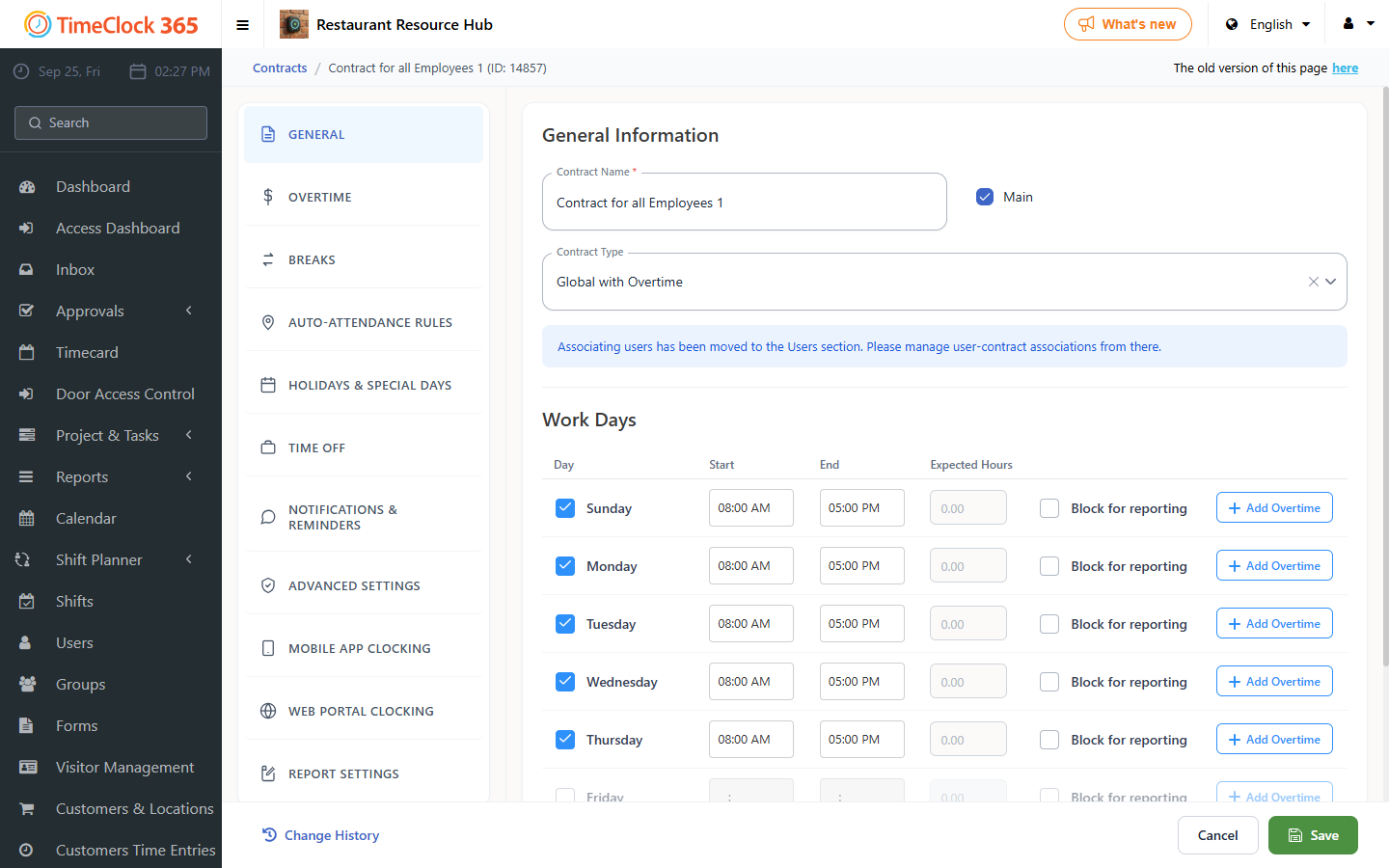
- Go to Settings -> Contract and click the relevant contract.
- Scroll down and open the "Web Clock-In Conditions" tab, set "Manager approval required for hours entered manually by employees" to "Yes", then click Save.
Once manager approval is required, employees' manually entered hours will wait for manager approval before being finalized.