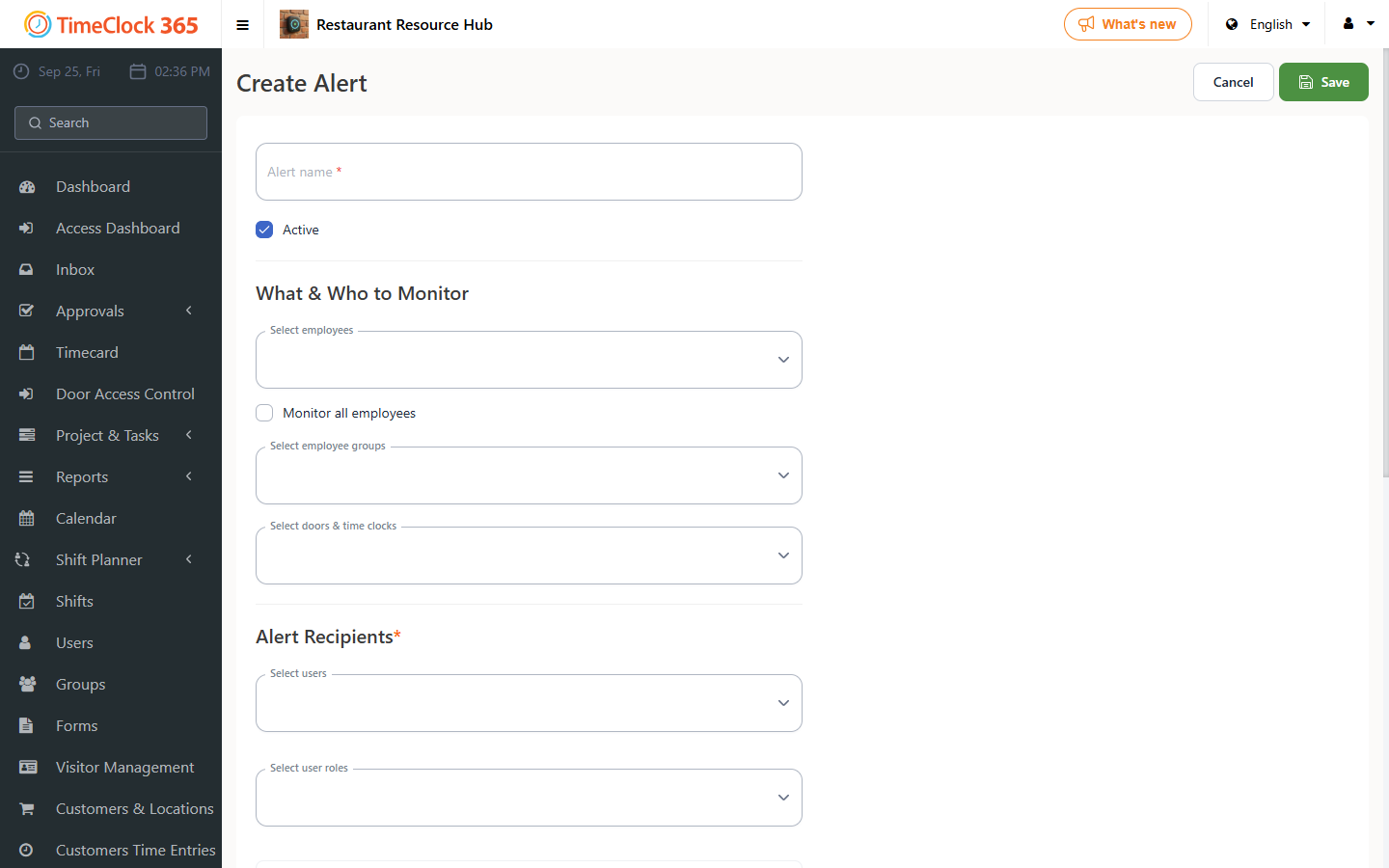
This guide explains how to set up a daily alert for employee entries at doors during specific hours, for example to flag unusual after-hours access.
Note: this alert covers data for all users, regardless of the viewer's permissions or access level.
- Click Alerts, then click New Alert.
- Type a name for the alert, choose the employees it should cover (or check "Receive alerts for all users"), and select the manager who should receive it.
- Check the box to automatically send an Excel report listing employees who passed through the selected doors and/or punched at the selected clocks within a defined time window.
- Choose the hours the report should cover (for example, employees who passed through doors between 00:00 and 07:00).
- Choose the door controllers to include in the report.
- Choose the time you want to receive the report itself.
- Scroll to the bottom of the page and click Save.