
The Attendance Report is one of the core screens in TimeClock 365, giving you a view of employee clock-ins, clock-outs, and time off entries. See the Reports section of your portal, especially the Detailed Attendance report, for the day-by-day breakdown, and the related guides for exporting, formatting, and editing attendance data.
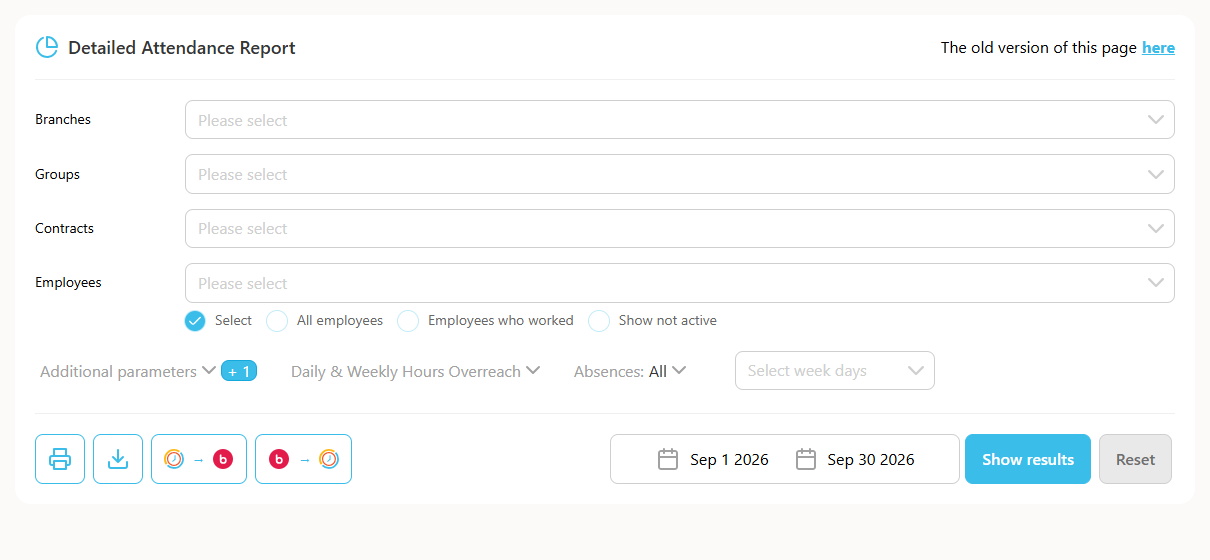
How to view the Detailed Attendance report
Group managers and HR managers can check the attendance of their employees, and employees can check their own report to compare it with the pay they received.
- Log in to your user dashboard and click Reports on the left. The Reports section expands.
- Click Detailed Attendance.
- Choose which employees to include:
- Select - a specific employee. Tick it and click the Employee field to choose the name.
- All Employees - the attendance of all employees.
- Employees Who Worked - only employees who clocked time.
- Show Not Active - only employees who are not active.
- Click the current date range and choose a period, custom range, week or specific day. For a custom range, fill in the start date and end date.
- To set the reporting criteria, expand Additional parameters and tick the relevant boxes.
- To sort the report by employee name, tick "Sort A to Z" in Additional parameters. Leave it unticked for the default order.
- Click Show Results to view the report.
To print the report, click Print. To save it, click Download and choose a format and report type. If your company uses QuickBooks, refer to the QuickBooks guide.