
Learn how to set a job percentage when assigning an employee to a work agreement (contract), so the system calculates their standard hours proportionally.
Note: the change is made in the employee's assignment to the contract, not in the contract itself.
For example, if a full work day under the work agreement is 8 hours and an employee is set at 75% job percentage, the system will calculate only 75% of those hours for them - 6 hours a day. Instead of a standard of 8 hours, a standard of 6 hours will appear, based on the job percentage set.
How to set it up
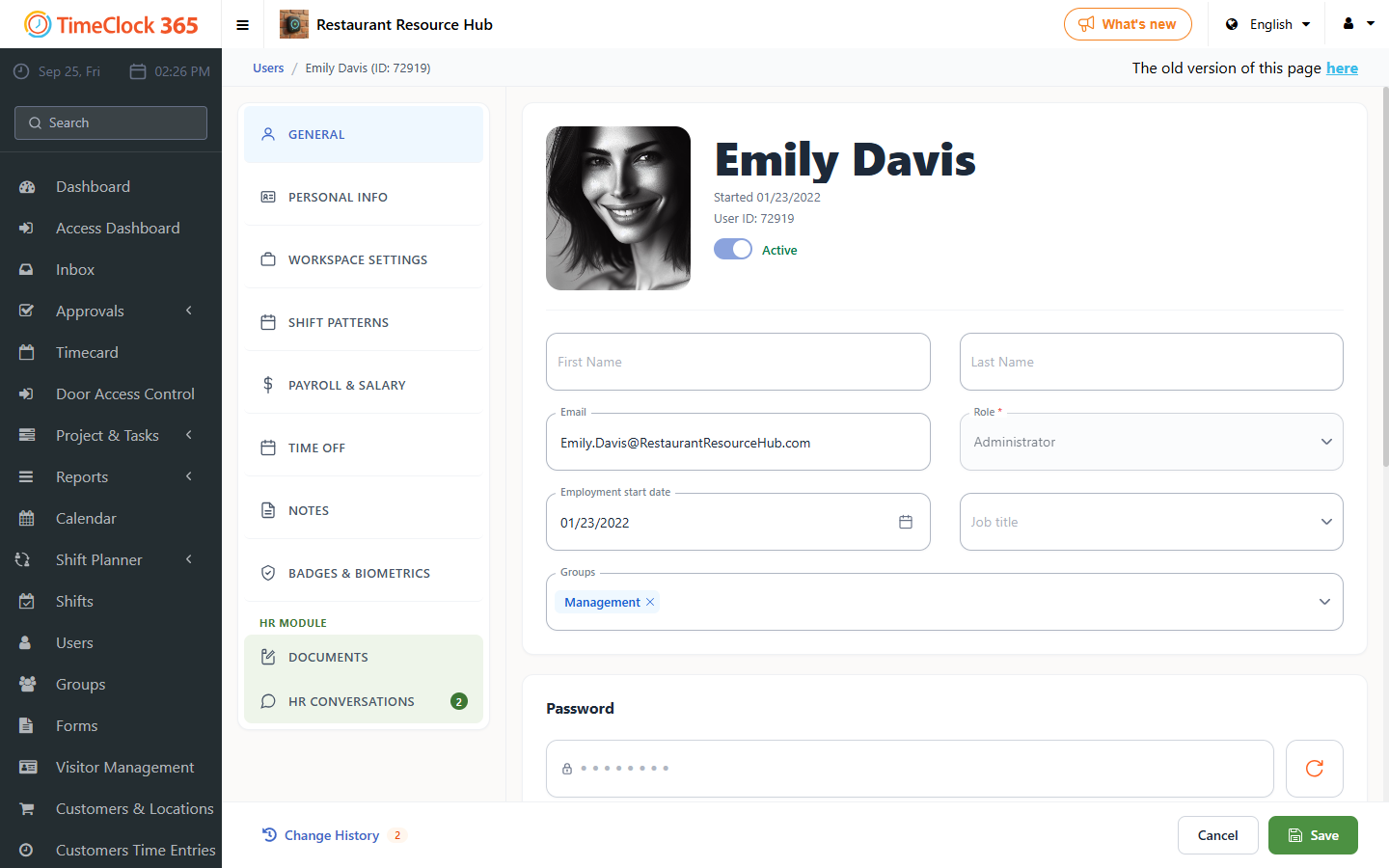
- Click Users, then click the employee you want to set a job percentage for.
- Open the "Work agreement" tab, type the desired job percentage in the Percentage field, scroll to the bottom of the page, and click Save.
When adding or changing the entry, fill in these fields:
- Contract - the contract that defines the 100% workload.
- Percentage - the employee's job rate as a number (for example, 80 for 80%).
- Comes into force - the date from which the percentage takes effect. You can use this to schedule a future change.
From that date on, expected hours in reports such as Detailed Attendance are calculated by this percentage. For example, a 40-hour week at 50% becomes 20 hours.
If you also want to change the employee's work agreement starting from a specific date, a separate guide covers that.