
Sometimes an employer needs to know how many hours an employee worked during a day shift versus a night shift. This guide shows how to classify shifts by hour range in a work agreement.
You can download a shift report from the Detailed Attendance report; it shows the total hours the employee worked in each shift. For example, if an employee worked from 18:00 to 23:00, this splits into: day shift - 3 hours, night shift - 2 hours.
Setting up shift classifications
Go to Contracts and select the relevant contract.
Scroll down and open the "Shifts" tab -> click Add shift to add a shift classification.
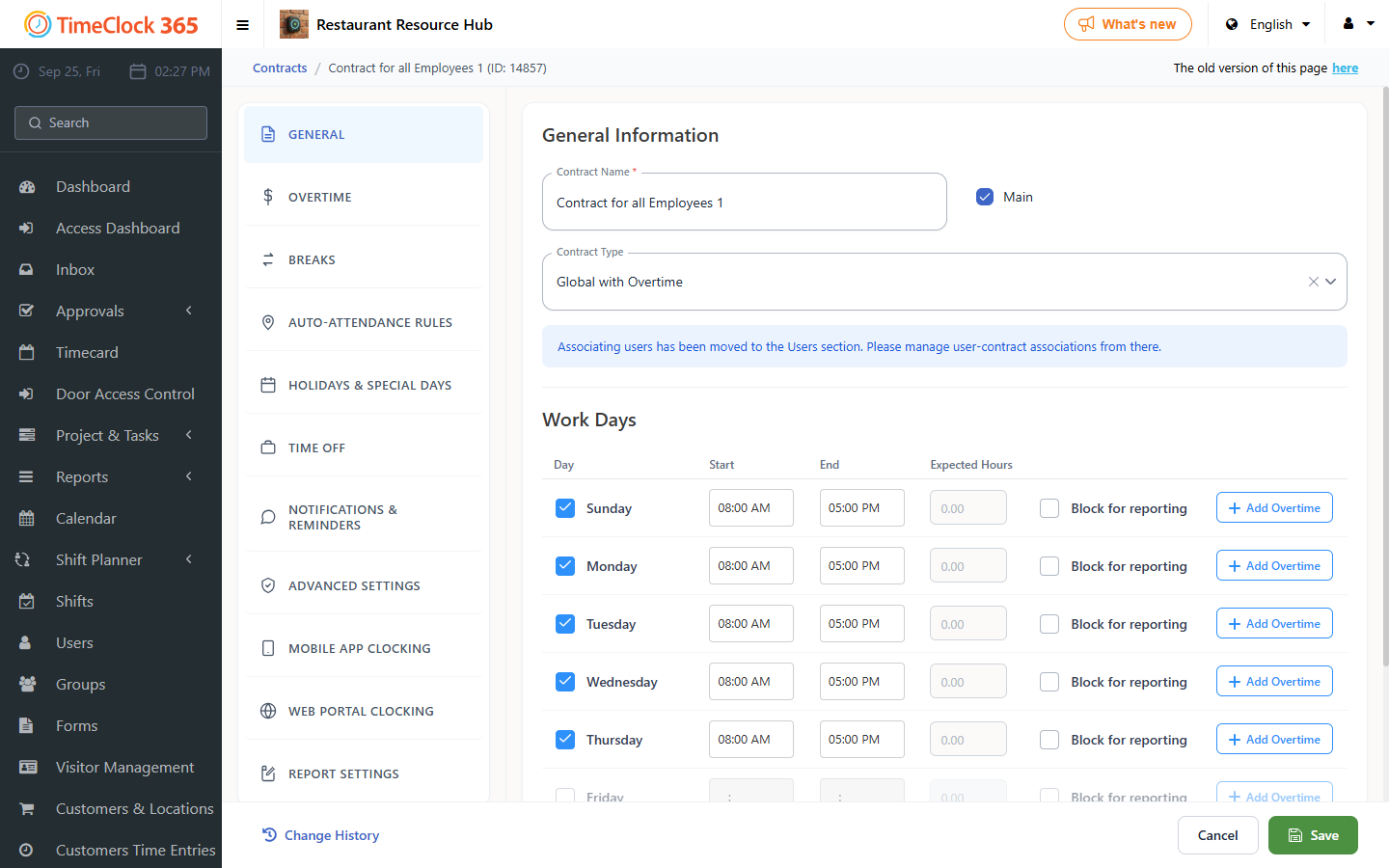
Enter the working hours you want to classify. You can add several shifts, but make sure a default shift is defined. Then check the entries and click Save at the bottom of the screen.
Example: the default shift is a night shift from 16:30 to 00:30, and a day shift runs from 08:30 to 16:30. If the employee worked 3.5 hours on the night shift and 8 hours on the day shift on one date, the shifts report shows exactly that split for that date.
Viewing the report
To view the report, click Reports -> Detailed Attendance -> select the employee you want the data for -> click the Download button -> choose "Split by shifts". The report is generated immediately.