
This guide walks through setting up automatic reminders for employees, sent to the mobile app and/or by email.
- Click Settings -> Contracts -> click the contract that the employees you want to remind are assigned to.
- Scroll down to the "Reminders" tab.
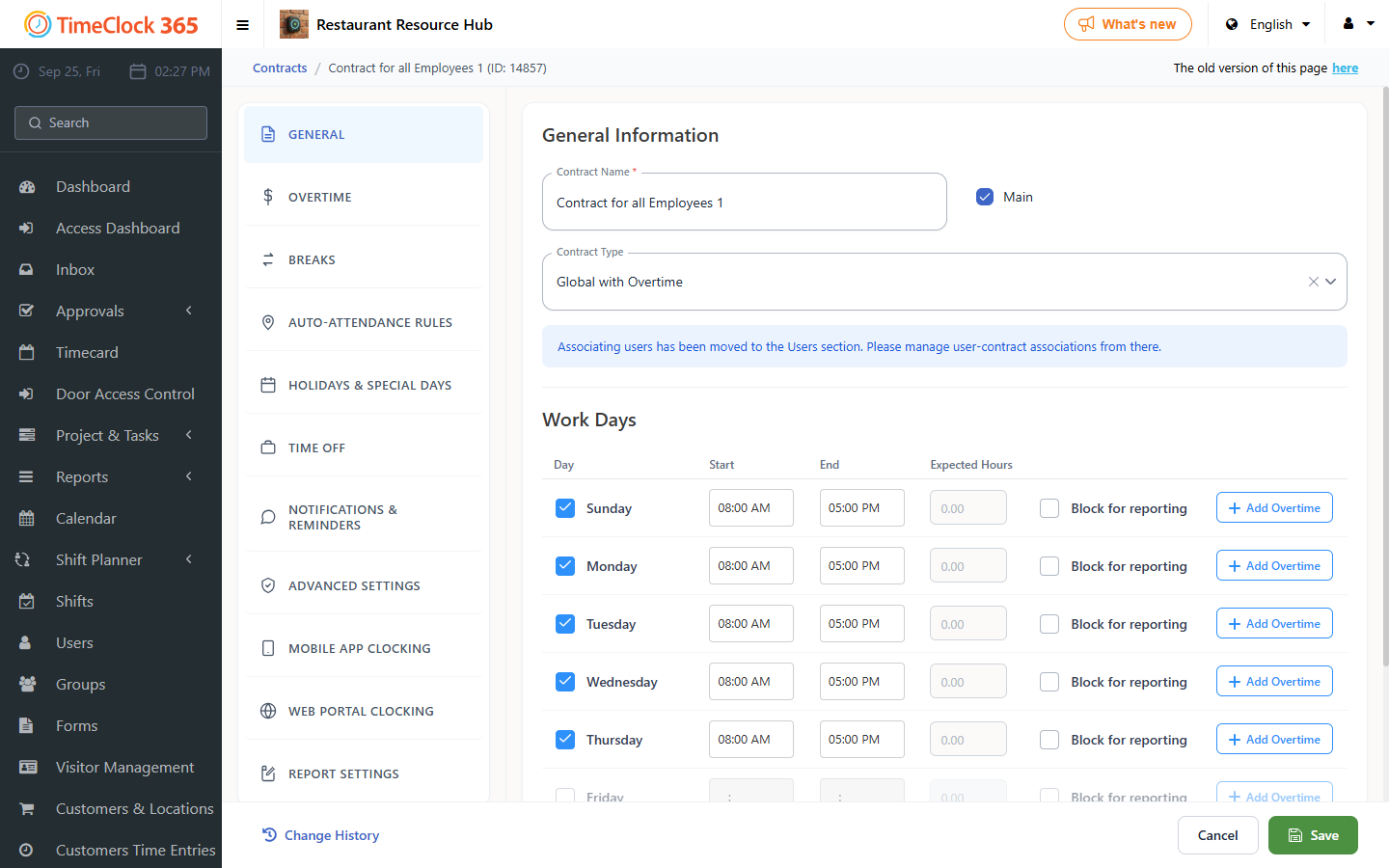
Check the reminders you want:
App reminders
- Clock in reminder (based on the time set for that day in the contract above).
- Clock out reminder (based on the time set for that day in the contract above).
- Reminder for the employee to approve their attendance report.
Email reminders
- Clock in reminder (based on the time set for that day in the contract above).
- Clock out reminder (based on the time set for that day in the contract above).
- Reminder for the employee to approve their attendance report.
- Reminder for the group manager to approve their employees' reports.
- Notification to the employee and manager when an automatic absence has been added.
- Update to the user about their absence status.
- Weekly reminder about missing reports (requires setting a day and time to receive the update).
After checking the reminders you want, click Save.
For a guide on turning off reminders, see the related guide.