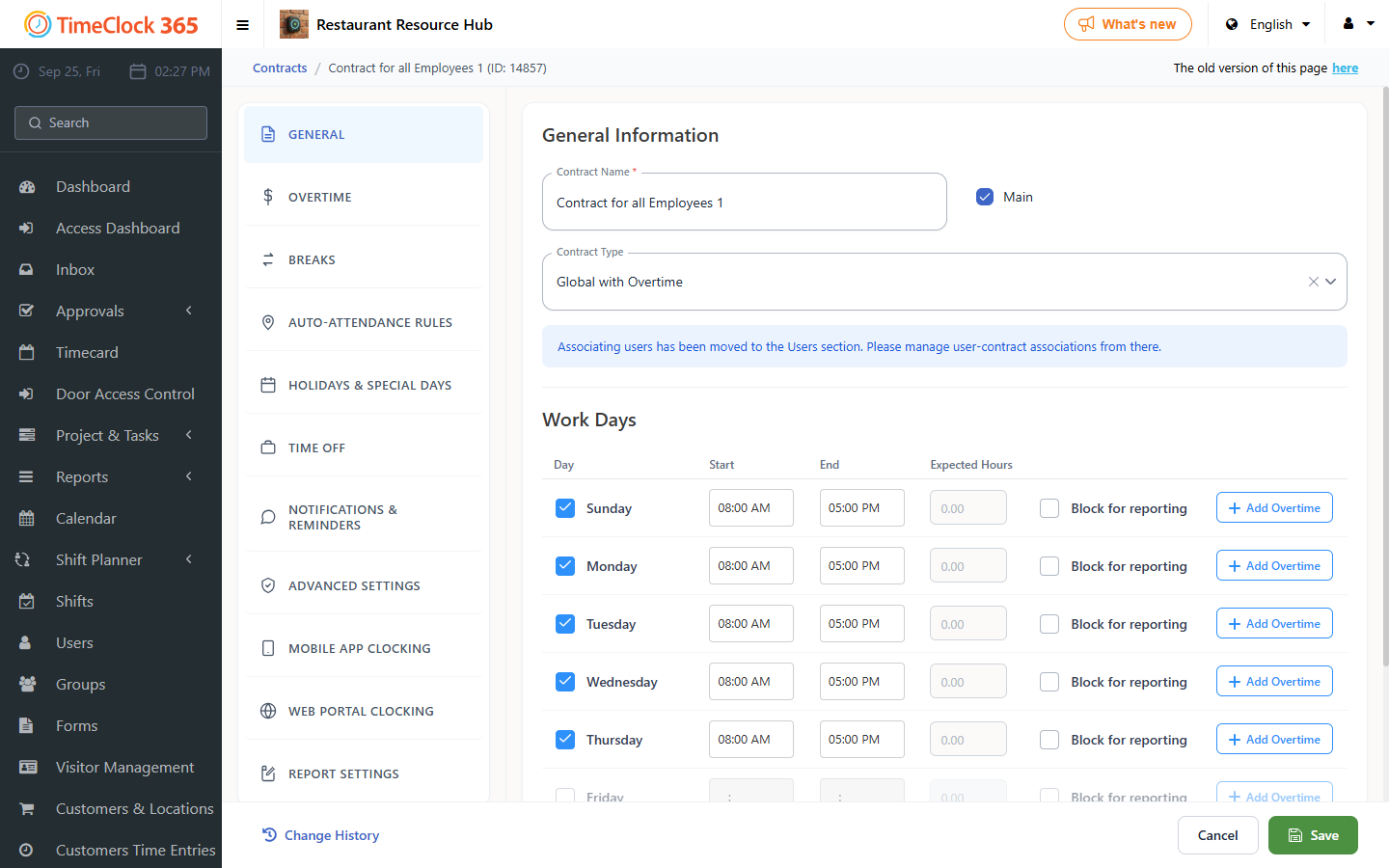
This guide explains how to block attendance reporting through the mobile app, either for a specific employee or for everyone assigned to a specific contract.
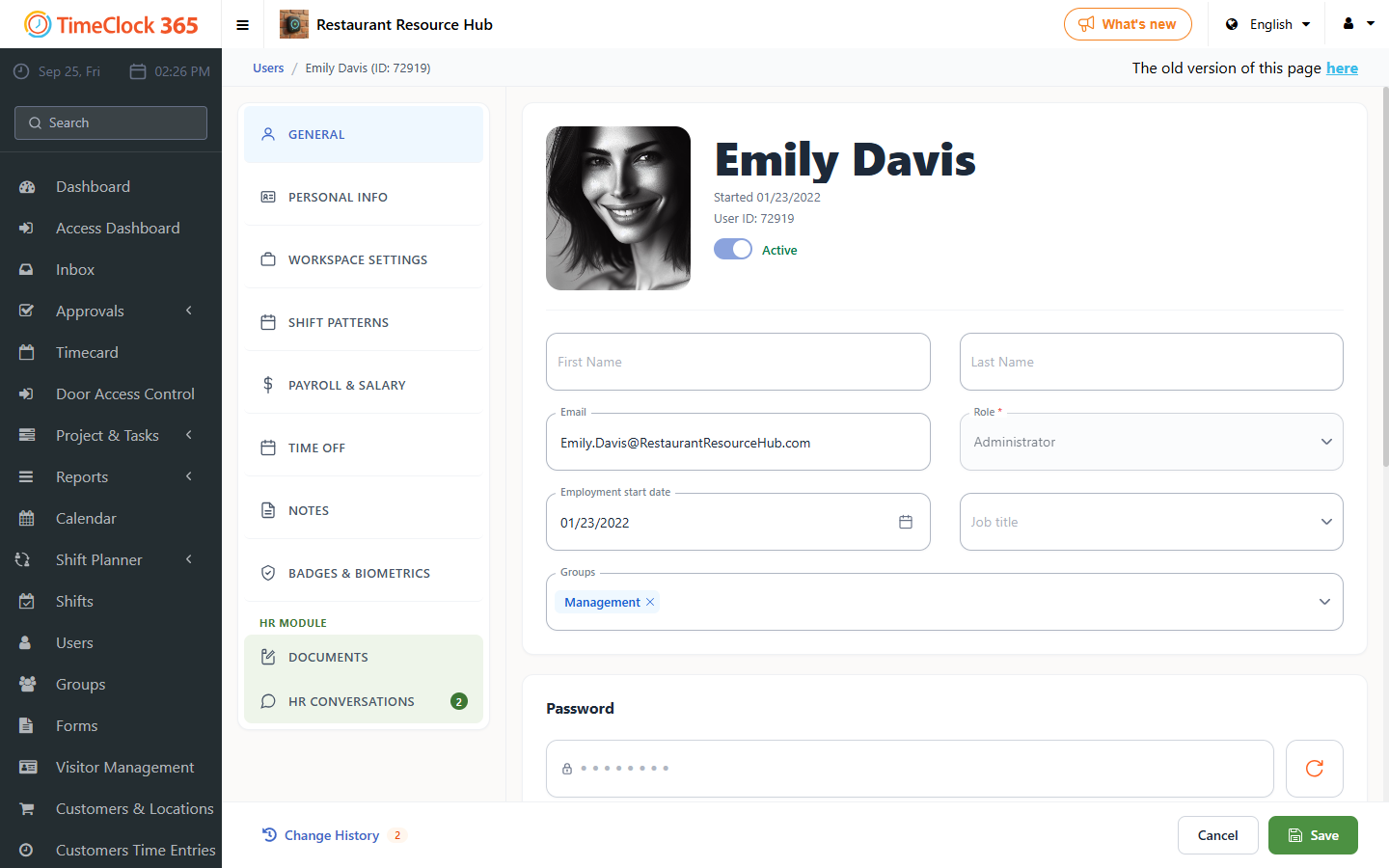
Blocking a specific employee
- Go to Users and click the employee you want to block.
- Under "Authorized to report attendance via", uncheck "Mobile app".
- Click Save at the bottom.
Blocking a specific contract
To block mobile reporting for everyone assigned to a specific contract:
- Go to Settings -> Contracts.
- Click the contract you want to apply the block to.
- Scroll down to the "Smartphone clock-in conditions" tab.
- Scroll to the end of the tab and select "Allow reporting only from the following locations".
- Click Save.