
This guide explains how to hide the IIA (Israel Innovation Authority) report from employees who are on a Professional or Premium plan but do not work on IIA-related projects.
To do this, you need to create a new permission role and disable the option to view the IIA report within that role.
Steps
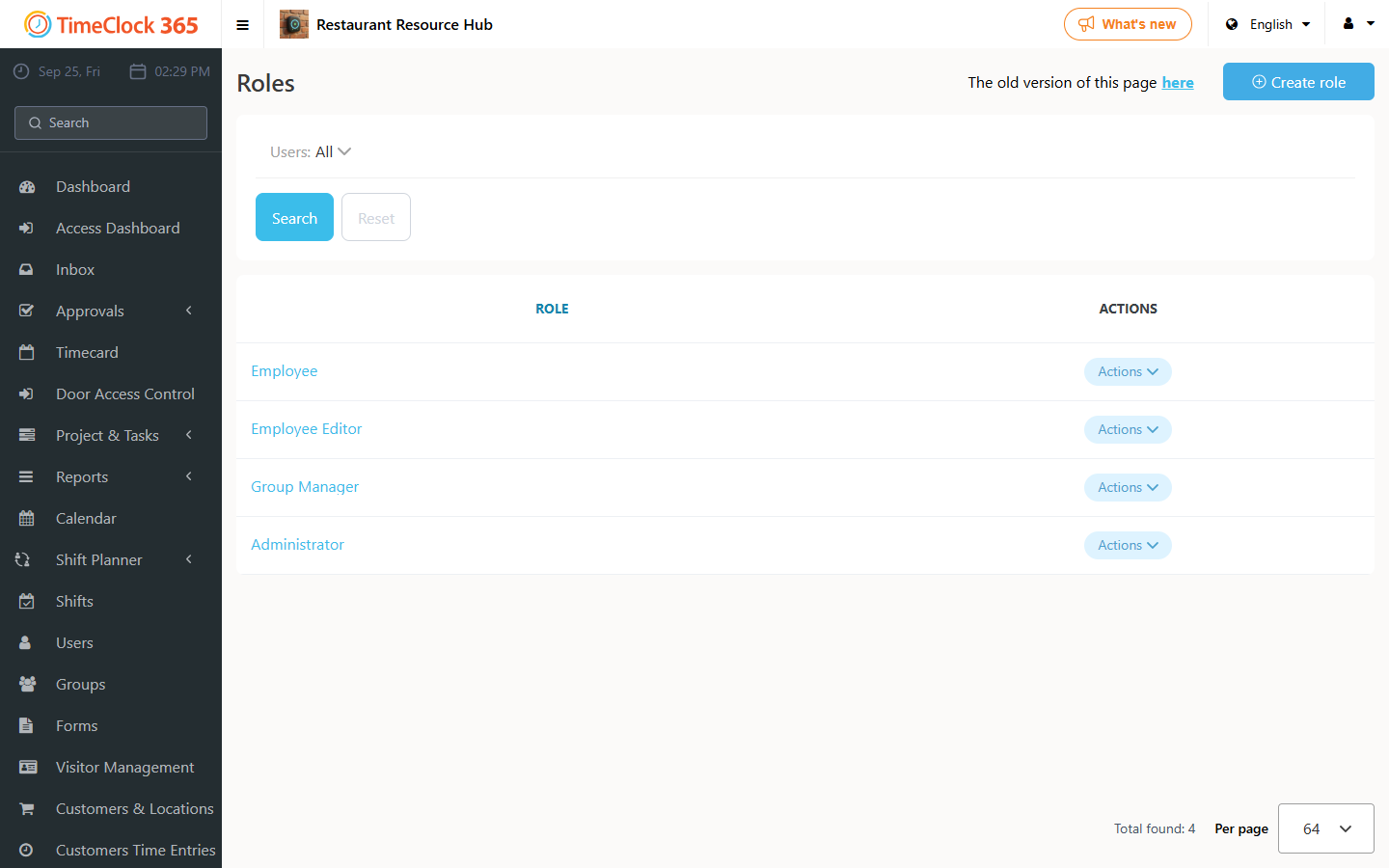
- Go to Roles.
- Click "Create role".
- Type a descriptive name for the role (for example "Employee No IIA") and check the features these users should be able to access and use.
- Scroll down to the Reports section and leave the IIA Report checkbox unchecked - this is what hides the report.
- Click Save at the bottom of the page.
Tip: to make sure the role settings are correct, copy the settings from an existing role.
Assigning the role
- Go to Users and select the employee.
- In the Security section, choose the new role in the Role field.
- Click Save at the bottom of the page.
Repeat for any other employees who should not see the IIA report.