
Sometimes an employee cannot see the approval button for the "IIA report", for one of several reasons.
- The "Detailed Attendance report" was approved instead of the "IIA report".
- Missing attendance hours.
- Attendance hours with no linked tasks.
- The standard hours quota does not match the actual hours plus absences.
1. The employee approved the Detailed Attendance report by mistake instead of the IIA report
Approving the Detailed Attendance report can block approval of the IIA report and can also prevent completing task reporting. Approving the standard report locks the timesheet data. Ask the manager to reject the incorrectly approved report (go to Detailed Attendance or the Approvals section, find the entry and click Decline) so the employee can approve the IIA report instead, and instruct employees to approve reports only through the website, not through the mobile app's standard approval flow.
See the guide on rejecting an employee's report, and the guide on reopening a report after a manager has approved it.
2. Missing attendance hours - Detailed Attendance report
If there are missing entries for days during the month, those rows will appear in red and need to be filled in with an absence or attendance entry.
In the approval wizard, days with missing data are highlighted in red. Add either attendance hours or an absence type (for example Vacation or Sick leave) for every working day highlighted in red.
Some hourly employees do not need to fill their full standard hours in order to approve the report. In that case, their contract needs to be updated - see the related guide.
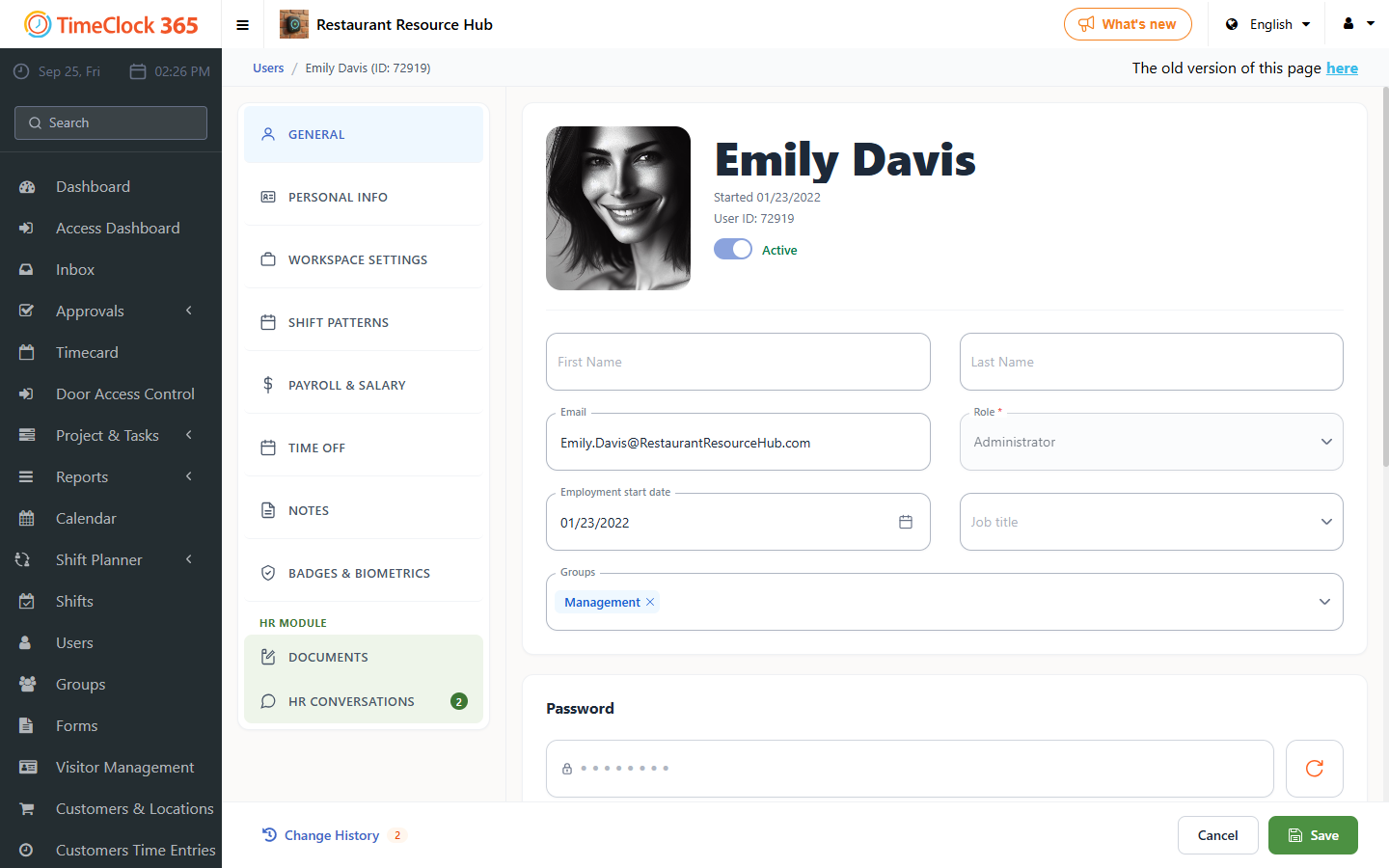
It is also possible the employee started or finished working at the company partway through the month. In that case, go to "Users" -> find and click the employee -> scroll down to "Payroll Details" and update the start/end date there.
3. Linking attendance hours to tasks - Time Entries for Tasks
Whenever there is no full overlap between attendance hours and hours reported on tasks - meaning there are hours present at work that were not reported against a task - the row will appear in yellow, and the IIA report cannot be approved. If attendance days were filled in retroactively, go to this screen to link the attendance hours to tasks: click "Project & Tasks" -> "Time Entries for Tasks" -> select the employee and period -> "Show results".
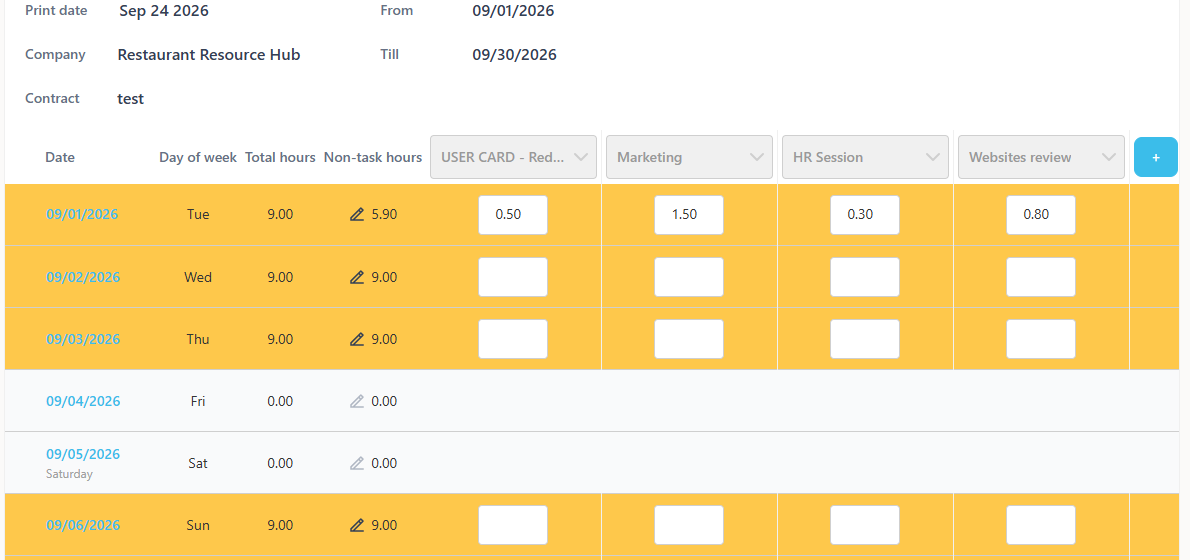
Every hour of attendance must be assigned to a task: 100% of attendance hours must be allocated. In Step 2 of the approval wizard, rows with unassigned hours are highlighted in yellow.
If the task you need to report hours to does not appear, see the related guide.
We recommend using the Smart Wizard for the IIA approval. It reduces manual work and shows all the missing days, punches and task entries. You can click "I approve this report" on the last step of the wizard, or approve from the IIA report page.
4. Discrepancy between expected and actual hours
The system checks that the reported hours are reasonably close to the expected hours defined in the employee's contract. If you see the message "The report cannot be approved because the actual working hours and absences are less than the expected hours", it means the Total Expected Hours are more than 10 hours greater than the Total Actual Worked Hours plus Total Absence Hours.
The employee should review the Detailed Attendance report and correct any errors or missing entries until the reported time matches the expected schedule. Alternatively, the administrator can correct the expected hours: go to Contracts, open the relevant contract, go to the Work days section, correct the expected hours and click Save.
If none of these solutions solve the issue, you are welcome to contact us through support - open a support ticket.