
Every employee who reports to the Israel Innovation Authority (IIA) must report both attendance and tasks. This guide explains how to do it on a clock or access controller, on the web portal, and in the mobile app. It also covers late (retro) reporting, approving the monthly IIA report, and the rules the IIA applies.
Reporting on a biometric clock or access controller
- Punch in on the clock or controller.
- Start your task at the same moment in the web portal or the app. If your clock supports tasks, place your finger or tag on it and pick the task from the list.
- Punch out on the clock or controller at the end of the day.
Reporting on the web portal
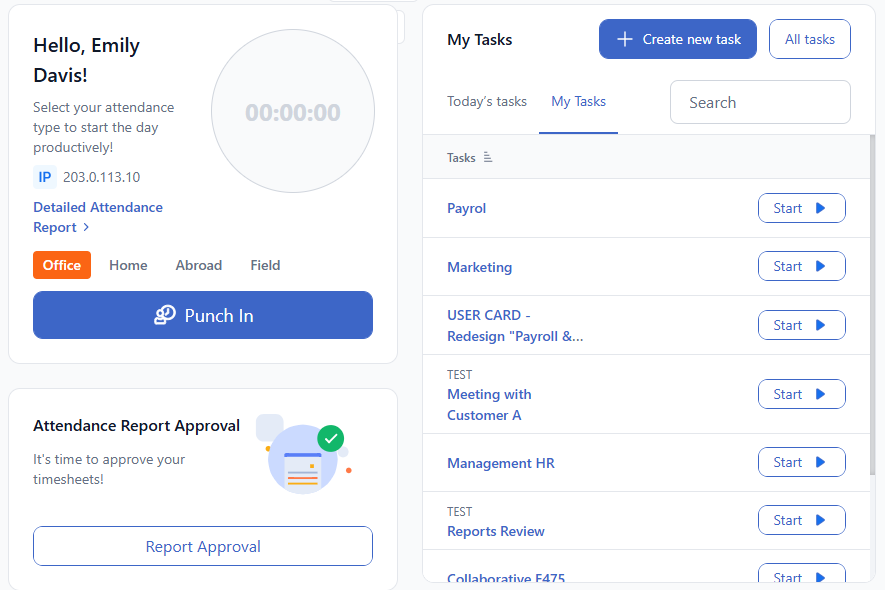
- At the start of the day, click Start task and confirm the popup.
- At the end of the day, click Punch out and confirm the popup.
Reporting in the mobile app
- At the start of the day, choose where you're working from (Home, Office or Outside) and tap Punch in.
- Open the Tasks screen and tap the play icon to start your task.
- At the end of the day, pause the task, then tap Punch out.
Retro (late) reporting
You can report attendance on a given day without reporting a task, and add the task time the next day. Any task entry recorded more than 24 hours later counts as retro.
Missing attendance
- Go to Reports → Detailed Attendance and click Show.
- Click the date you want to fix.
- In the popup, enter the start time, the end time and where you worked (Home, Office or Outside), then click Save.
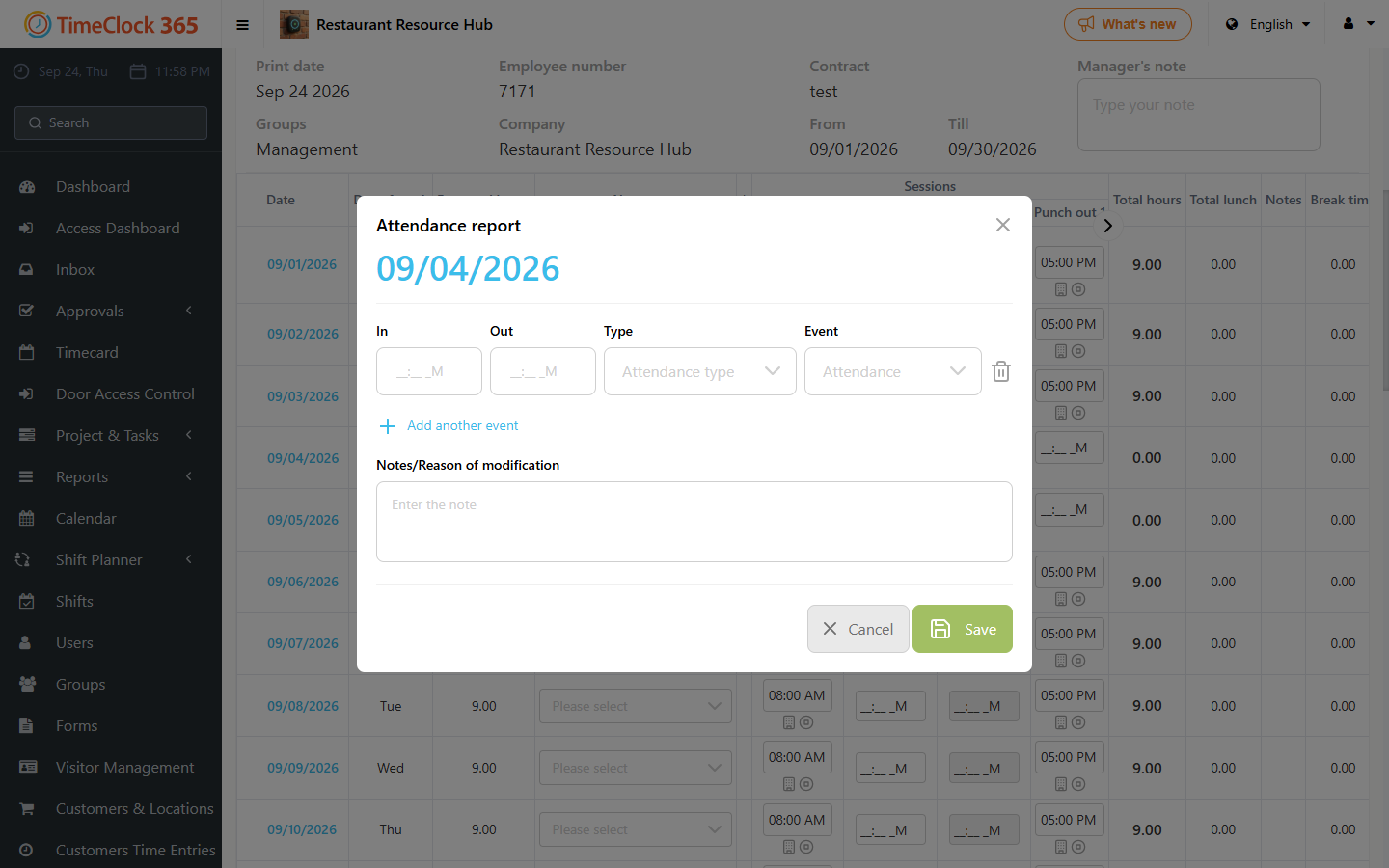
Attendance added this way always shows as retro in the IIA report.
Missing task hours
- First make sure the day has an attendance record.
- Go to Project & Tasks → Time Entries for Tasks and click Show.
- Fill in the missing hours.
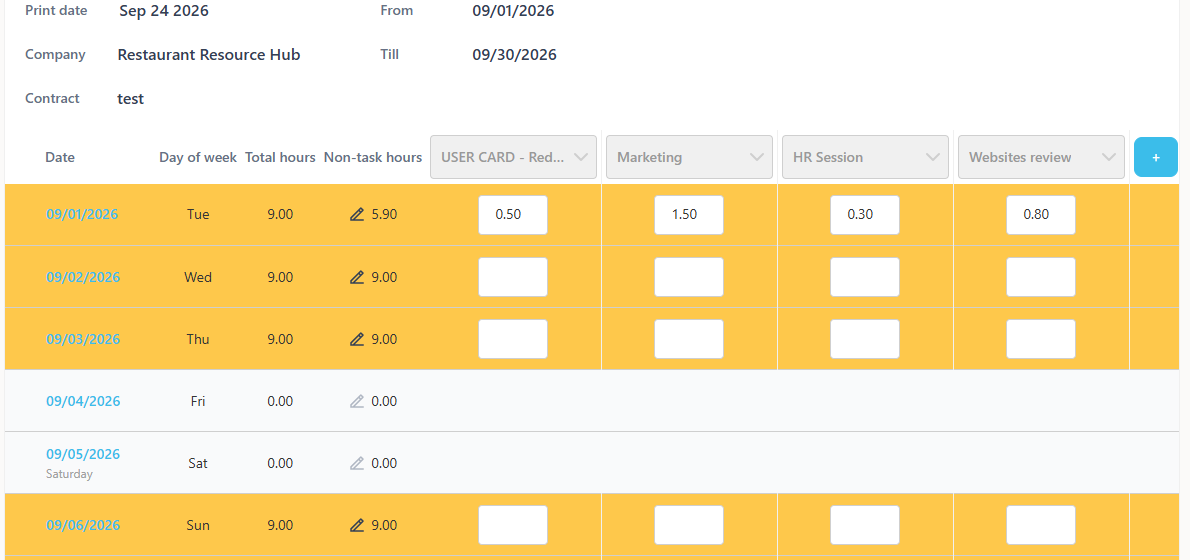
If more than 24 hours have passed, the entry shows as retro in the IIA report.
Approving the IIA report
At the end of the month (or whatever period your company uses), each employee approves their IIA report:
- Check that all attendance and task hours are reported. Fill in anything missing.
- Check that standard hours equal actual hours plus absences.
- Go to Reports → IIA report and click Show.
- At the top of the page, click I approve this report. You can no longer edit the report after this.
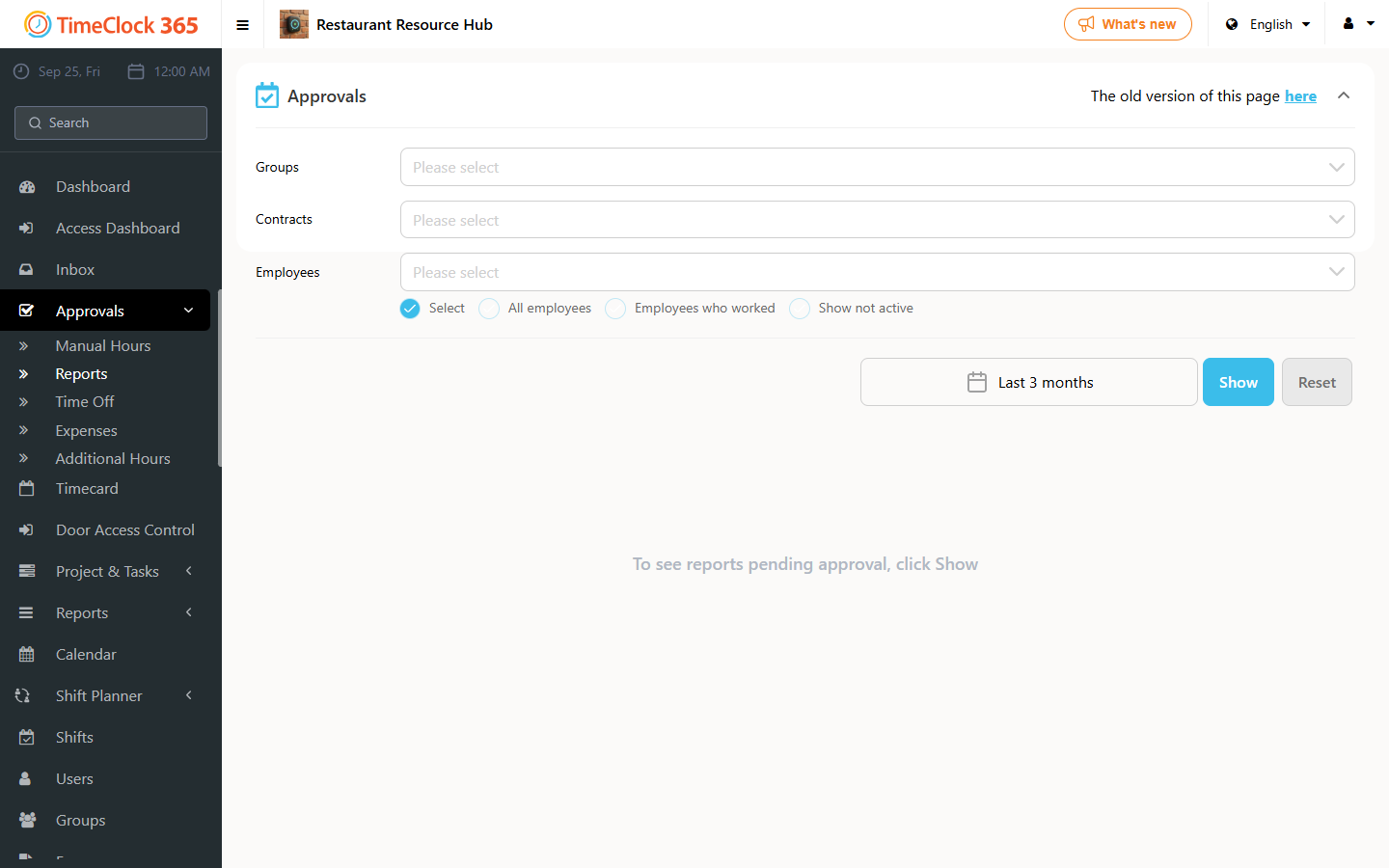
Next, the manager approves the report from Approvals → Reports. After the manager approves, the report is locked and you can't add hours or tasks for those dates.
Innovation Authority rules
- Every working hour must be assigned to a task.
- All attendance and task reports must be made from the company's premises.
- Every change is logged in the Modifications Report, including renaming a task or project and editing a report.
- A task change or manual task entry made within 24 hours is marked with an asterisk in the "Current" column. If the day's attendance is retro, the task counts as retro too.
- A change made more than 24 hours later is recorded as retro.
- Any edit to an attendance record makes it retro, whether or not 24 hours have passed. Manual attendance always appears in the Retro column.
- Reports made outside the company are flagged with a warning. They are also listed in a separate table with a total of out-of-office hours.
- Absences can't be entered in advance, so every absence is reported as retro. This is expected.
- Standard hours must equal actual hours plus absences.
What every IIA-reporting employee must do
- Report attendance digitally, on the biometric clock, the web portal or the app. Manual entries count as retro.
- Actively start and stop tasks in the web portal or the app.
- Approve the IIA report at the end of each month.
Out-of-office hours
All attendance and task hours for a day are recorded as out-of-office hours when:
- at least one punch (in or out) was made digitally outside the company, or
- one punch was made digitally inside the company and the other was added manually outside it.
Need help setting up IIA reporting? Open a support ticket.