
This guide is for every employee who reports to the Israel Innovation Authority (IIA), managers included. Follow these steps to close the monthly report cleanly.
Step 1 - Review and complete monthly attendance
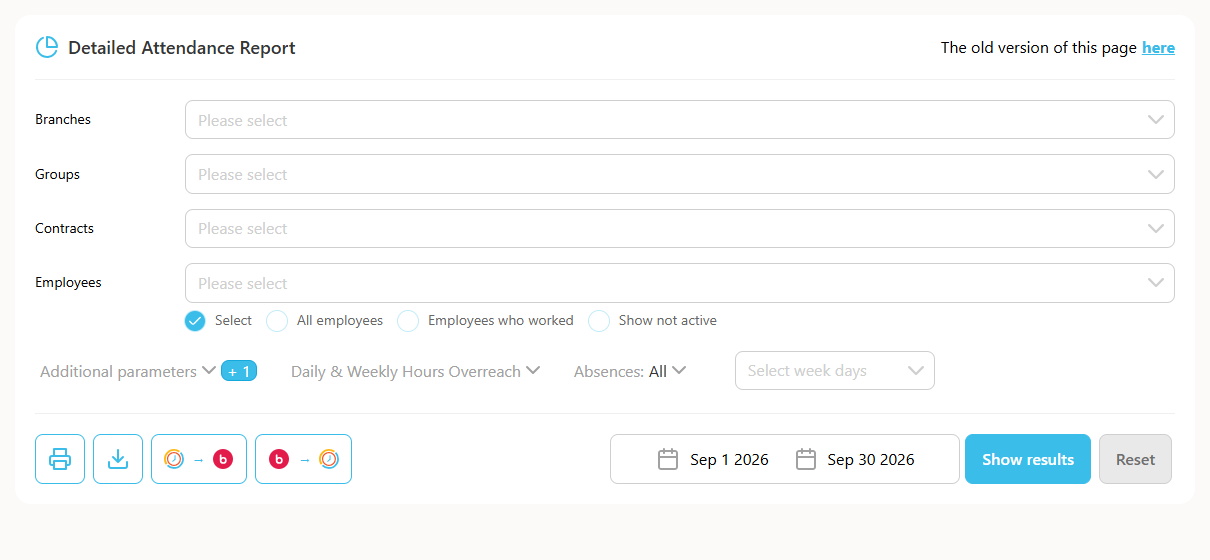
- Go to Reports → Detailed Attendance, choose the period and click Show.
- Look for highlighted rows, which are days that are missing attendance or an absence.
- Click the date. In the popup, enter the times and choose the Type, which is where you worked. The IIA wants to see where every report was made from.
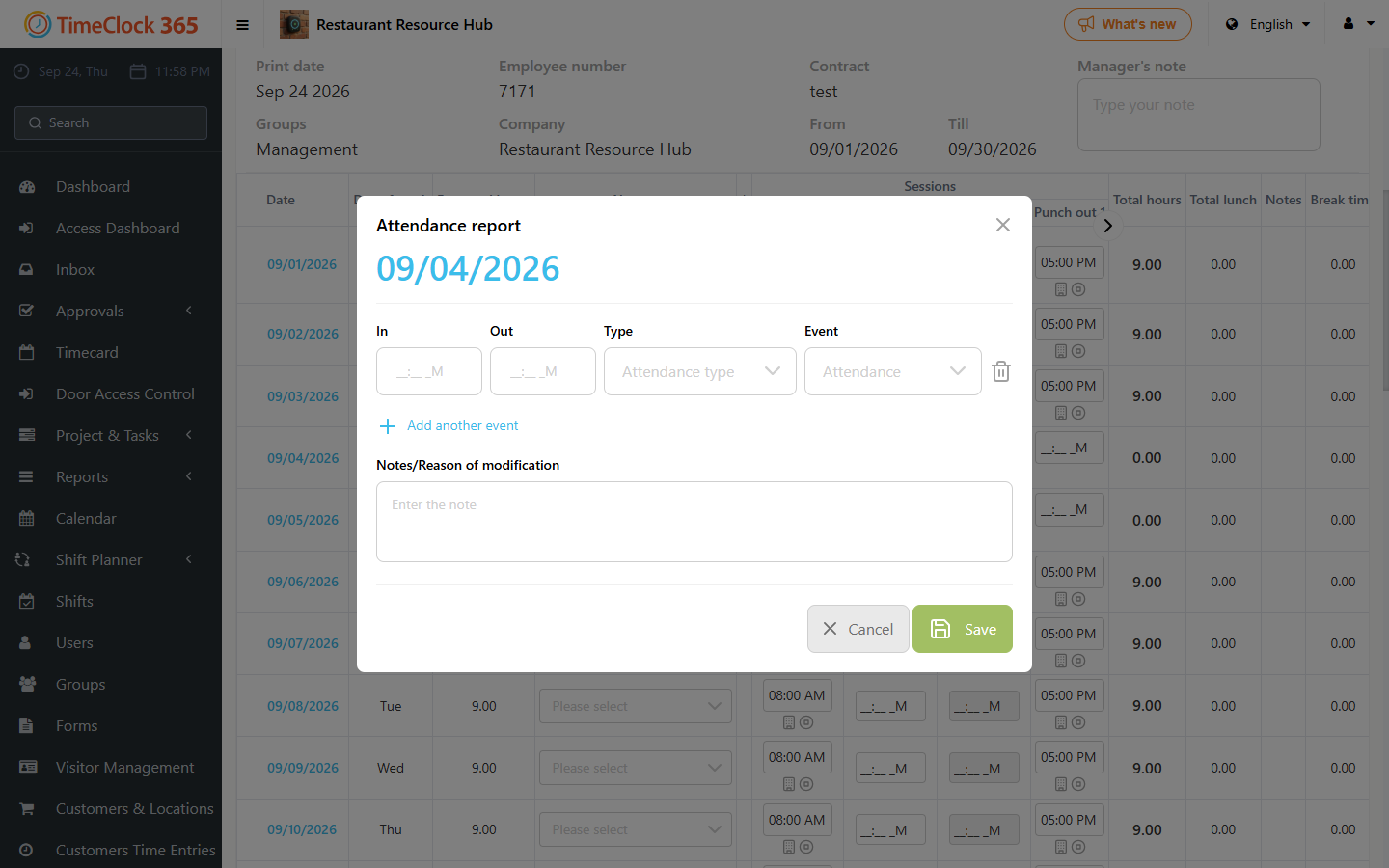
Tip: to report a half-day absence, click + Add another event in the same popup and pick the absence under Event.
Step 1.1 - Standard hours must equal actual hours plus absences
The IIA requires standard hours to equal actual hours plus absences. If they don't match, do one of these:
- Fix the employee's standard hours in their work contract. Create a separate contract if needed.
- Or fill in the hours or absences the employee didn't report.
Important: don't approve the Detailed Attendance report itself. Approve only the IIA report, as described in step 3.
Step 2 - Assign all attendance hours to tasks
- Go to Project & Tasks → Time Entries for Tasks, choose the period and click Show.
- Yellow rows mean attendance hours that aren't assigned to a task yet. Enter those hours under a task and the row turns white.
- If the task isn't listed, click the blue + to add it. If a task seems to be missing, it may have been closed and needs to be reopened.
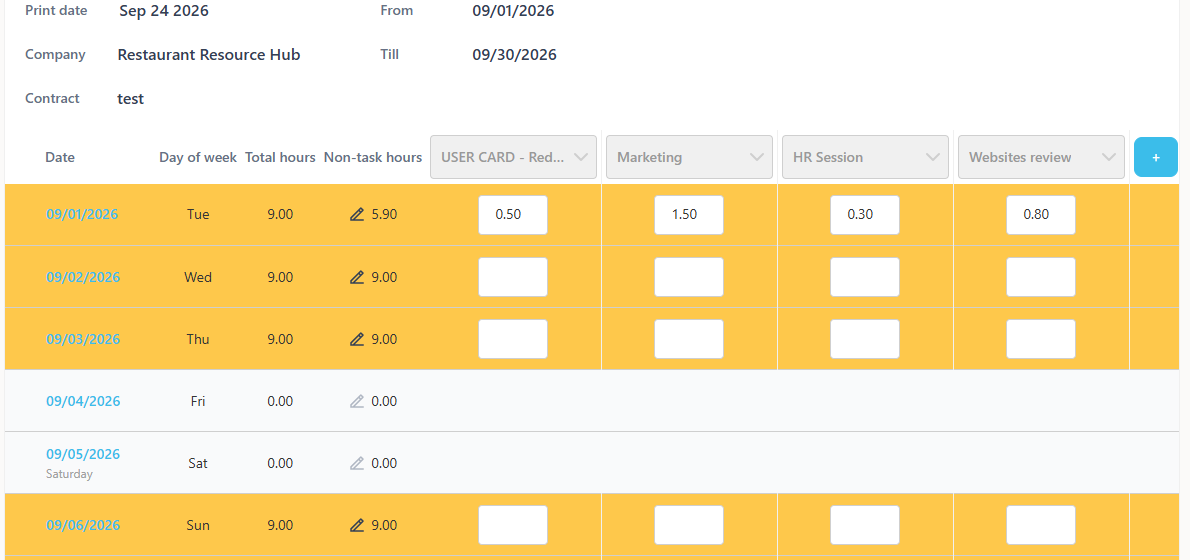
- Tip 1: if "Hours without tasks" shows 0.01 or 0.02, you can ignore it. That comes from a one-minute gap between punching in and starting the task.
- Tip 2: if you enter more hours than the actual hours, the value is capped at the actual hours. This makes it quick to fill many yellow rows.
- Reminder: task hours entered more than 24 hours later, or on a day whose attendance is already retro, are recorded as retro.
Step 3 - Employee approves the IIA report
- Go to Reports → IIA report, choose the period and click Show.
- Click I approve this report. Your attendance report is approved at the same time.
If the approve button doesn't appear, one of these is the reason:
- You already approved the attendance report. Ask your manager to reject it.
- Attendance is incomplete. Go back to Detailed Attendance and fill it in.
- Standard hours don't equal actual hours plus absences.
- Attendance time isn't fully assigned to tasks. Go back to Time Entries for Tasks.
- You work hourly or part-time. Ask your system admin to update your work contract.
Step 4 - Manager approves the IIA report
Managers follow the same steps as in step 3. To see the whole team, leave the Employee field empty. To see only certain people, select them there.
Managers see two buttons:
- I approve this report - use it if the report is correct.
- Reject employee approval - use it if changes are needed. The employee can then edit attendance and task hours again.
Only an administrator can change a report after the manager has approved it.
Administrators can also approve employee reports in place of their managers.
Step 5 - Export the report in the IIA format
This step is for administrators, or managers who have access to all users.
- Go to Reports → IIA report and select All employees.
- Choose the period, check Show reports not approved by manager and click Show.
- The page lists every report that an employee or manager hasn't approved yet. Ask those people to approve before you export.
- Once every report is approved, click Print with changes to export in the IIA format.
To export for payroll, use the Detailed Attendance report instead. See Detailed Attendance export options.
Related: How to report attendance, projects and tasks for the Innovation Authority. Need help? Open a support ticket.