
The Shift Management module lets you create shift types and assign employees to shift pattern templates. This guide is for managers who schedule recurring shifts.
This module requires a paid add-on - see the purchasing guide for details.
Creating shift types
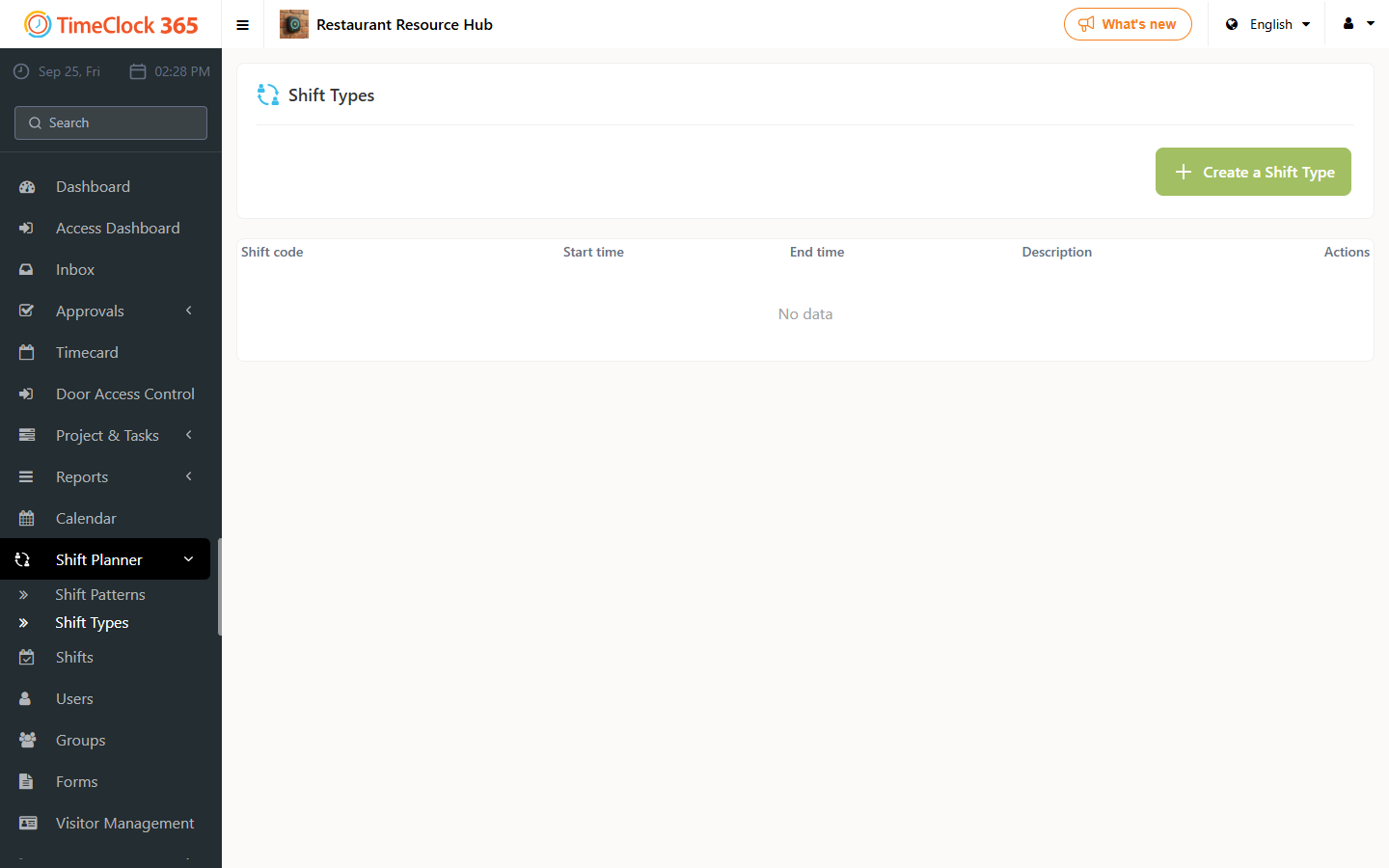
Click Shift Planner -> Shift Types. You can view existing types here and click Create a Shift Type to add a new one.
Fill in the following fields: a code for the shift type, a color for the shift type, the start and end time of the shift, and notes if needed. When done, click Save.
You will then see the shift type you created.
Creating a shift pattern
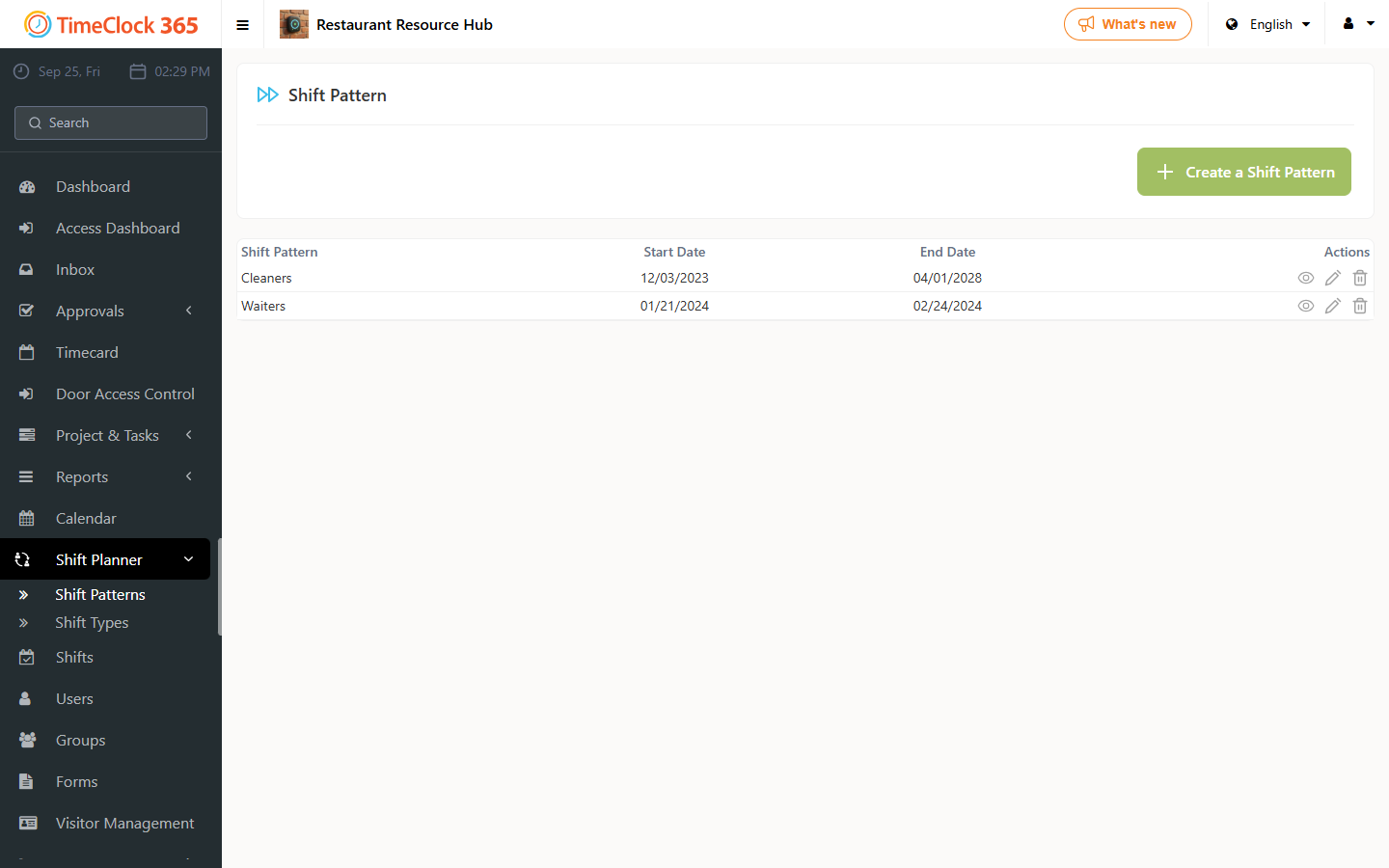
Click Shift Planner -> Shift Pattern -> Create Shift Pattern.
- Give the pattern a name.
- Set the start date from which the pattern can be used.
- Set how many times you want the pattern's week to repeat.
- Assign the relevant shifts to the relevant days.
- If you want to add another week, duplicate the week and make changes if needed, or keep it the same so it repeats in the same configuration.
- Click Save.
Assigning employees to the pattern
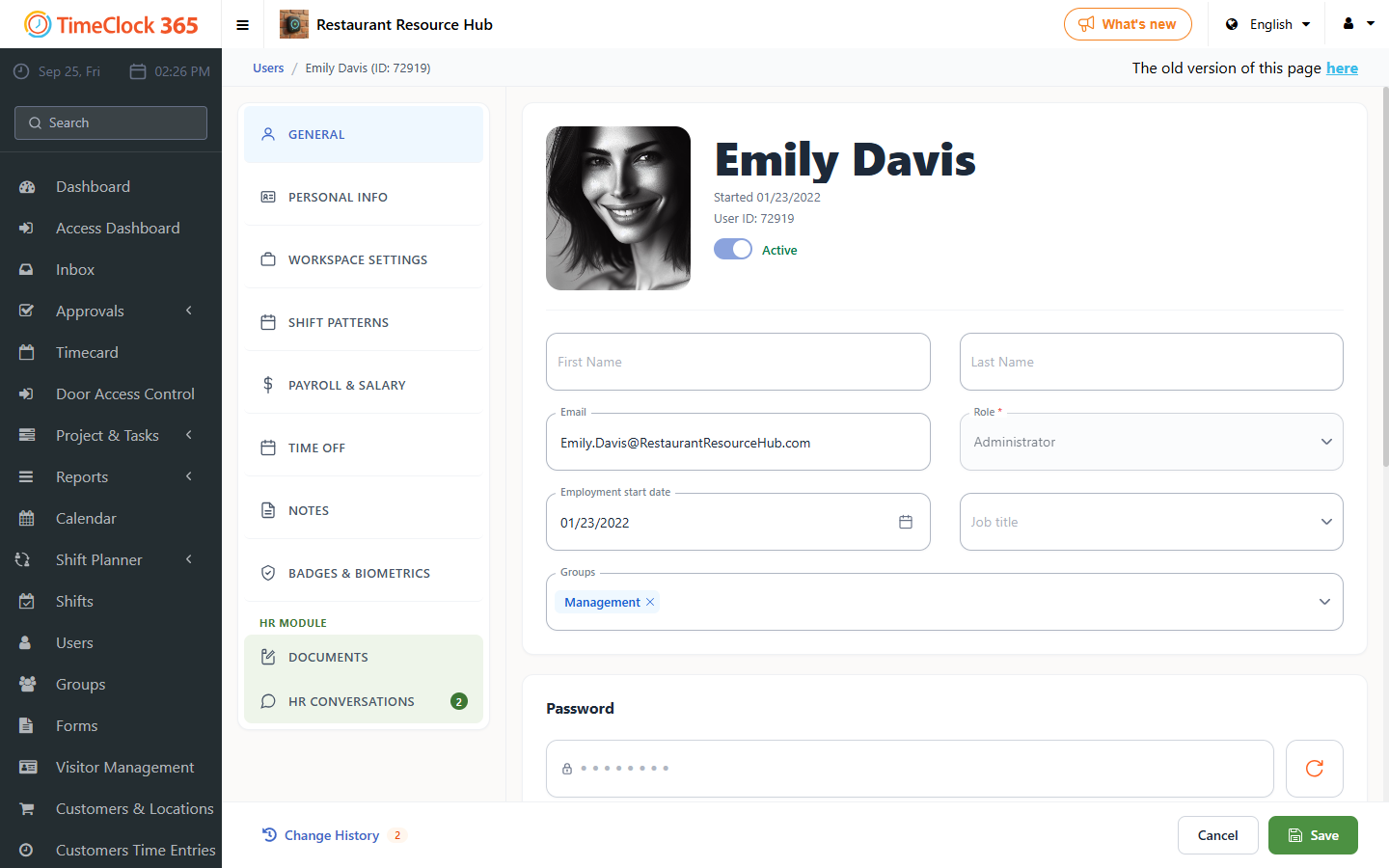
Click Users -> select the employee. Scroll down and open the "Shift Pattern" tab -> click "+" -> choose the desired pattern and set the pattern's period -> click Save at the bottom of the screen.
Managers can see the shifts in the absence calendar. If you need to change a specific day, click that day and choose the desired type.
Shifts also appear in the Detailed Attendance report.