
This guide explains how to set up the sync between TimeClock 365 and HiBob, so attendance data, time off, and employee details stay aligned between the two platforms.
What the integration does
The connection keeps working hours and time off requests consistent between TimeClock 365 and HiBob, saving you manual data entry.
Step 1: Initial setup
- Log in to your Admin account in TimeClock 365.
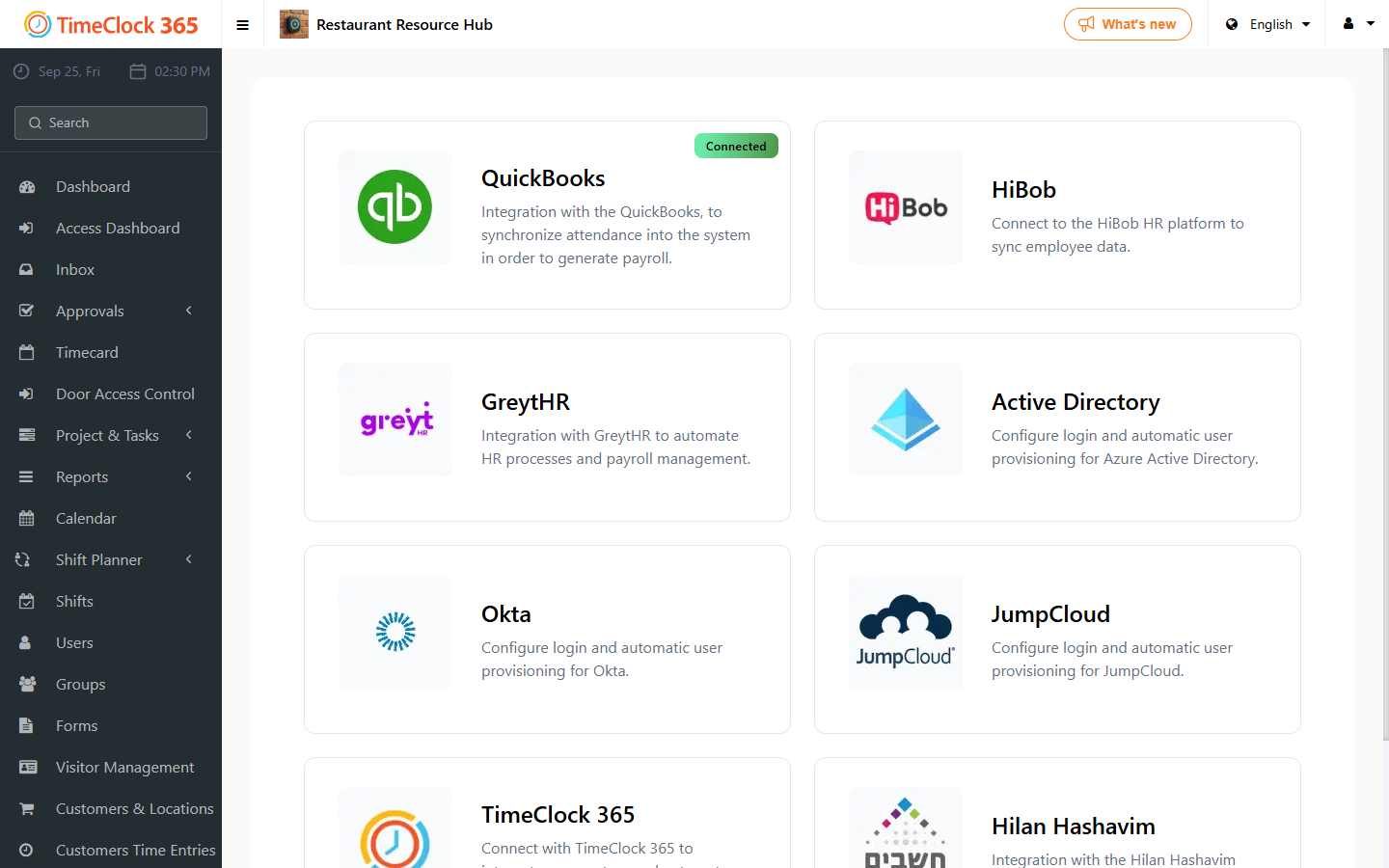
- Go to Settings, then Integrations, and click HiBob. In the window that opens, click the Install button.
- You will be redirected to HiBob to connect and approve permissions.
Permissions requested and what they do:
| Permission | What it does |
|---|---|
| Manage attendance sheets | Sends your attendance reports from TimeClock 365 to HiBob. |
| View employee data | Keeps your staff list updated from HiBob into TimeClock 365. |
| View time off | Imports absences from HiBob into TimeClock 365. |
| Manage time off | Sends new time off requests from TimeClock 365 to HiBob. |
| Manage projects/tasks | Keeps projects and tasks organized in both apps. |
Step 2: Adjust your settings
- Who syncs? Choose whether to sync your entire HiBob team or only a specific group. Click Update to save your preferences.
- Default Role: Choose a starting role (such as "Employee") for new team members joining through HiBob.
- Sync start date: Choose the date the sync should start, so only the relevant recent data is imported.
- Time off mapping: Map HiBob leave categories to TimeClock 365 categories so every vacation or sick day is tagged correctly.
Step 3: Share your attendance data
- Open the Detailed Attendance report (DAR) and set the date range you need.
- Find the "Send to HiBob" button.
- Click it and relax - a summary message will show exactly how many records were shared successfully.
If something does not sync: this usually means a specific rule in HiBob (like a restricted leave type) needs a quick adjustment. Once fixed, simply run the sync again.
Tips for success
- Double-check first: Since sending data from the Detailed Attendance report (DAR) is a one-time transfer, review the data before sending. Later changes can be made directly in HiBob.
- Avoid duplicates: HiBob prefers records that do not overlap existing ones. If a day is already recorded in HiBob, add your new records after the last recorded session.
- We are here to help: If you run into any difficulty, our support team is a message away.