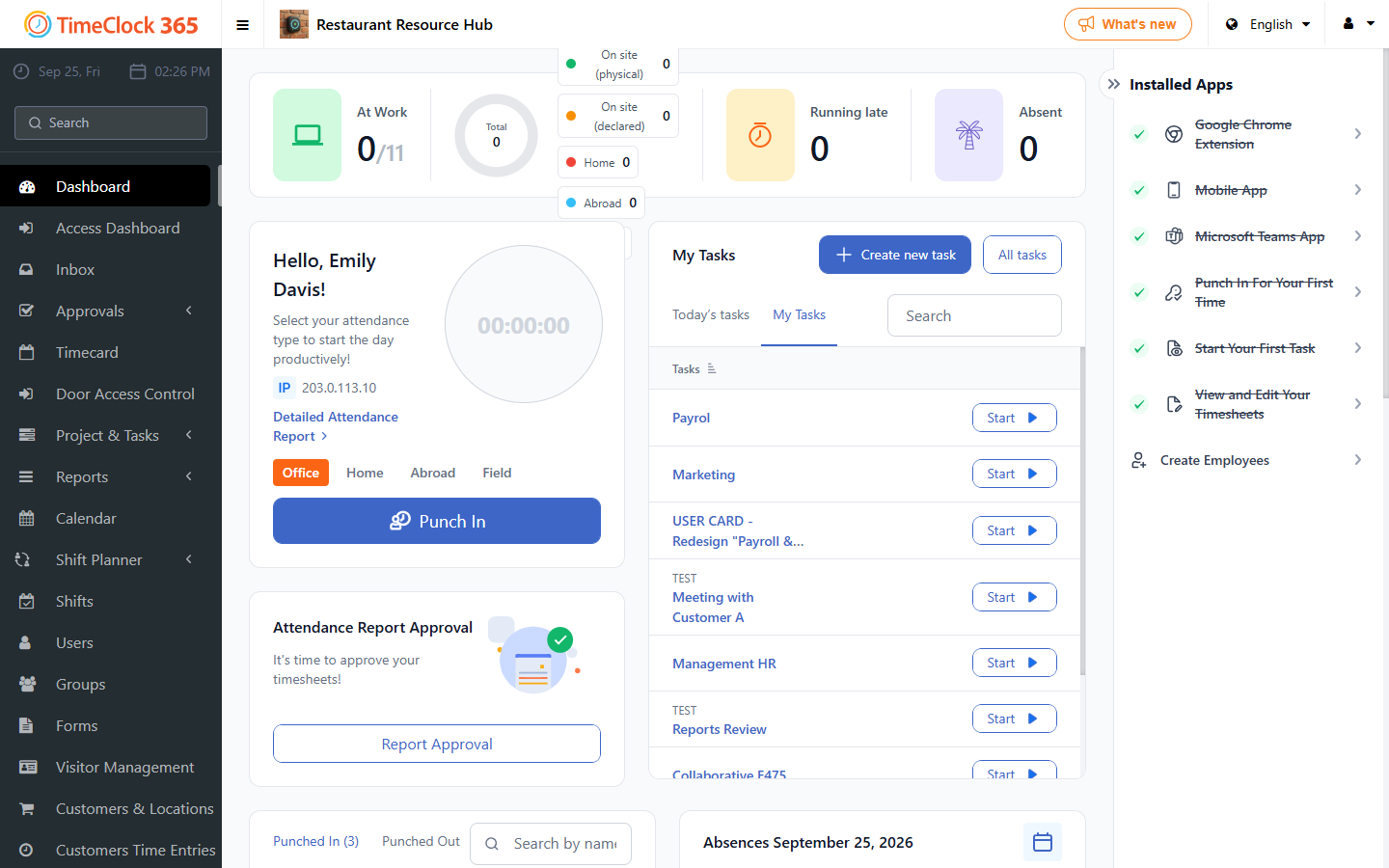
This guide explains how to configure the attendance type buttons that appear on the employee clock-in screen. With this feature, employees can specify their work location, such as Office, Home, Field or Abroad, when they punch in. This gives you clearer attendance tracking and reporting.
Important note for compliance reporting: for specific compliance needs, such as reporting for the Israel Innovation Authority or other regulatory bodies, it is often better to log international work as a formal absence type (for example, "Business Trip Abroad") rather than using the "Abroad" clock-in button. This gives a more formal record for audits. We recommend consulting the relevant authority or your accounting professional before enabling these buttons, to make sure your reporting method meets all requirements.
Step-by-step instructions
- Go to Company Profile.
- Click the Settings tab at the top of the page.
- Make sure the Attendance types checkbox is checked. This master switch activates the whole feature.
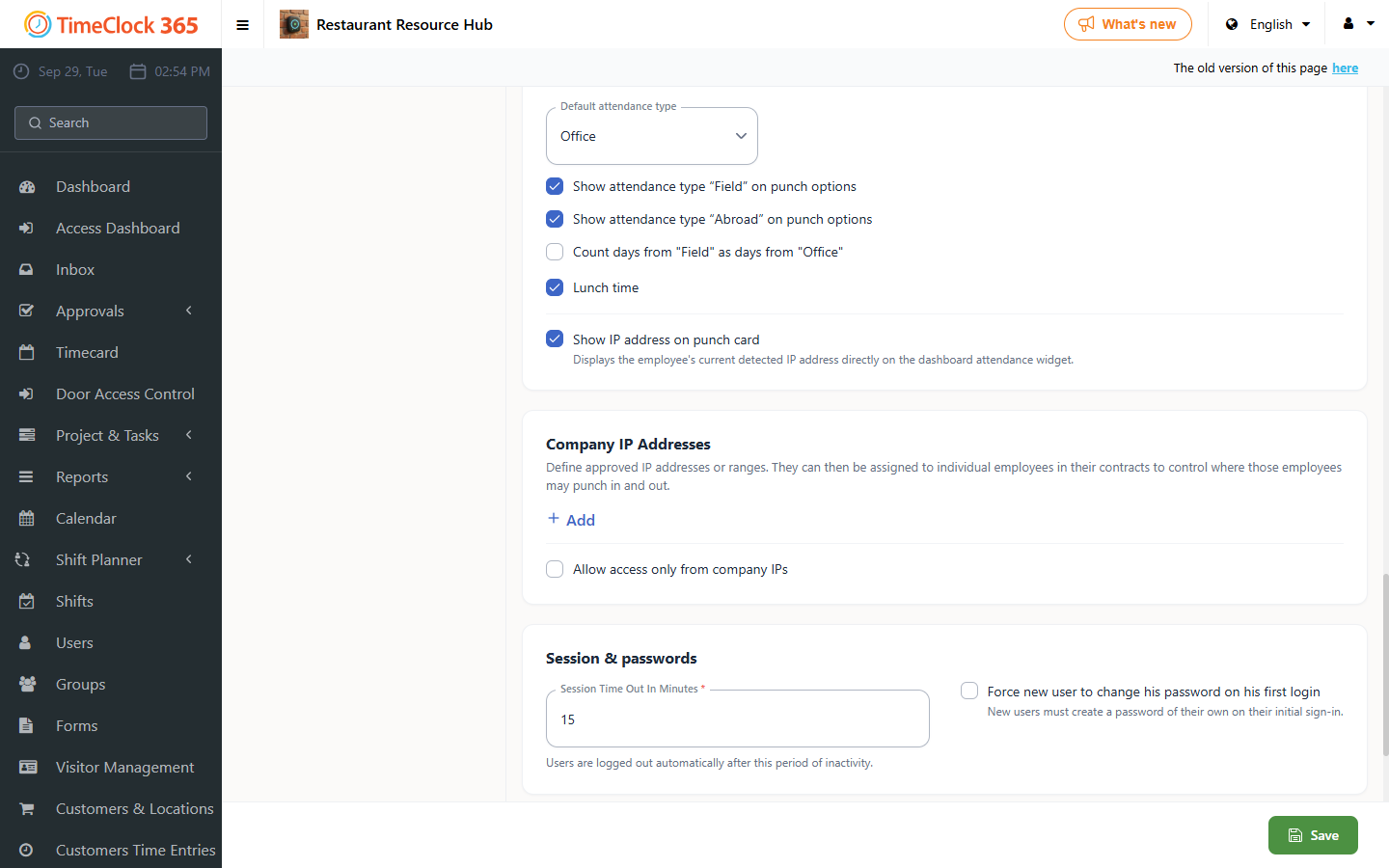
- To add a button for international work, check Show attendance type "Abroad" on punch options.
- To add a button for work done on-site or in the field, check Show attendance type "Field" on punch options.
- Use the Default attendance type dropdown to select which button is pre-selected when employees punch in (for example, "Office"). This saves them a click for their most common work location.
- Click Update at the bottom of the page to save.
After you save, employees see the selected attendance type buttons on their Dashboard, above the Punch In button. They click their current work location before punching in.