
Tailor your attendance reports to show exactly the information you need. This guide covers three areas:
- Detailed Attendance report: the main day-by-day report for an employee.
- Summary table: the summary box at the bottom of the Detailed Attendance report.
- Payroll report: the high-level summary report for payroll and accounting.
1. The Detailed Attendance report
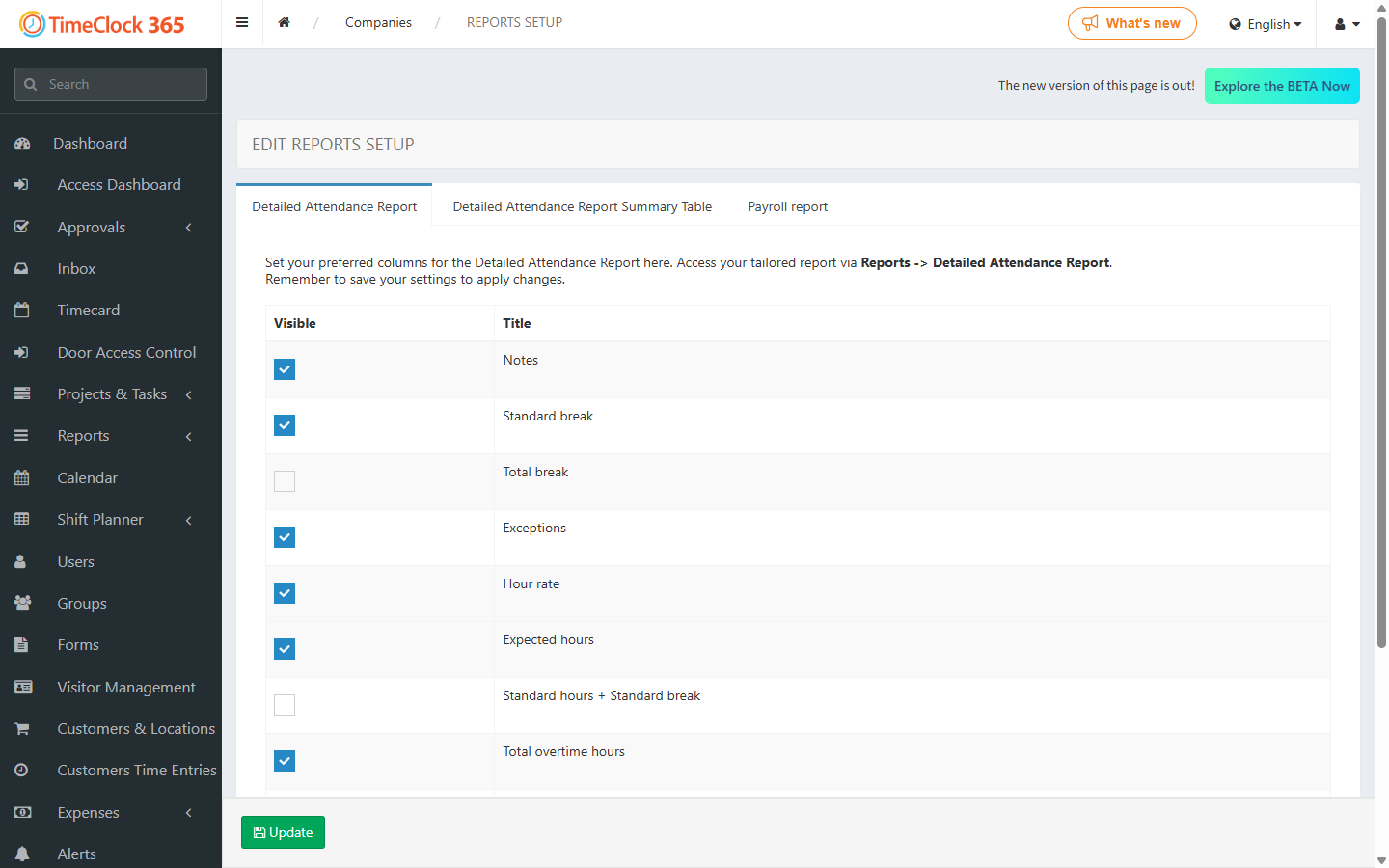
This setting controls the columns in the day-by-day section of the report.
- In the sidebar, open Reports Setup.
- Click the Detailed attendance report tab.
- Check the boxes next to each column you want to display.
- Click Update to save.
2. The summary table in the detailed report
This setting controls the fields shown in the summary table at the bottom of each employee's Detailed Attendance report.
- In Reports Setup, click Summary table in the detailed report.
- Select the summary fields you want to display.
- Click Update to save.
3. Customizing the payroll report
These settings let you choose which columns appear in the Consolidated Summary report and apply custom color formatting for easier reading.
- In Reports Setup, click Consolidated summary report.
- Select the columns you want to include in the exported report.
- Optionally, apply background colors to your columns using standard hex color codes.
- Click Update to save.