
This guide explains how to set up a scheduled CSV report alert that is emailed automatically. You can create two types of reports: employee attendance and the employee list.
Creating the alert
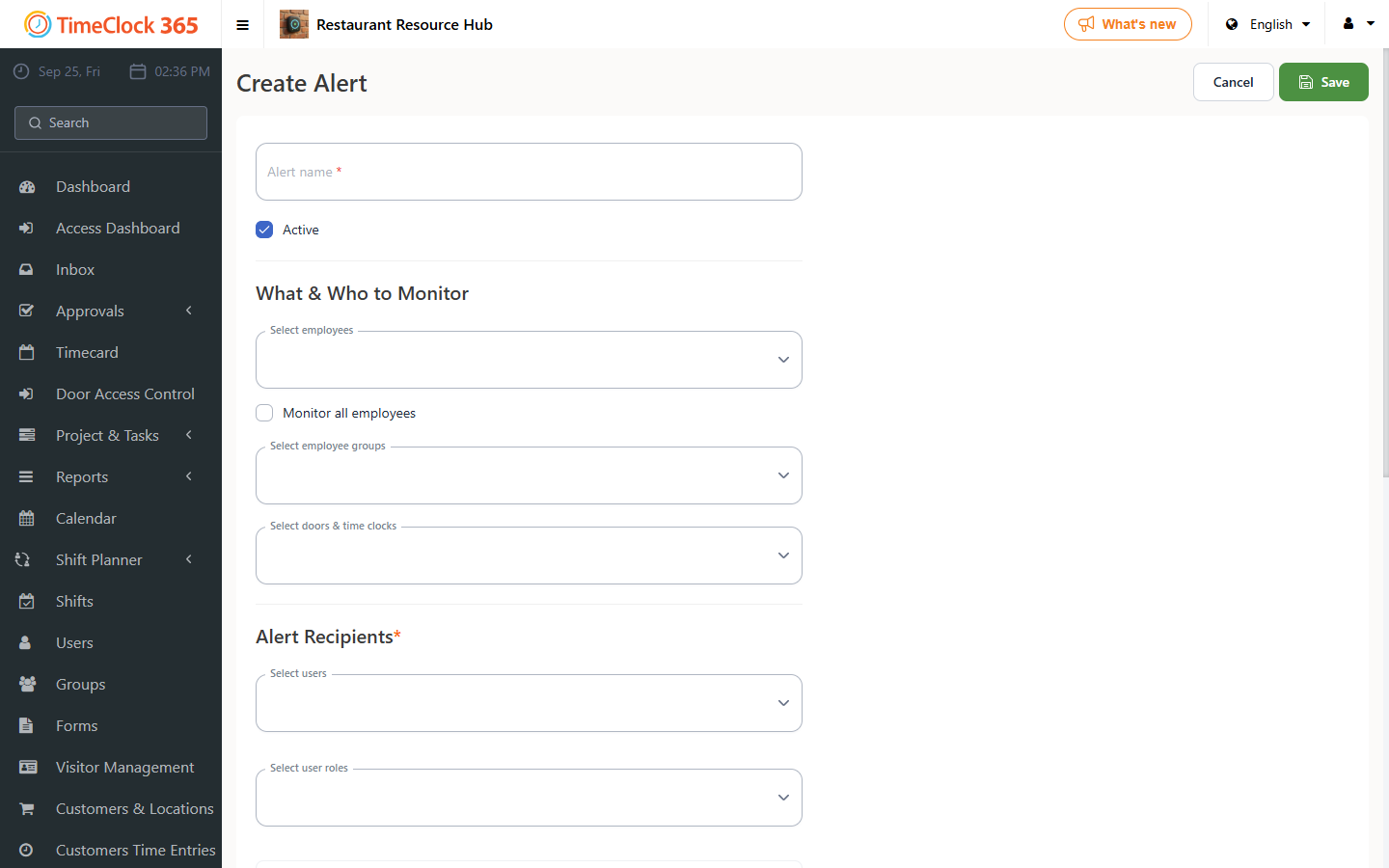
- Click Alerts, then click "Create New Alert".
- Type a name for the alert, choose the employees it should cover (or check "Receive alerts for all users"), and select the manager who should receive it.
- Scroll down and open the "Scheduled CSV Report" tab, then choose the alert you want.
Attendance report alert
Turn on the alert for the attendance report if you want to receive a CSV of employee attendance for a chosen look-back period, and pick the time you want to receive it. For example, this can send a report covering the whole past month at 12:30.
User list alert
Turn on the alert for the user report if you want to receive the current list of system users every day. For example, this can send the user list report at 12:30.