
The Detailed Attendance Report can be exported in many formats - general formats (PDF, Excel, CSV) and ready-made files for specific payroll systems. This guide explains how to export and what each option is for.
How to export
- Go to Reports → Detailed Attendance.
- Choose who to include (branches, groups, contracts, or specific employees) and set the date range.
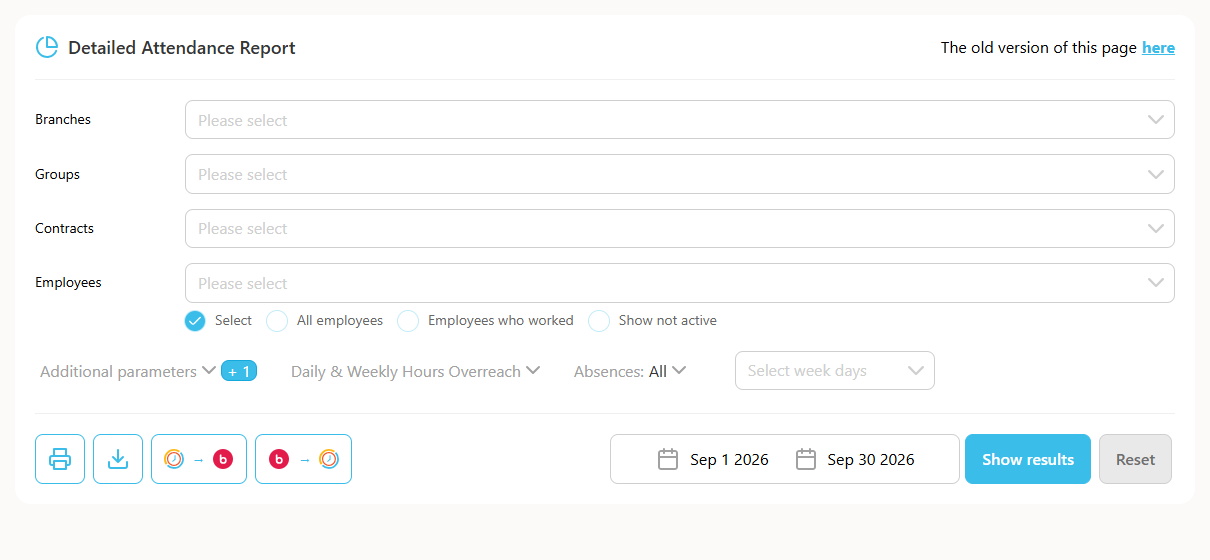
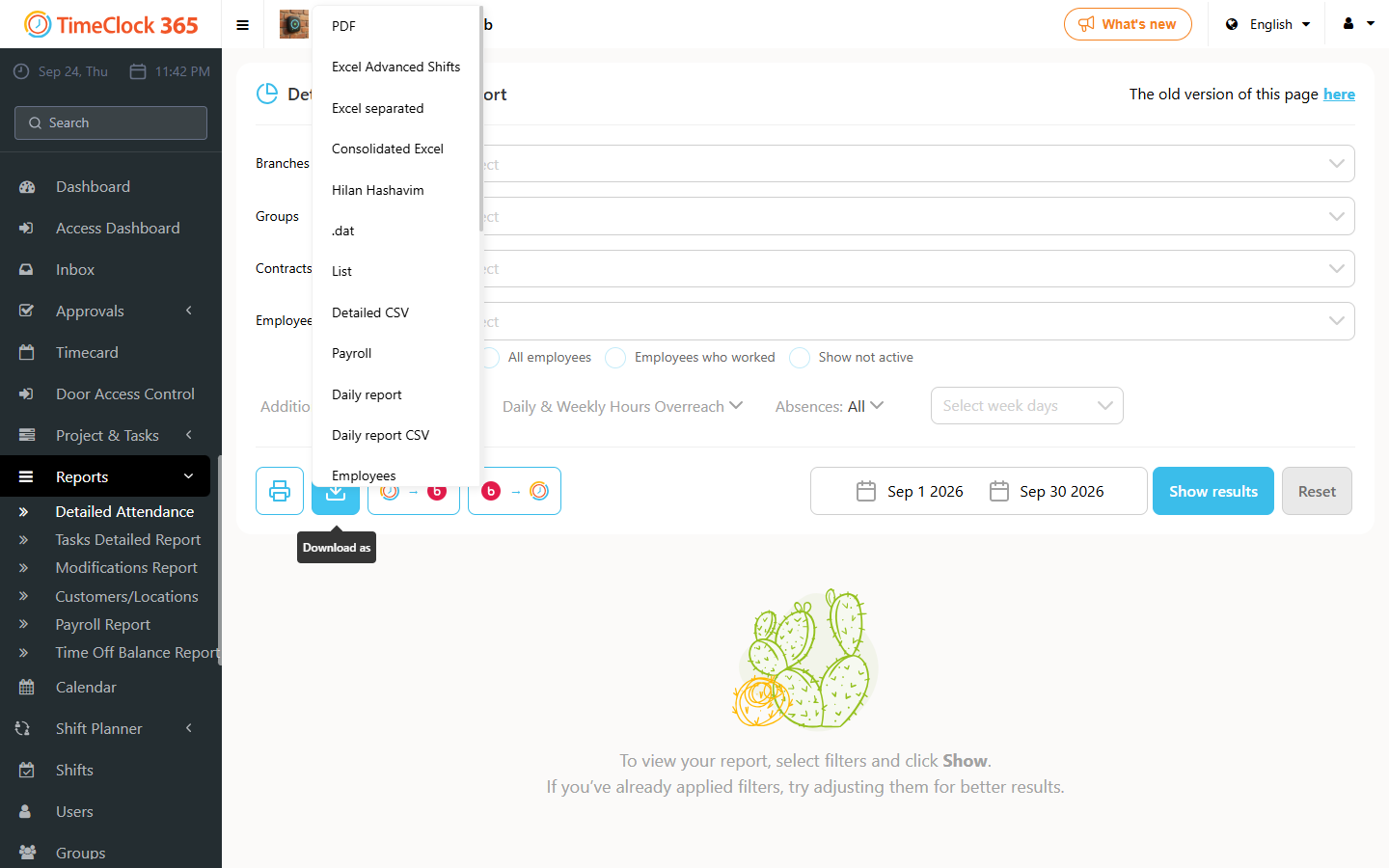
- Click the Download as button (the download icon next to Print) and pick a format.
General formats
- PDF - a printable report with every employee listed one after another (date, day, standard hours, absences, punch in/out times, breaks, actual hours, notes, exceptions, extra hours), with a summary under each employee.
- Excel separated - a folder with a separate Excel file for each employee.
- Consolidated Excel - one Excel sheet with all employees and all dates in a single table, handy for filtering and pivot tables.
- Excel Advanced Shifts - an Excel export that includes shift details.
- Detailed CSV and List - flat, row-per-record exports for importing into other systems.
- Daily report / Daily report CSV - one file per day in the selected period, each showing every employee's data for that day, organized by group.
- Employees - each employee's worked days with punch in/out, actual vs. standard hours, breaks, overtime and missing hours.
- Supervisor - the same as Employees, with an extra employee-name column so a manager can review the whole team in one file.
- Shifts / Shifts detailed report - hours broken down by shift type (e.g. day/night, morning/afternoon) as defined in the employee's contract.
Control and exception reports
- Days with one punch - days that have a punch-in with no punch-out (or the reverse), so you can fix them before payroll.
- Manual punches - how many manual corrections each employee had.
- Monthly overtime - overtime totals for the month.
- Absence control - absences for the selected period.
Payroll system formats
These produce files in the exact format a specific payroll system expects: Payroll, Hilan, Hilan2, Hilan Hashavim, .dat, ADAM, TRIO, Hargal, and QDIV. Before using one for the first time, make sure employee payroll numbers and the payroll settings are configured - see payroll export.
Not sure which format your payroll provider needs? Open a support ticket and we'll help you set it up.